How to Monitor the Services on your Server from WHM?
Introduction
The server administrator should keep track of all background activities to ensure that the system is online. WHM provides a Service Status tool that allows you to check whether your necessary applications are functioning properly.
This feature serves as a health check to the whole hosting environment and notifies you instantly in case a service, like email or a database, goes down.
What is the Service Status Tool?
The Service Status tool provides you with a live view of all running software on your server. It indicates the status of a service, whether it is active or if it has failed.
You can view the version of the software and the current memory consumption. This assists you in determining what section of the system requires your attention or a restart.
Related: How to Check the Version of cPanel/WHM?
Steps to Monitor Your Services
These are some simple steps to check the status of all the server components. The full list of services can be viewed only through root access.
- Log-in WHM with administrative root credentials.
- Click on the Server Status section on the main menu.
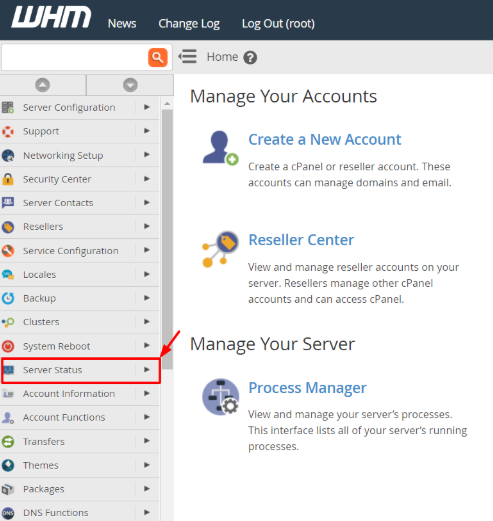
- Open Service Status. Click on the option to load the current health report.

- Check the table with green checkmarks or red warnings against each service.
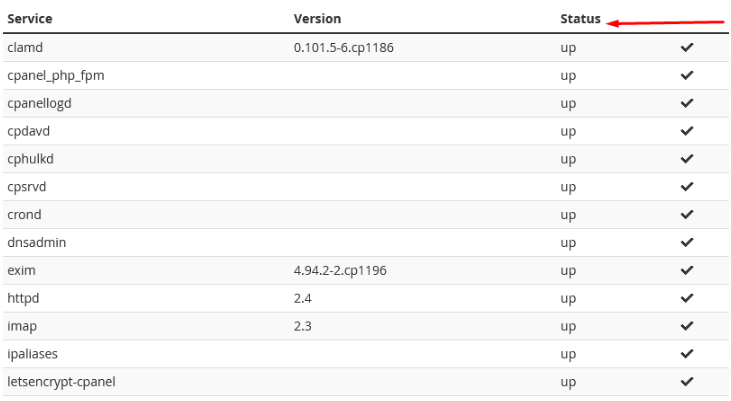
Understanding the Service Information Sections
To make the report easy to understand, it has been broken down into three major sections that address various parts of your server hardware and software.
Server Information displays web services such as Apache, MySQL, and Exim mail, with the status of each task and CPU utilisation. System Information shows the current server processor load, total memory in use, and uptime.
Disk Information displays all hard-disk partitions and their storage capacity. It helps you monitor if your disk space is getting full.
Related: How to Check Apache Status in WHM?
Conclusion
Monitoring your services is a basic task for every server owner. The Service Status page provides you with all the facts about your server health in one single view. Regular checks are used to ensure a fast and error-free site for the user.
FAQs
What should I do if a service shows a red status?
You should try to restart that specific service from the Restart Services menu. If the problem continues, then you must contact the Cantech support team.
Does this page show my website traffic?
No, it displays background software and hardware status only. You must use the Daily Process Log to see traffic details.
How often does the status update?
The system refreshes the status every time you load or refresh the page, giving the latest information available on the server.
Is it possible to view my disk space here?
Yes, the Disk Information section shows precisely how much space you have used. It also shows the remaining capacity for each of your server drives.
Is it normal for memory usage to be high?
High memory usage is common if you run many websites or large databases. You should consider a server upgrade if the usage stays near 100 percent constantly.
