How to Add Mods to a Dedicated Server?
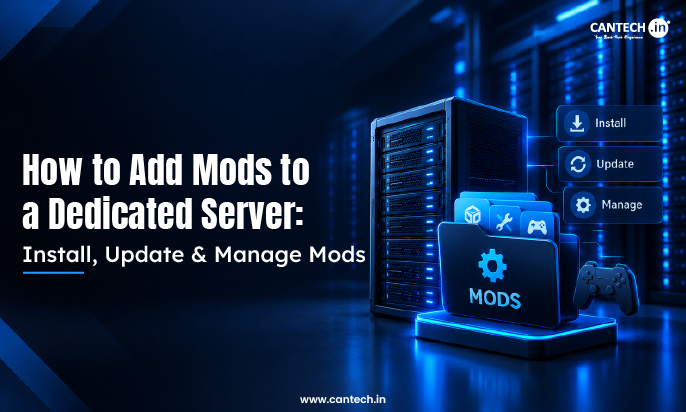
If you want to add mods to a dedicated server, then you should first stop the server and make a backup. Next, verify the mod’s compatibility with the game and server version, download it from a trusted source like the Steam Workshop, install it in the appropriate mod folder, and activate it in the server settings. Restart the server and try everything before players log in. This may differ depending on the game and mod.
Introduction
Mods are a great way to make a standard dedicated game server into a whole new experience, with new maps, features, items, mechanics, and custom gameplay. However, installing these mods is not as simple as downloading a file and dropping it on the server.
Each game has its own modding system, and problems like incompatible versions, missing dependencies, or wrong configurations can arise easily.
This guide will show you how to install mods on a dedicated server, including Steam Workshop and manual installation, and how to update, manage, remove, and troubleshoot mods.
Can You Add Mods to a Dedicated Server?
Yes, most games that support modding can also run mods on a dedicated server. However, the setup depends on how the game handles mods. Some mods work entirely on the server, while others require players to install the same files on their devices before they can join.
Games may distribute mods through Steam Workshop, while others rely on manual file installation or a dedicated mod loader. Before installing anything, check the game’s server documentation and the mod’s requirements to make sure the setup is supported.
What Do You Need Before Installing Mods on a Dedicated Server?
A smooth mod installation starts with a few basic checks. Make sure the following are ready before changing the server:
- Server access: Access the dedicated server and its game files.
- Administrator permissions: Have the permissions needed to install files and change server settings.
- File and configuration access: Know where the game stores its mods and server configuration.
- Compatible versions: Confirm that the mod supports the installed game and server version.
- Required dependencies: Install any frameworks, libraries, or additional mods required by the mod.
- Enough storage: Make sure the server has sufficient disk space for the mod files and any additional game data.
- A recent backup: Back up the server files and game world before making changes.
Once these checks are complete, the server is ready for the mod installation process.
How to Add Mods to a Dedicated Server
The workflow is different for each game, but the general procedure is the same for most mod-supported dedicated servers. To install a mod safely and get it running follow these steps:
1. Stop and Back Up the Server
Before making changes to the files or configuration of the game server, stop the game server. Changes to files may not be completed or may result in file conflicts if you install or replace files while the server is running. Make a backup of the server configuration, game world, and important data to restore if the mod causes issues.
2. Check the Mod Requirements
Please read the mod documentation before downloading. See if it is compatible with the current game and server version, if it requires extra mods or frameworks, and if it has to be downloaded to the players’ computers. Look for any necessary load order and known compatibility issues with other mods installed.
3. Download the Mod
Follow the game’s installation instructions. Steam Workshop can download mods for supported games, but for others, files must be downloaded from the game’s mod site or a trusted mod site.
4. Install the Mod Files
Place the downloaded files to the mod folder provided by the game or as recommended by the game. The location of the folder and the necessary folder structure vary from game to game, so don’t assume that a mod folder from one game will be compatible with another.
5. Enable the Mod in the Server Configuration
The mod is not necessarily activated when the mod files are installed. Some games need the mod ID, file name, or other setting to be set on the server before it loads. Enable the game correctly following the game’s server documentation and the mod’s instructions.
6. Restart and Test the Server
Run the server and make sure it loads correctly. Check the server console/logs, ensure the mod is enabled, and test affected features in game. If the mod is client side, ensure that players are using the right version prior to connecting.
How to Install Steam Workshop Mods on a Dedicated Server
Steam Workshop is a tool that makes mod distribution easier for games that support it, but it still requires the game to be installed. Some dedicated servers will automatically download Workshop content; others will need a tool like SteamCMD or a game-specific approach.
- In the game’s Steam Workshop, look for the mod you want to use.
- Copy the mod’s Workshop ID from the Workshop page or the URL of the mod.
- Install the mod with the game’s installation method.
- If the game needs it, add the mod ID or necessary files to the server’s configuration.
- Restart the dedicated server.
- Check the server logs and join the game to confirm that the mod is working.
Not all SteamCMD commands or configurations are the same for all games. Always follow the server and mod documentation for the correct installation method.
What is a Steam Workshop ID?
A Steam Workshop ID is the unique number assigned to a Workshop item. It is usually visible in the item’s Steam Workshop URL and is used by supported games and server tools to identify the mod.
How to Add Mods to an Existing Game Server
Yes, mods can be added to an existing dedicated game server as long as the game supports server modding. The best way to do this is to create a backup of the world and server configuration before making any changes.
Stop the server, install and enable one mod, then restart and test it before installing another mod. This will help you to detect any compatibility issues if something goes wrong. Mods that add or alter maps, world data, items, or other persistent content require extra care as removing or altering them later could impact an existing save.
How to Manage Mods on a Dedicated Server
Installing a mod is only part of server management. Mods also need to be updated, disabled, or removed carefully to keep the server stable and compatible with the game version.
How to Update Mods on a Dedicated Server
Before updating a mod, check its latest version and confirm that it supports the current game and server version. Then:
- Back up the server and game world.
- Stop the server.
- Download or update the mod using the method supported by the game.
- Check any new dependencies or configuration changes.
- Start the server and review the logs.
- Test the updated mod before players return.
Some games can retrieve updated Workshop mods automatically, while others require administrators to update the files manually or use a game-specific tool.
How to Remove Mods from a Dedicated Server
Removing a mod should be done carefully, especially when it has added content to an existing world.
- Stop the server.
- Back up the server and game world.
- Disable the mod in the server configuration.
- Remove its files if the game’s installation method requires it.
- Restart the server.
- Check the logs and test the world.
Important: Removing a mod that adds maps, items, blocks, creatures, or other persistent content can affect an existing save. Check the mod’s documentation before removing it from a live server.
How to Disable a Mod Without Removing It
Disabling a mod and removing it are two different actions. Disabling prevents the server from loading the mod while keeping its files available for later use. Removing uninstalls the mod files and may require additional cleanup.
If a newly installed mod causes problems, disabling it first is often a safer troubleshooting step than immediately deleting its files.
Common Dedicated Server Mod Problems & Fixes
Even a compatible mod can cause problems if it is configured incorrectly or does not match the server environment. These are some of the issues administrators commonly encounter:
| Problem | Likely Cause | What to Check |
| Mod does not load | Mod is not enabled. | Server configuration and mod ID |
| Server crashes | Mod conflict or faulty files | Server logs and recently added mods |
| Players cannot join | Client and server mods differ | Required mod versions |
| Mod downloads but does not work | Incorrect setup | Mod files and configuration |
| Server fails after an update | Version incompatibility | Game and mod versions |
| Missing dependency error | Required dependency is absent | Mod requirements and dependencies |
Start by checking the server logs, mod documentation, and game version. If the problem appeared after installing a new mod, disabling that mod can help identify whether it is causing the issue.
Run Your Modded Game Server on Cantech
A growing modded server may need more CPU, RAM, storage, and control as the player base and number of mods increase. Cantech dedicated servers provide dedicated resources, root access, NVMe storage, DDoS protection, and 24/7 support, giving administrators greater control over their game server environment.
Explore Cantech Dedicated Servers
FAQs
Do players need to install mods to join a dedicated server?
It is dependent on the mod. Players need not install anything for some mods, as they are only server-side. Others must be installed on the server and on the player’s game. The mod page or game documentation should specify what players need to do before they connect.
Can mods slow down a dedicated server?
They can. A mod that introduces complex gameplay, entities, maps, or background processes can require more CPU or RAM than a simple utility mod. If the server becomes slow after installing a mod, look at the resources and logs and determine if the mod is causing the slowdown.
What happens if a mod does not match the server version?
The mod can fail to load, cause errors, cause the server to crash, or keep players from joining the server. Ensure that the game, server, mod and any necessary dependencies are all compatible. If the issue began after installing or updating a mod, try to remove the mod to see if it resolves the issue.
Do mods have to be installed in a specific order?
Sometimes. Some mods require other mods to be loaded first, and some don’t require any particular order. Not all games have a set load order, so please refer to the mod developer or the game itself.
Can I use several mods on the same dedicated server?
Yes, typically, as long as the game allows for more than one mod and they are compatible with each other. The more mods a server runs, the more critical it is to look for dependencies and conflicts. It’s also easier to identify the cause if one of them suddenly stops working if you add them one by one.