How to Change the Hostname of a WHM/cPanel Server?
Introduction
Hostname is the unique name that is used to identify your server on the internet. This name does not need to be changed often. Nevertheless, it is easy to update using your WHM panel when you move to a new domain or restructure your network.
Your hostname is like a digital ID card for your machine. It assists other servers in identifying the origin of your emails and web requests. A professional and correctly formatted hostname makes your server reliable to the global networks.
What is a Valid Hostname?
There are certain rules that you should adhere to in choosing a new name for your server. The hostname must always be a Fully Qualified Domain Name (FQDN). This implies that it should be a comprehensive address on the web.
The guidelines are strict. Your name should contain two dots, and it should not begin with the letters www. It must not begin with a figure and end with a hyphen.
How to Modify the Hostname in WHM
To change this core server setting, you must have root access. Use the following steps to update your server identity.
- Log in to WHM – Log in to your administrative account with your root username and password.
- Open Networking Setup – Go to the left sidebar menu > the Networking Setup option to view the management tools.
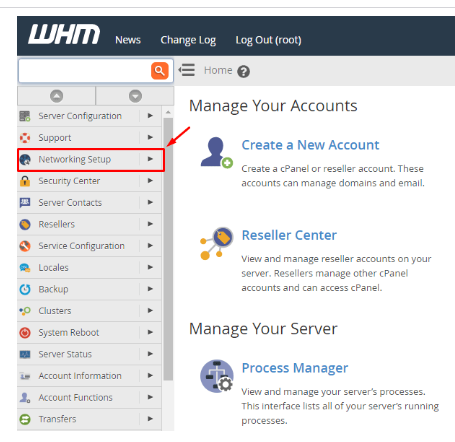
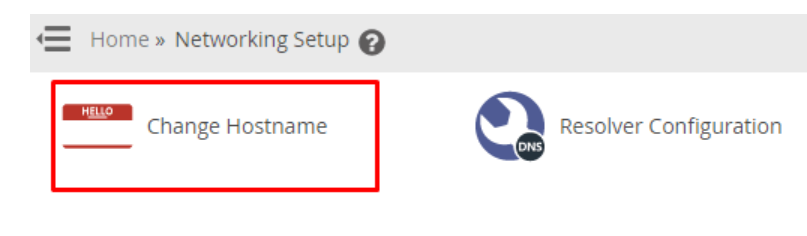
- Click on Change Hostname – Select the Change Hostname link on the list. A new page will load containing a text input field.
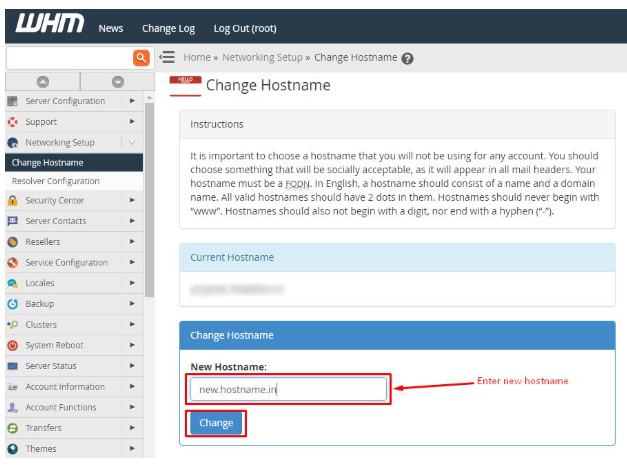
- Enter the New Name – Type the name you wish as a hostname in the blank box. To begin the system update, click the Change button.
- Add an A Entry – Wait until the system processes the name change. Keep scrolling down and click the button that reads Add an A entry for your hostname.

- Assign IP Address – Add the appropriate IP address for your server in the given field. Click on the Add Entry button to complete the link between the name and the IP.
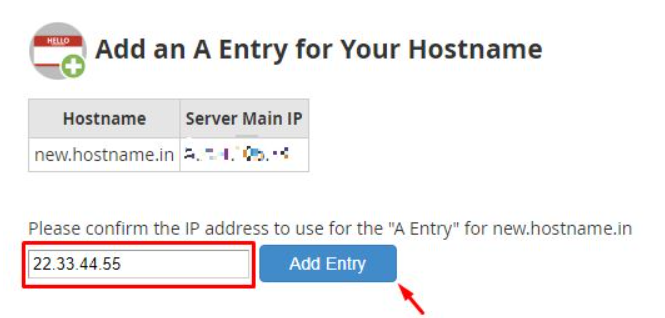
Important Note on IP Assignment: The system checks your IP address, and then it goes ahead to complete the process. The update will fail in case another server or account is using the same IP address. Never forget to check your networking information to make sure that you enter a unique and valid entry with your new hostname.
Read more How to Check Host Name in Command Prompt (CMD) in detail.
Conclusion
It is a quick process of changing your hostname, provided that you follow the rules of naming. It helps you keep your server organized and matches your branding as your business grows. You should always remember to add the A record to make your new hostname active throughout the internet.
FAQs
Why do I require two dots in my hostname?
A standard server hostname follows a sub-domain format like “https://www.google.com/search?q=server.example.com”. The two dots separate the server name, the domain, and the extension. The DNS system needs this structure in order to identify your machine.
Can I use my main website domain as a hostname?
It is better to use a subdomain instead of your main website address. Using “https://www.google.com/search?q=server.yourdomain.com” prevents technical issues with your files and email services. This setup keeps your server management and web traffic on different tracks.
Do I need to reboot the server after the change?
You do not need to restart the entire physical server after updating the hostname. Other services, such as your mail server, may automatically restart to pick up the new name. Your websites will generally be online during this minor update.
Will this change my login URL?
Yes, your new hostname will be the main address for your WHM and cPanel accounts. Add your bookmarks and inform your team about the new URL. Using a valid SSL on your new hostname will also prevent security warnings during login.
