How to Set Email Limits in WHM?
Introduction
Managing a reseller hosting environment requires establishing clear limits for your users. Implementing email restrictions is an important measure to ensure that your server infrastructure is not misused. You can control outgoing mail by setting outgoing mail limits, the number of messages that a domain can send in an hour, either globally or for specific users.
Setting these thresholds is a proactive way to stop outgoing spam. In the event that the account of a client is compromised or when he or she tries to send a bulk marketing email, the IP reputation may be destroyed.
Why You Should Limit Outgoing Mail?
Free emailing can easily get your server IP blacklisted by major email companies such as Gmail or Outlook. When your IP is blacklisted, all users on that server will have delivery problems, including those who did not break the rules. Limiting the hourly volume will prevent spamming and protect the email deliverability for all your clients.
We recommend these settings to ensure that your server remains a trusted sender on the global network. There are two ways to deal with these quotas.
1.Implementing a Global Limit on Every Account
In case you would like to apply a standard policy across your whole server, use the Tweak Settings interface.
- Enter your root administrator account into your administrator panel.
- Find the Server Configuration group in the sidebar and choose Tweak Settings.
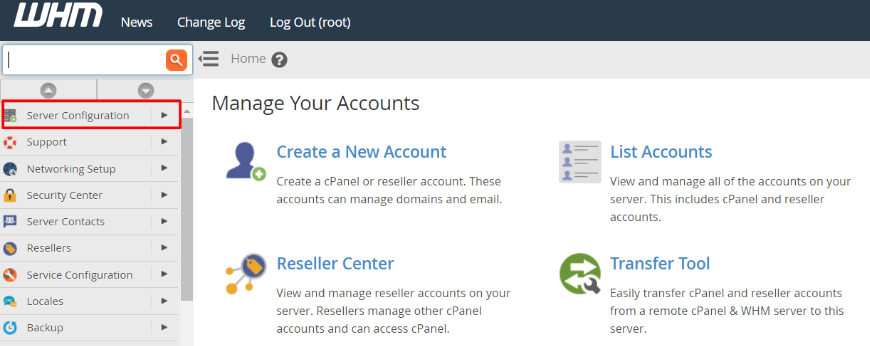
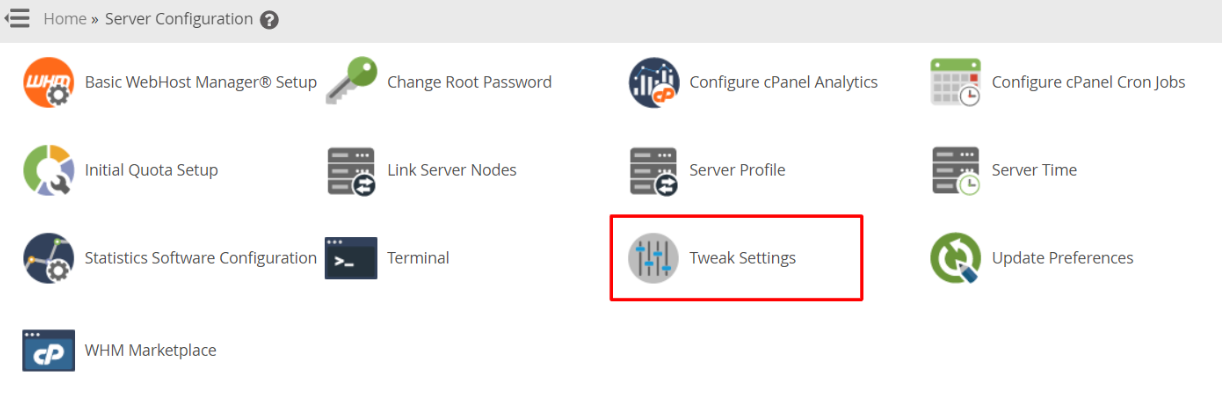
- Go to the Mail section on the upper part of the page.
- Select the field corresponding to Max hourly emails per domain. Click the radio button beside the custom input box and enter the limit you want (e.g., 100 or 200).

- Click on the bottom of the screen and save. All the domains within the server will now be subject to this maximum hourly rule.

2.Adjusting Limits for a Specific User
There may be instances where a specific client may require an increase in limit, or maybe a suspicious account may require a stricter limit.
- Access the Account Functions category by clicking on the WHM Home screen.
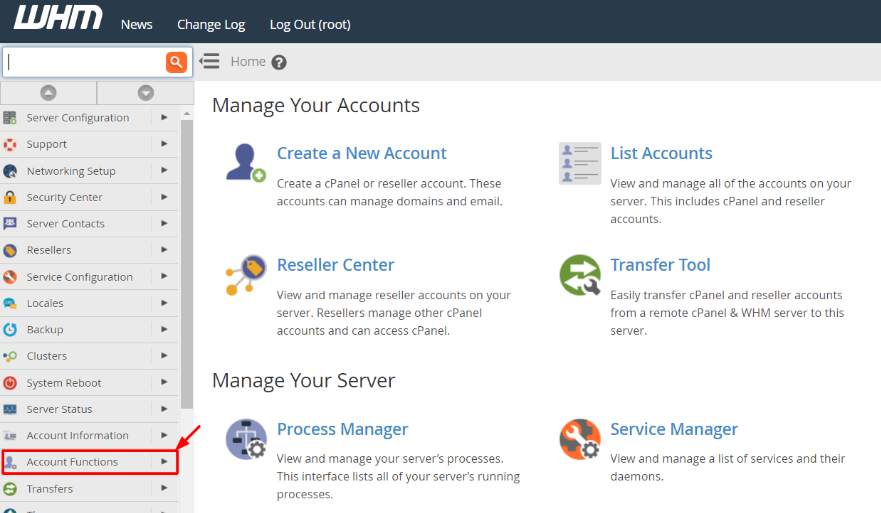
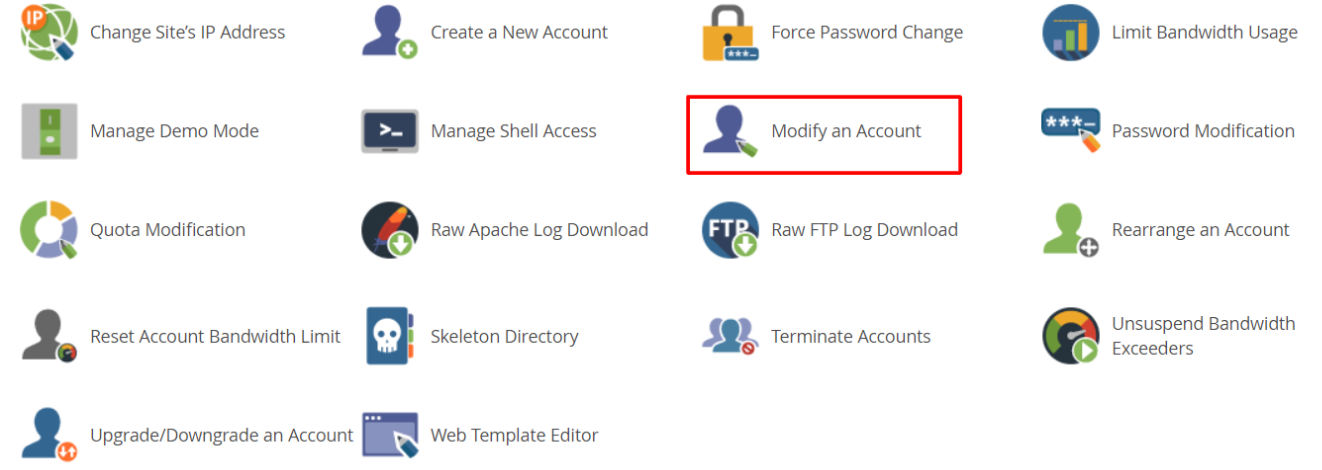
- Select the Modify an Account tool and select the user in question on the list. You may then click on the Modify button.
- Continue scrolling down until you come to the Resource Limits area.
- Find the field called Maximum Hourly Email by Domain Relayed. Add the number of emails that can be used on this account in the text box.
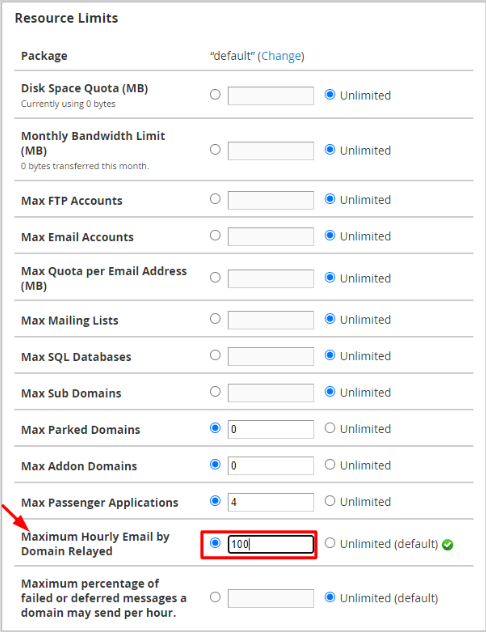
- Click on the save button at the bottom. This particular limit will now override the global server setting of this user only.
FAQs
What happens when a user hits their hourly limit?
The server will stop sending additional messages for that domain until the next hour begins. Any further attempts to send mail will result in an error message, and the emails will typically stay in the mail queue or be bounced back to the sender.
Can I set the limit to “Unlimited”?
Although it is possible to type a 0 or choose unlimited in certain systems, we strongly advise against it. Even such a high limit as 500 is superior to a zero limit because it offers a safety net in case an account begins to send millions of spam messages.
Does this limit apply to emails sent via PHP scripts?
Yes, these restrictions generally apply to all mail sent from the domain, whether it is through an email client like Outlook or a contact form script on a website. This makes it a very effective tool against malicious web scripts.
How do I know which account is sending the most mail?
The Mail Delivery Reports or the Mail Queue Manager in WHM can be used to view the most active users. This enables you to make data-driven decisions when setting individual limits.
Related: How to Set the Max Emails Per Hour Setting in WHM?
Related: How to set up Email Notifications via cPanel/WHM?
