How to Restore Backups via WHM?
Introduction
The WHM interface can roll hosting accounts back to a previous state. This built-in tool allows you to restore lost files, databases, or settings without the need to follow complex command-line instructions.
Professional server management services require reliable data recovery. The restoration tool allows you to get back to a familiar stable point, whether you are fixing a website error or recovering from a security incident.
Key Considerations Before Restoring
The most important things to consider prior to restoring.
Restoring will overwrite the data that already exists. It is better to verify the backup date to ensure you are moving back to the correct version of the site.
Steps to Reinstall a Backup via WHM
To manage data recovery for various accounts, you have to be logged in as root. Follow these steps to start:
- Open the administration panel and log in using your root credentials.
- Click the Backup tab on the left menu.
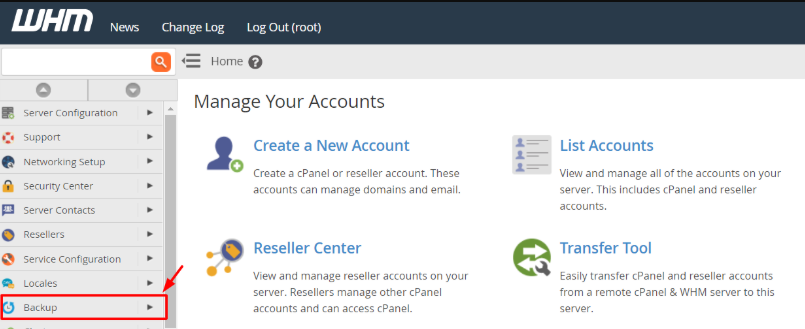
- Click on the Backup Restoration link to open the dashboard.

You need to tell the system which specific data you want to recover:
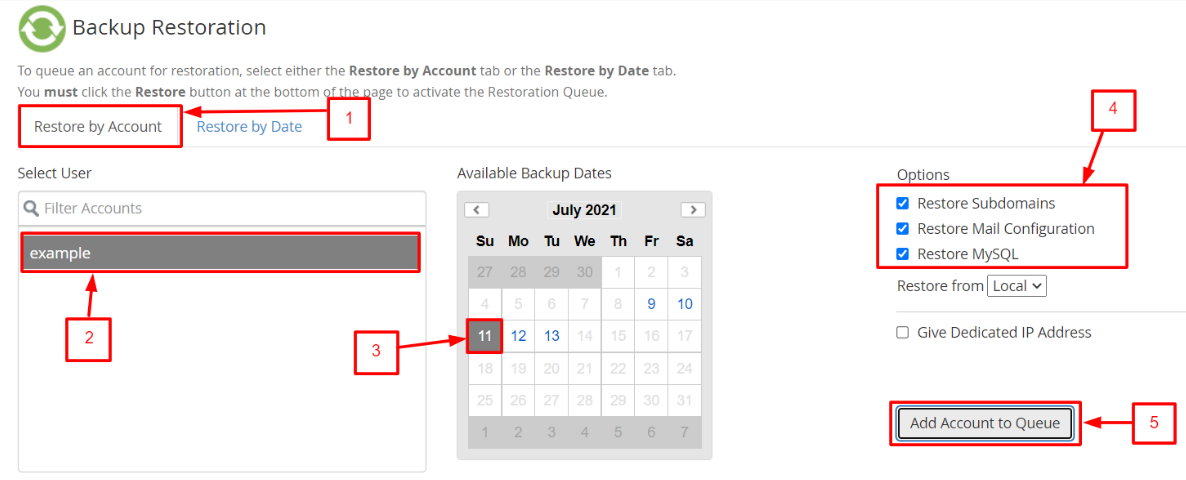
- Click on the Restore by Account tab.
- Identify the username on the Select User list.
- Use the Available Backup Dates calendar to pick the specific day you want to revert to.
- Choose which parts of the account to recover (such as databases or mail) by checking the relevant boxes in the Options area.
- Press the Add Account to Queue button to prepare the task.
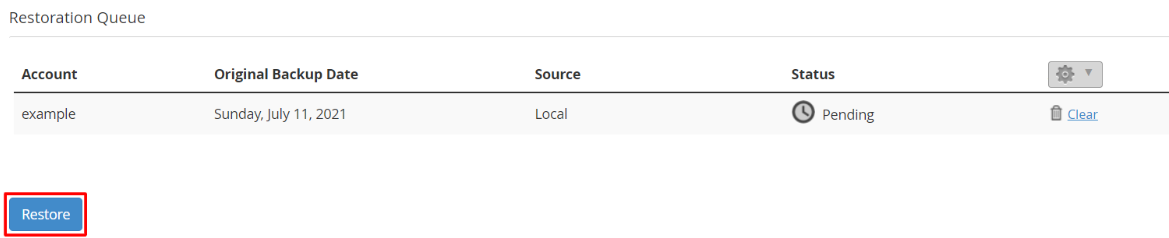
- Visit the bottom of the page where the Restoration Queue is displayed. You can repeat the previous steps if you need to restore several users at once.
- Click Restore to begin the transfer.
Monitoring the Progress
The server starts extracting files. The progress will show as Pending. Once finished, the status will update to Completed. In case minor issues occur, it might display Completed with warnings. Thus, you should click the View log button to read the technical details and identify any specific files that couldn’t be processed.
FAQs
Can I restore just one database instead of the whole account?
The primary WHM restoration tool is designed for full accounts, although you can select options such as MySQL in the constraints list. For more granular control over individual files, you can also log in to the specific cPanel account and use the “File and Directory Restoration” tool.
Where are these backup files stored?
The backups may be stored locally on the second hard drive or sent to a remote cloud storage location. Cantech recommends using off-site storage to ensure your data remains safe even if the local hardware faces issues.
Will the website go offline during the restore?
Yes, when files are overwritten, databases are imported, and the site can be unavailable. Restores should be conducted when there is low traffic.
Why is my restoration taking a long time?
The duration depends on the total size of the account and the speed of the storage where the backup is located. Large accounts with several gigabytes of data or thousands of small files will naturally take longer to process.
Related: How to Restore Backup of a File or Directory via WHM?
