How to Reboot a VPS/Dedicated Server via WHM?
Introduction
VPS and dedicated servers are high-performance machines that require regular maintenance to stay healthy. A system reboot is often the final step after you apply critical updates or change core settings. A reboot can be done using the WHM dashboard directly at any time.
Restarting clears memory and ensures that all background services start fresh. Rebooting after the installation of new software or after troubleshooting complicated errors is often necessary. Restart only when it is truly necessary to maintain maximum uptime for your sites.
What is a Server Reboot?
Rebooting refers to the process of shutting down the OS and restarting it. This action reloads the kernel and all system drivers to ensure everything runs correctly.
For a secure and stable hosting environment, this process is vital.
WHM has two ways of restarting your server. Choose the one that suits the current state and urgency of the situation.
Steps to Restart Your Server in WHM
Use your root account to trigger a full system restart. These are the steps to reboot your machine safely.
- Log in to WHM: Open a browser and log in to the WHM panel using your root user credentials.
- Find System Reboot: The System Reboot category is located in the left-hand menu; search for it. It gives two options for restarting your hardware.
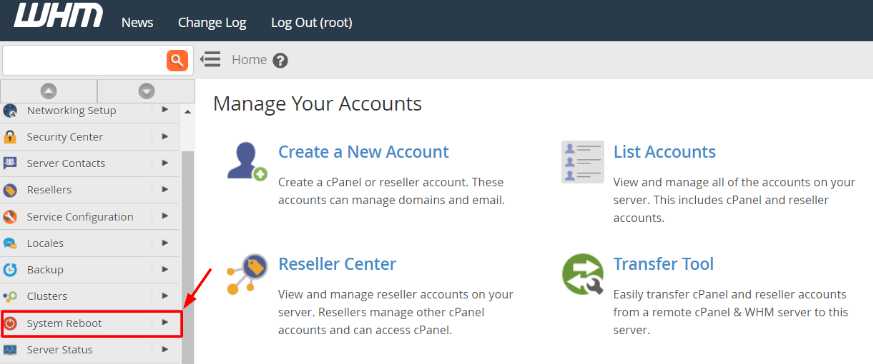
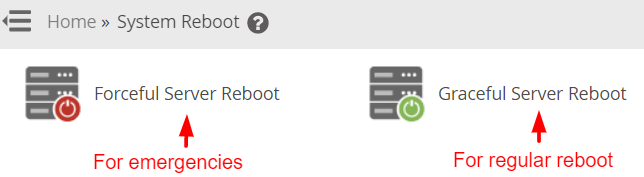
- Choose Your Reboot Method: You must select one of the following paths based on your needs:
Graceful Server Reboot – (Least risky during routine maintenance) It takes some additional minutes, but the system will not lose or corrupt data because it waits until the running processes are completed.
Forceful Server Reboot – Should be used in extreme emergencies, like a server freeze or security violation. It closes all the things instantly without waiting, and there is a minor chance of file corruption.
- Click Proceed: Select your approach and click on Proceed. The system will initiate the shutdown sequence and restart the physical or virtual hardware.

Conclusion
Rebooting is easy, and your system keeps running at peak performance with it. Graceful reboot safeguards your data. Always check your services after the reboot to confirm that all your websites are back online.
FAQs
How long is the average server reboot time?
A reboot in a normal VPS generally takes two to five minutes. Dedicated servers can be slow as they do hardware checks during the boot process. To check progress, refresh the WHM login page.
Will I lose any data when I reboot my server?
A graceful reboot will save all existing data and close the applications properly. You only risk data loss if you use the forceful method while a database is writing information. Always try the graceful option first to keep your files protected.
What should I do if the server does not respond after a reboot?
You should wait at least ten minutes for the services to load completely. In case you are still unable to access your sites, contact Cantech support. We can access the server console to fix any boot errors for you.
Is it necessary to reboot after every configuration change?
Most changes in WHM only require you to restart a specific service like Apache or MySQL. You only need a full system reboot for kernel updates or major operating system changes. Skipping unnecessary reboots helps you maintain better uptime for your clients.
