How to Migrate Email from G Suite to cPanel?
imapsync tool to directly copy emails between the two IMAP servers. Enable IMAP in Gmail, create matching email accounts in cPanel, then run a single imapsync command with both accounts’ credentials. Most migrations complete with zero data loss and minimal downtime.Introduction
Email plays a key role in daily communication, and sometimes businesses need to move their email setup for better control, cost management, or convenience. If you’re planning to migrate your Gmail or email from G Suite (Google Workspace) to a cPanel server, the process can be simple when done correctly. This guide will help you transfer your emails smoothly without losing data or facing downtime.
Prerequisites
In this knowledge base, we will show the steps to easily migrate emails from g suite to cpanel. To have a smooth process, we recommend you to meet the below requirements.
- G Suite account credentials
- cPanel credentials
- Before starting the migration, make sure IMAP is enabled in your Gmail account.
Before You Start the Migration
Before beginning the email migration from G Suite to cPanel, make sure your data and accounts are ready to avoid any issues during the process.
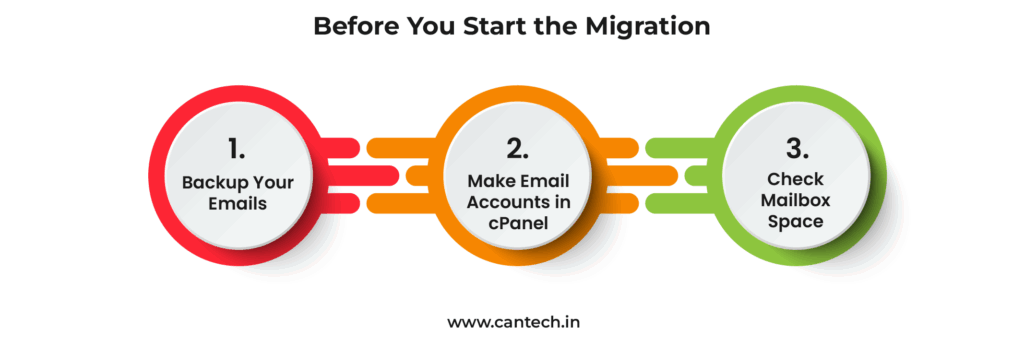
1. Backup Your Emails
Before moving anything, save a copy of your G Suite emails, contacts, and calendar. You can easily do this using Google Takeout.
2. Make Email Accounts in cPanel
Log in to your cPanel and create the same email accounts that you used in G Suite. This will help keep everything organized after the move.
3. Check Mailbox Space
Look at how big your G Suite mailboxes are and make sure your cPanel accounts have enough space for all your emails.
How to Enable IMAP Settings in Gmail?
If you have not enable IMAP settings in Gmail, follow the below steps:
- Login to your Gmail account using your credentials.
- Go to
Settingsand then Click onForwarding and POP/IMAP - Search for the
IMAP Access - Then enable IMAP if it’s currently turned off.
In case, you do not have the imapsync tool, you can install it using the below command:
sudo yum install imapsync
Steps to Migrate G Suite email to cPanel
- Start the migration process in the screen terminal by running the below command on cPanel server.
imapsync --host1 imap.gmail.com --port1 993 --ssl1 --user1 [email protected] --passfile1 /home/asha/pass1 --host2 eternity.herosite.pro --port2 993 --ssl2 --user2 [email protected] --passfile2 /home/asha/pass2
- Replace
ashawith the account username.
/home/asha/pass1 – Save your Gmail account password in this file.
/home/asha/pass2 – Save your cpanel account password in this file.
By following the above steps, you can successfully migrate gmail to cPanel server.
Conclusion
You can easily migrate your emails from G Suite to cPanel without any data loss. Once done, verify your emails to ensure everything is working properly. This will help keep your communication smooth and uninterrupted.
FAQ’s
What is imapsync and why is it used for this cPanel email migration?
imapsync is a free, open-source command-line tool that copies emails directly between two IMAP mailboxes — in this case, Gmail/G Suite and your cPanel email account — without downloading files locally first. It’s one of the easiest ways to transfer emails from one account to another while keeping folders and structure intact.
Will I lose any emails when I transfer emails from one account to another?
No, if IMAP is properly enabled and the imapsync command completes without errors, all emails, folders, and subfolders are copied over. It’s non-destructive by default n- it doesn’t delete anything from the source (G Suite) account.
How long does migrating from G Suite to cPanel take?
This depends on mailbox size and server speed. Small mailboxes (under 1GB) usually finish in minutes; large mailboxes with years of data and attachments can take several hours. Running it in a screen session (as shown above) prevents interruption if your SSH connection drops.
Is there any downtime during a cPanel email migration?
Minimal to none if done correctly. Since imapsync copies data rather than moving mail servers live, your G Suite inbox stays fully functional during the transfer. Downtime typically only occurs if/when you update MX records to point to the new cPanel mail server.
Do I need to update MX records after a G Suite to cPanel email migration?
Yes, once you’ve confirmed all emails synced successfully, update your domain’s MX records to point to the cPanel server so new incoming mail is delivered there instead of G Suite.
What if imapsync shows errors or fails midway?
Common causes include IMAP not being enabled, incorrect credentials in the passfile, or mailbox size limits on the cPanel account. Re-running the same imapsync command is safe it skips already-synced messages and only transfers what’s missing. See the Troubleshooting section above for specific error fixes.
Is imapsync free to use?
The command-line version is free and open source. A paid GUI version exists for non-technical users, but for a cPanel email migration like this, the free CLI tool is sufficient.
What’s the easiest way to do a cPanel email migration from G Suite?
The easiest cPanel email migration method is using imapsync, since it transfers mail directly over IMAP without manual export or import steps, making it faster and more reliable than moving files between accounts manually.
