What is Hotlink Protection & How to Enable It?
Hotlink protection is a useful security measure that prevents other websites from directly linking to files that are hosted on your server, like images or videos. In circumstances where another site accesses a file of yours, typically via an <img> tag, it is termed as hotlinking.
The thing is that the other site consumes your bandwidth with hotlinking. This system stops such theft. This guide discusses the process of enabling Hotlink Protection in cPanel and Plesk.
What is Hotlink Protection?
Hotlink protection is a server-side setting. It is used to verify the origin of a file request on your server. In case the request is made through a domain that is not on your allowed list, the server blocks that type of file. Other file types, such as .HTML, are usually not affected. This ensures that your own website or approved sites can display your content, and you save your hosting resources.
How to Enable Hotlink Protection on cPanel
This is a security feature that you can enable in your cPanel dashboard within a few minutes using the following simple steps.
Log In and Find the Tool
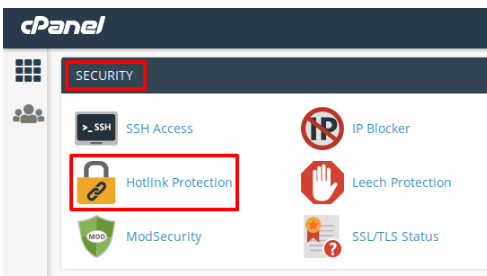
Log in to cPanel. On the inside, find the section of ‘Security’ and click on the Hotlink Protection.
Activate the Protection
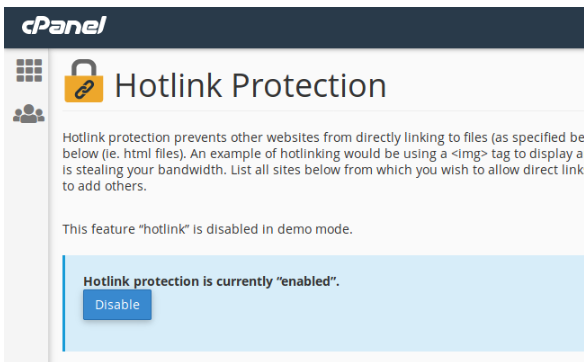
On the page with the Hotlink Protection, click the ‘Enable’ button. Hotlink Protection will be immediately turned on for your account.
Allow Domains and Extensions
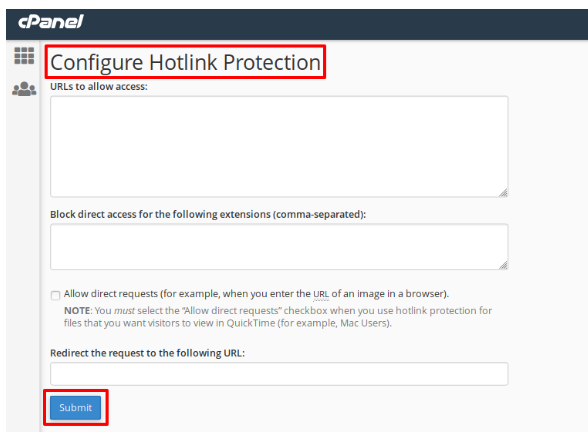
You can customize how the protection works. Add other trusted domains in the section “URLs to allow access”. They will be able to display your content.
Enter the file types to protect in the field “Block direct access for the following extensions (comma-separated):”. Common examples are .jpg, .png, and .gif.
Save Your Settings
Once configured, click on ‘Submit’. Hotlink Protection is now saved and enabled.
Conclusion
This is a smart, necessary measure that you should enable Hotlink Protection in order to save your hosting bandwidth and server resources. Either with cPanel or Plesk, you can quickly activate and configure to prevent other websites from stealing your files.
Frequently Asked Questions (FAQs).
What is the primary benefit of enabling Hotlink Protection?
Saving of hosting bandwidth is the primary benefit. It prevents other websites from using your files, and this decreases server load and lowers your resource consumption.
Which file extensions should I block using this feature?
Block common media file extensions like pictures (.jpg, .png, .gif), video files (.mp4, .mov), and even document files (.pdf).
What happens when a website tries to hotlink a protected file?
Instead of displaying the file, the server will usually display a broken image icon or a certain error message when a website tries to hotlink a protected file.
Why is my own domain name usually included in the allowed list automatically?
Your own domain is automatically included to prevent your own website from being blocked from displaying its files. You need to be able to access your own images normally.
Do I need to enter my full domain URL or just the domain name in the allowed list?
You should generally enter the domain name only (e.g., cantech.in). The system often handles the different protocol prefixes (http:// or https://) automatically.
