How to View Statistics Reports in Webalizer from cPanel?
Introduction
Monitoring web traffic for websites is simple if the control panel complies with its reports. As a cPanel user, you can check the statistics reports of your online traffic with webalizer. It offers a general overview of numbers of file requests, hits, visits and page loads of your website traffic.
In the below article we will explain how to view statistics reports in Webalizer.
Steps to View Statistics Reports in Webalizer
Step 1: Log in to your cPanel account.
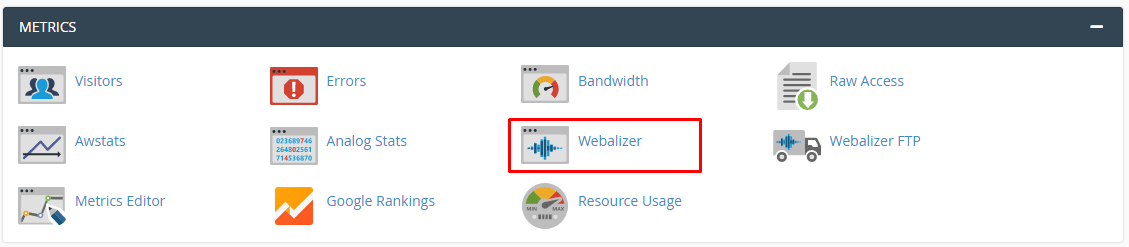
Step 2: Go to the Metrics section, where you can find the webalizer application. Click on it.
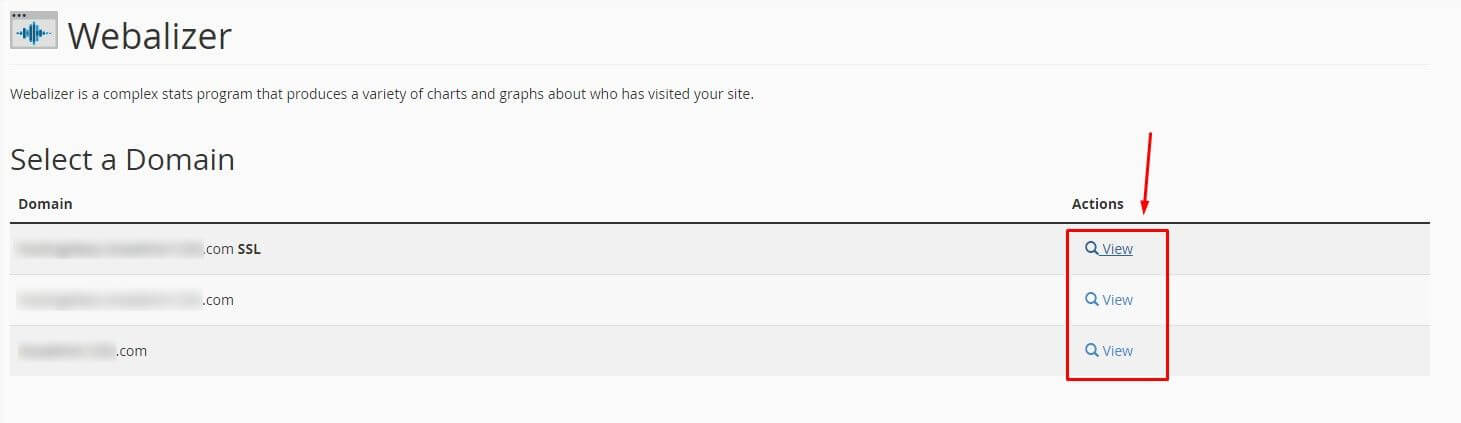
The webalizer panel will open, which shows all the active domains on your hosting in a list under the title Select a Domain.
Step 3: To see the statistics of a domain, click on the view under its action column.
Another interface which shows the usage statistics for the domain will open in a new tab.
It would look like this:
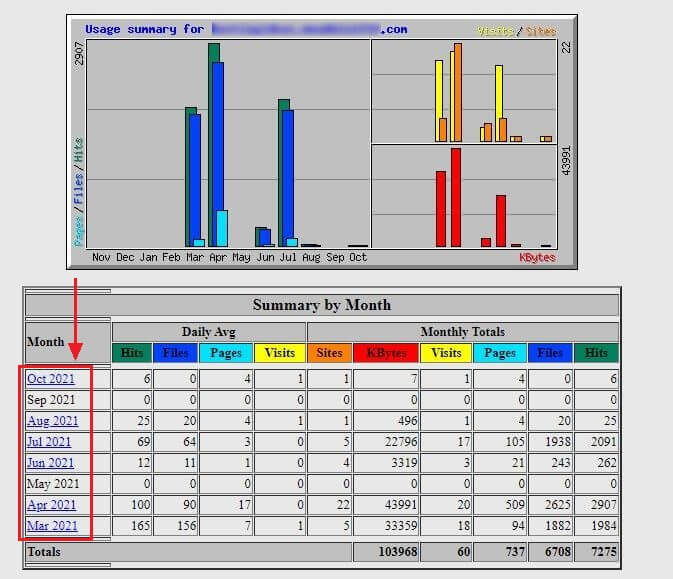
Would you spot the month column in the table summary by the month?
By clicking on a particular month, a detailed report on various aspects of usage statistics could appear.
The highlighted area in the screenshot shows the reports on a specific aspect of usage. All you have to do is click on it.

Conclusion
Webalizer makes it very easy to micro – monitor the web traffic and usage of any domain on a cPanel hosting.
