Disk Space and Bandwidth Usage for Shared Account in cPanel
Resource management is an important component to ensuring the sustainability of an optimized web environment. Being a shared hosting user, there is a limit to the amount of disk space and bandwidth available to your hosting account. If your disk or bandwidth limit is utilized or exceeded, your hosting service may go inactive or there may be imposition of overuse fees. The current walkthrough guide focuses on providing the steps needed to manage and view your current disk space and bandwidth usage in your cPanel.
Steps to Check the Disk Space Usage
Log in to your cPanel.
Locate the Files section and click on Disk Usage.

This will allow you to view the disk space usage window, detailing the space allocation by each directory.
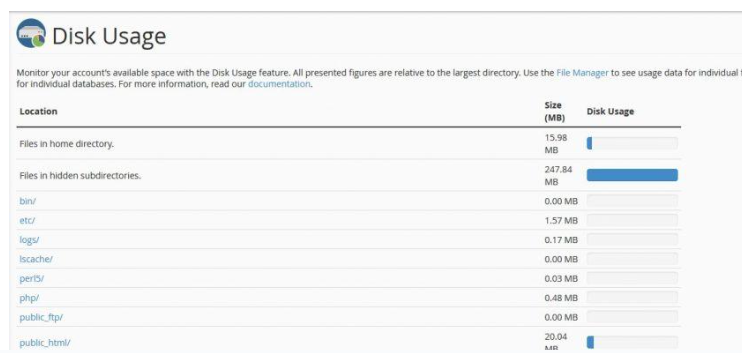
From this window, you may view the directory listing in the total disk space utilized.
Steps to Check the Bandwidth Usage
Log in to your cPanel.
Locate the Metrics category and click on Bandwidth.
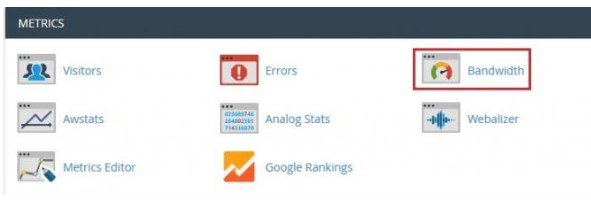
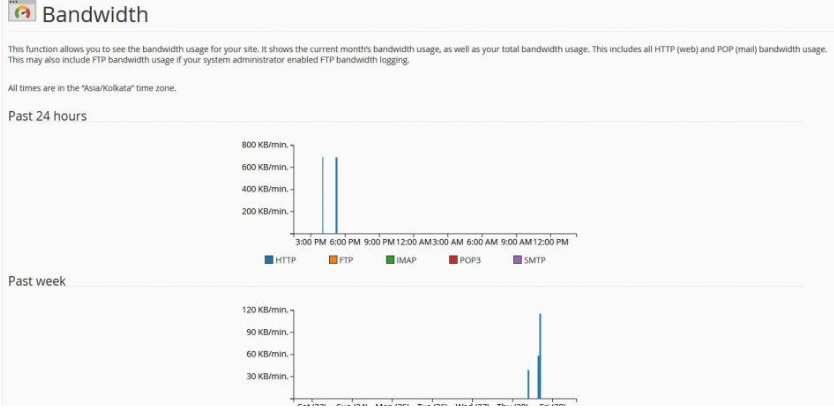
This will show the window where you can find the current month’s bandwidth usage and also the total bandwidth usage for your site.
Conclusion
Now you know how to track the resource usage for your shared hosting account from cPanel. Checking your Disk Space Usage alongside your Bandwidth Usage is a site maintenance must. By monitoring these usage stats on a regular basis, you will ensure your site is always operating on an optimal basis, be able to predict an upgrade, and pinpoint instances where you can improve overall resource usage by deleting emails, condensing large files, etc. If you often find yourself hovering just below the limit, then it’s probably time to upgrade.
