Upload the Content to the Plesk Server with File Manager
Managing your website’s content does not always need complex FTP setups or even additional software. The Plesk File Manager enables you to create, organize, edit and manage your website content straight from your control panel. The File Manager is often the most efficient and dependable way to manage your website content without leaving your web browser, whether you are updating a few images or creating a new landing page.
To zip up a folder:
1. Right-click the folder, select Send To, and then select Compressed (zipped) Folder.
To upload the ZIP archive to Plesk File Manager:
2. Go to the customer panel and log in, click on Files, navigate to the httpdocs folder, and click on Upload Files. Select the zip archive and click Open.
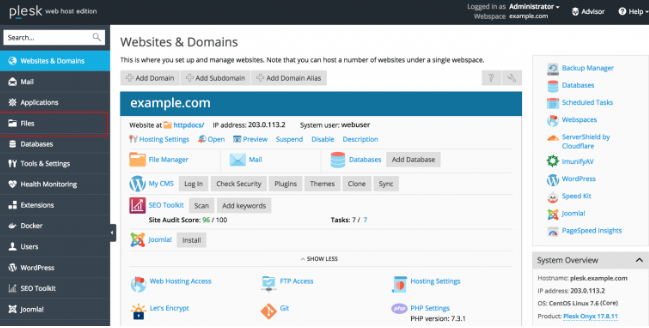
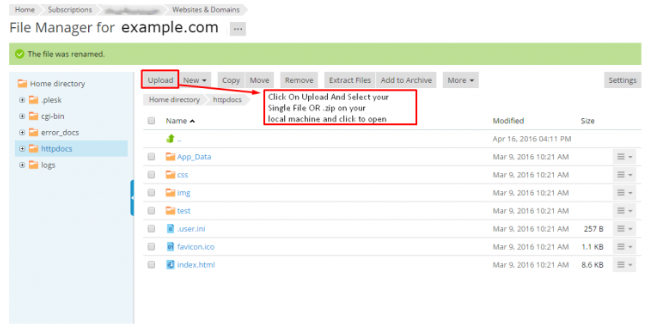
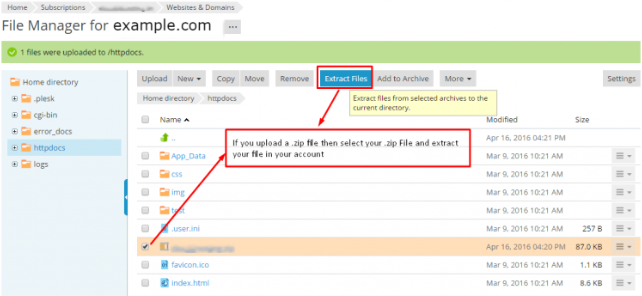
3. After you upload the zip archive, click the checkbox next to the zip archive and select Extract Files.
Edit Your Website Pages with HTML Editor
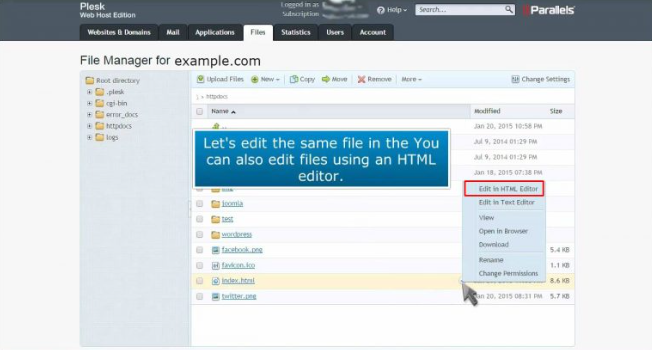
You can modify your website’s pages using the File Manager. It has an HTML editor that enables you to visually edit HTML pages (no need to write HTML tags manually). To do this, move your mouse pointer over the file, click the drop-down icon to access the file’s context menu, and select Edit in HTML Editor.
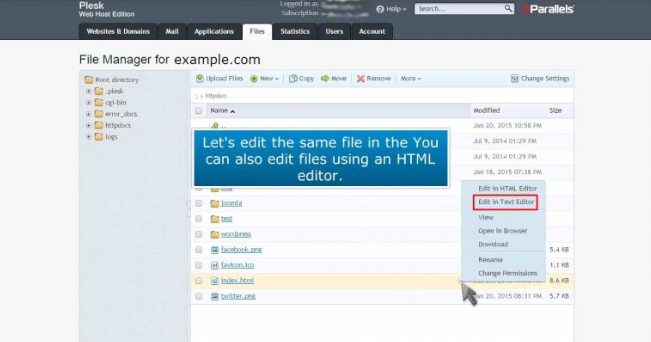
You can also modify your website’s pages using the File Manager’s text editor. To edit a file, click the drop-down icon to access the file’s context menu, and select Edit in Text Editor.
You can also do this using the File Manager’s text editor
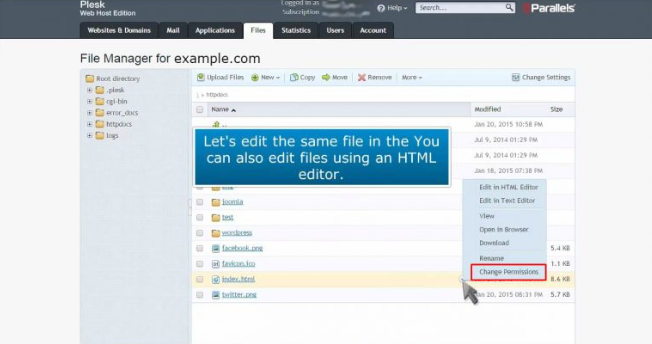
If you wish to prevent access to files or web pages on the Internet, you can configure access restriction settings on the File Manager. To do this, click on the drop-down menu to access the context menu, then select Change Permissions.
Conclusion
Plesk File Manager is the easiest option for keeping your site updated without the hassle of having to manage your FTP credentials. File Manager is good for making quick edits and uploading small file batches. However, for large migrations, or full backups, an FTP client is still your best friend. Now that your files are fully uploaded, you are ready to review your permissions and make your site visible to everyone.
