How To Enable Shell Fork Bomb Protection In WHM?
A fork bomb is a type of attack in which a script rapidly generates numerous copies of itself. The high rate of replication consumes all the resources on the server and may crash the system. Protection allows the user to block the execution of these malicious scripts on your server.
This security option controls the process that a single user can initiate. Without it, a single account can fill up the whole process table, and the server may become unresponsive and even lock you out of logging in to fix the problem.
What is a Shell Fork Bomb?
A fork bomb is to duplicate processes repeatedly through the fork() function. It aims to consume all available process slots in the operating system. After filling the table, the administrator cannot even run basic commands, such as ps, to find the problem.
By placing stringent restrictions, ensure that a single user cannot crash the entire machine. This maintains a stable hosting environment for all other websites on the server. Cantech servers are installed with high security features that assist you in managing these process limits easily.
Steps to Enable Protection via WHM
You can activate this guard directly through the graphical interface. To secure your server resources, follow the following steps.
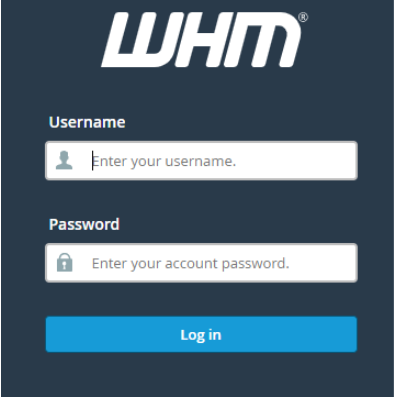
- Log in to WHM: Go to your dashboard as an administrator and log in with your root user.
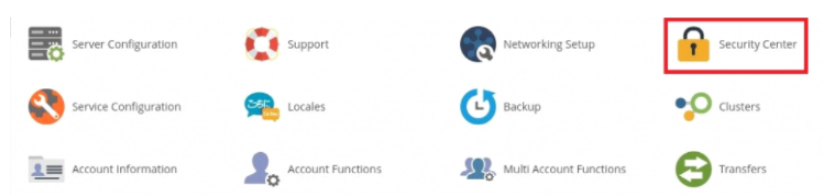
- Go to Security Center: Locate the Security Center in the main navigation menu. Everything required to harden your server is in this area.
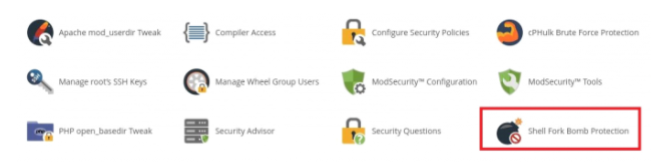
- Click Shell Fork Bomb Protection: Find the Shell Fork Bomb Protection icon and press it to access the settings.
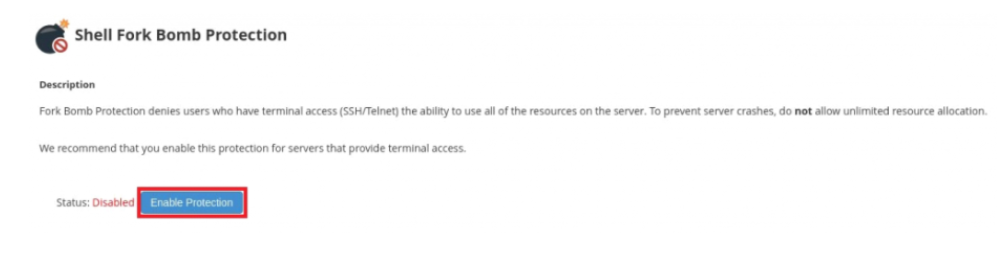
- Enable the Protection: To begin the service, click the button named Enable Protection. The system will immediately apply a set of limits to all shell users
Knowledge of the Resource Limits
When you switch this on, the server imposes a number of restrictions to ensure that resources are not abused. The typical limits that secure your system are listed below:
| Limit | Option | Description |
| 100 | -n | Restricts the total number of open files. |
| 35 | -u | Limits a single user to only 35 simultaneous processes. |
| 8192 | -s | Sets a maximum size for the stack. |
| 200000 | -v | Controls the total virtual memory a process can use. |
The most important setting is the “u” option, which limits cPanel users to 35 processes. This will ensure that no user overworks the CPU with a multitude of tasks at once.
Enabling Protection via Command Line
Advanced users can also manage this feature using the SSH terminal. You must run a specific command to install the limits profile.
- Log in to SSH: Log in to your server through a terminal and log in as the root user.
- Execute the Installation Command: Copy and paste this command to enable the limits:
perl -I/usr/local/cpanel -MCpanel::LoginProfile -le 'print [Cpanel::LoginProfile::install_profile("limits")]->[1];'
- Restart cPanel: To implement the new changes, restart the service using the following command:
service cpanel restart.
Conclusion
Shell Fork Bomb Protection is a crucial thing for any multi-user server. It also avoids accidental or intentional crashes by limiting how much power one user can consume. This small setting ensures your server remains reachable and healthy at all times.
Frequently Asked Questions
Will this protection affect my normal website visitors?
No. This setting merely limits users who log in through SSH or execute scripts on the server. Your regular website visitors will not feel any difference in performance; the site will be more stable as preventing other users from hogging resources.
Can I change the limit of 35 processes for a specific user?
The global protection applies the same limit to all standard cPanel accounts. If a specific user needs more processes you might need to adjust their individual shell limits manually. However, the default limit of 35 is usually enough for most web applications.
How do I know if the protection is working?
Monitor the status of the WHM Security Center at any time. In case it is on, a green message will be a confirmation. You can also test it by trying to open more than 35 processes as a standard user.
Does this protect against all types of server attacks?
This is a particular feature that protects against fork bombing, which can lead to resource exhaustion. It is one part of a complete security setup for your server. You should also use firewalls and anti-malware tools to keep your data safe.
