How To Replace WHMCS Logo With Your Own Company Logo?
Introduction
Building a strong brand is very important for your online shop. People trust a business more when they see a professional logo everywhere.
What is WHMCS?
WHMCS is a complete tool for managing your web hosting clients and billing. It helps you handle support tickets and automate your business tasks easily.
Most hosting resellers use this system to manage their daily work. It uses a smart template engine so you can change the design quickly. You can update the client area to match your company style.
Key Benefits of WHMCS
- Automated Billing: The system sends invoices to your customers on time.
- Customer Support: It includes a help desk for solving user queries.
- Custom Design: You can modify the layout using simple templates.
Steps to Change the WHMCS Logo
You can replace the default branding with your own business logo. Follow these simple steps in your web hosting control panel to update the image.
Access Your Files
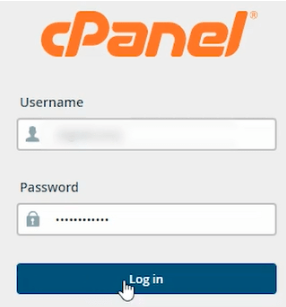
- Login to cPanel: Enter your username and password to access the dashboard.
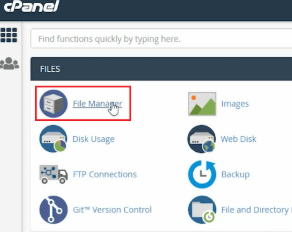
- Open File Manager: Look for the Files section and click the icon.
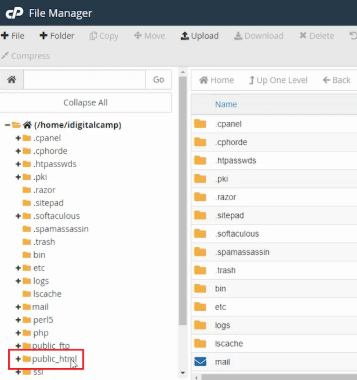
- Go to public_html: This folder contains your website files on the left side.
Locate the Template Folder
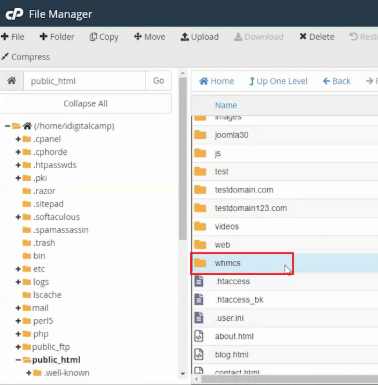
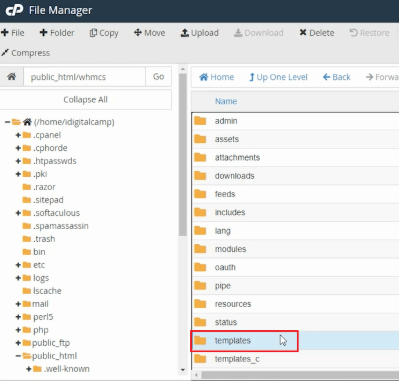
- Find WHMCS Directory: Open the specific folder where you installed the software.
- Enter Templates Folder: This directory stores all the design files for your site.
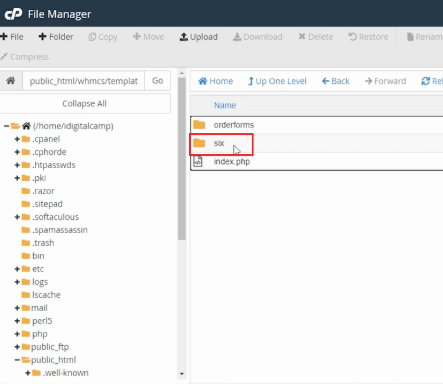
- Select Active Template: Open the folder named ‘six’ or your current active theme.
Verify Template Name
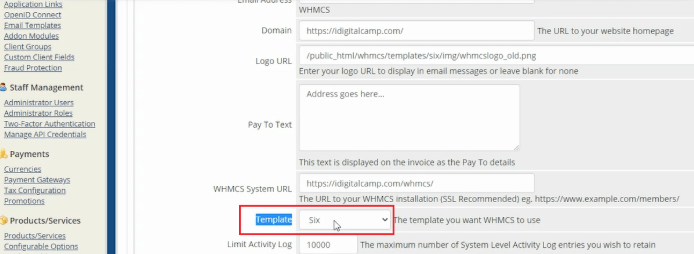
- Check Admin Settings: Log into your WHMCS admin area for confirmation.
- Visit General Settings: Go to the Setup menu and click on General Settings.

- Identify Theme: Look at the Template dropdown to see which folder is active.
Upload the New Logo
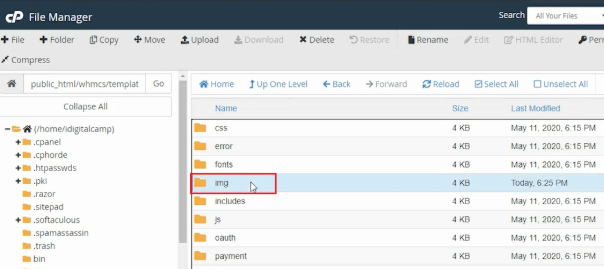
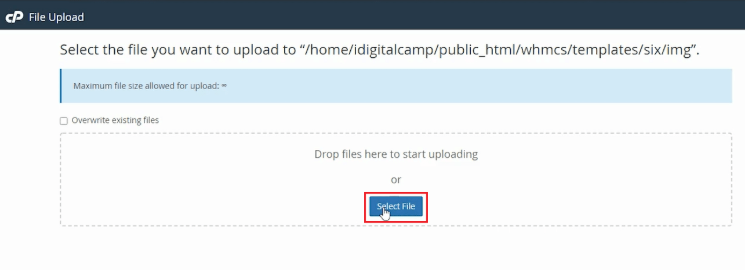
- Open Image Folder: Go inside the ‘img’ folder within your template directory.
- Prepare Your File: Make sure your new image is a transparent PNG file.
- Use Correct Size: Keep the image dimensions at 190 by 61 pixels for best results.
- Upload File: Click the upload button and drag your new logo into the box.
Finish the Process
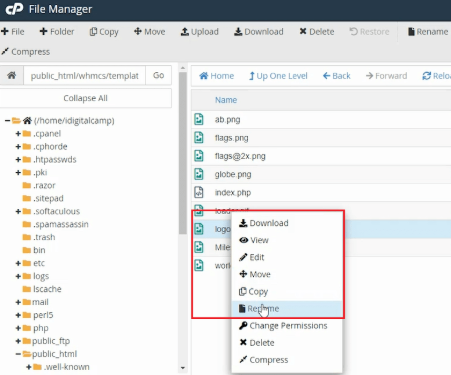
- Rename Old File: Change the name of the existing logo.png to something else.
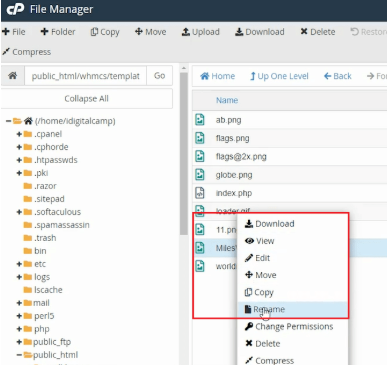
- Rename New File: Give your new uploaded file the name logo.png exactly.
- Refresh Client Area: Open your website to see the new branding live.
Conclusion
Updating your logo in WHMCS is a very simple task. It helps you build a unique identity for your hosting brand. A professional look makes your customers feel more secure while they pay their bills.
FAQs
What is the best file format for the WHMCS logo?
You should always use a PNG file for your logo. This format supports transparent backgrounds. It looks much better on different header colors.
Why is my new logo not appearing on the site?
Your browser might be showing an old version of the page. You should clear your browser cache first. Also check if the file name is exactly logo.png in lowercase.
Can I use a larger logo than the recommended size?
Large images might break the layout of your navigation bar. It is better to stick to the 190 by 61 pixels size. This ensures the header looks clean on mobile phones.
Where do I find the logo file in WHMCS?
The file sits inside the img folder of your active template. You must check which template you are using in the admin settings first. Usually the folder name is ‘six’ for default users.
Related: Steps to Reset Your WHMCS Admin Password
Related: Steps to Connect WHM to WHMCS
