How to Install Multiple PHP Versions and PHP Extension on cPanel/WHM Server?
EasyApache 4 is an open-source program that is only offered to customers of cPanel/WHM server. EasyApache 4 interface lets a person manage and maintain the Apache, PHP, and other services in the server. It also enables assigning more than one variant or version of PHP to domains.
To Install a Version of PHP Directly in The WHM panel
Use root to log in to the WHM panel.
Select the “Software” option.
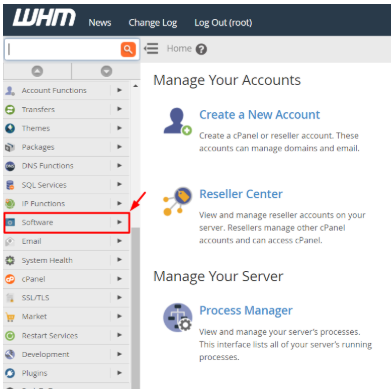
Click on “EasyApache 4”.
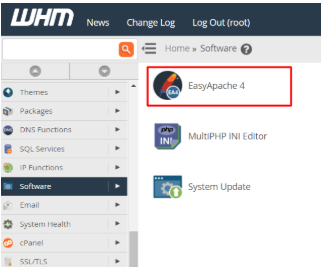
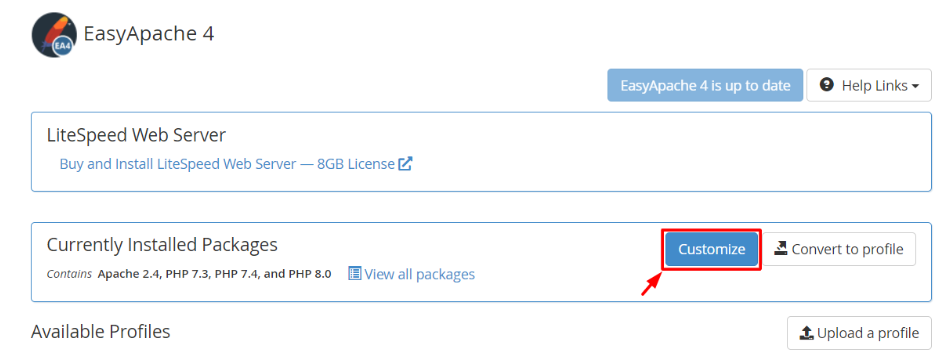
The interface EasyApache 4 will be presented. In the section where the installed packages are listed, press the button Customize.
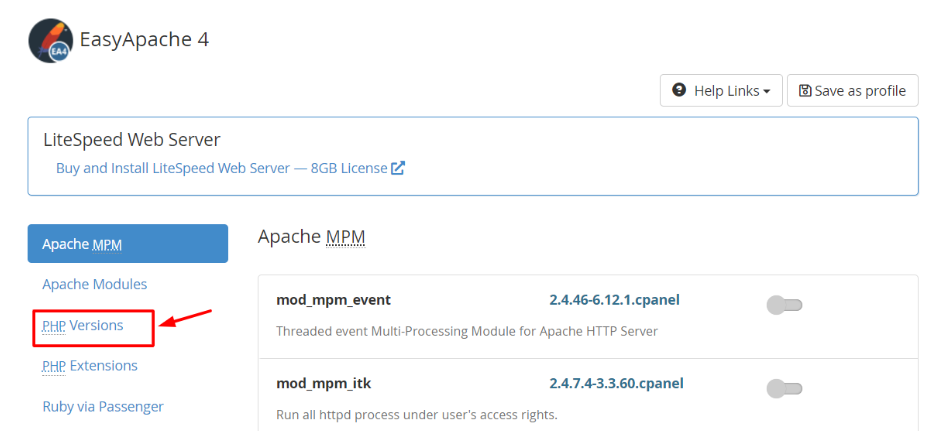
Different customization will be displayed. Click on “PHP Versions”.
WHM/cPanel will also check the currently used PHP extensions by other versions of PHP.
Click on the on/off switch and select the version of PHP you would like to install and press the blue button that comes after it and then press Next.
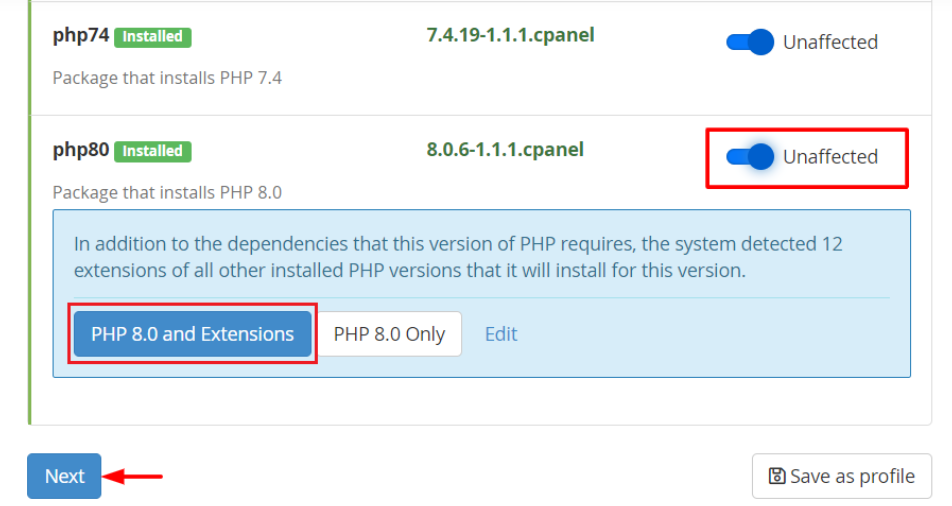
WHM/cPanel will once again check in the PHP extensions by other versions of PHP.
Note: We suggest making use of latest PHP versions. No security releases will be published of PHP 5.6 and 7.0 as of January 1st, 2019. To get additional information, use: https://www.php.net/supported-versions.php.
To Install Extensions of PHP Via The WHM panel
Select the menu PHP Extensions.
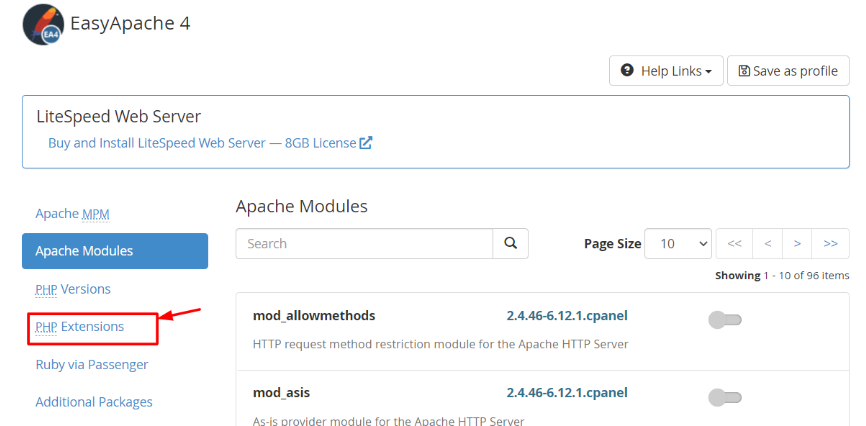
In EasyApache 4, PHP extensions are preset: WHM defaults to pre-selecting some of them. The extension can also be found by typing its name on the search box.
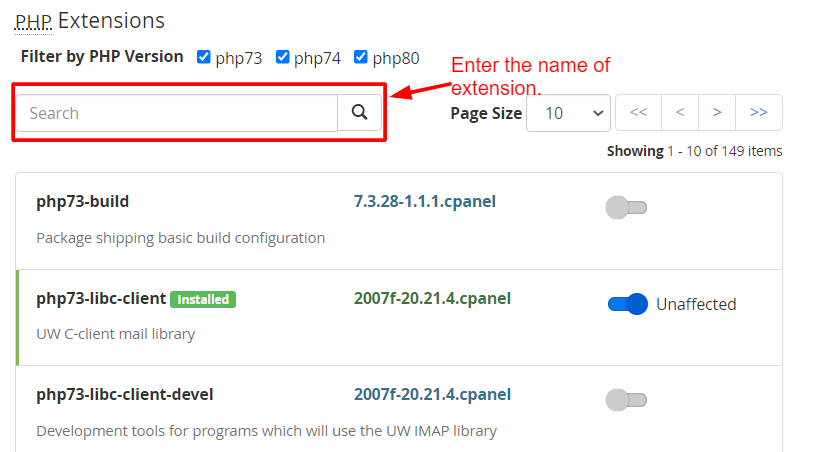
Turn on the extension that is required and install it on the domain.
Click on Next after choosing the extensions to install.
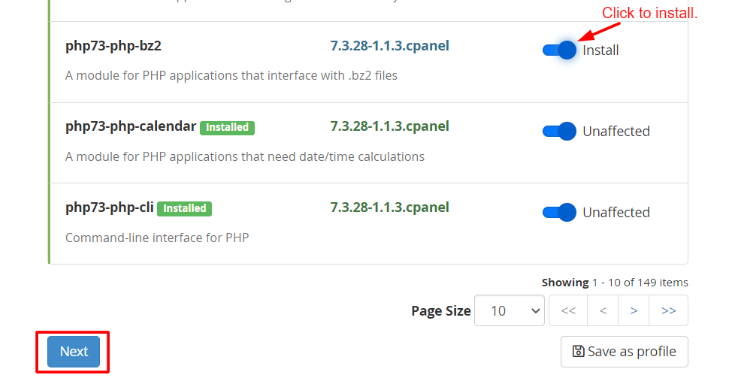
Choose the “Review” option.
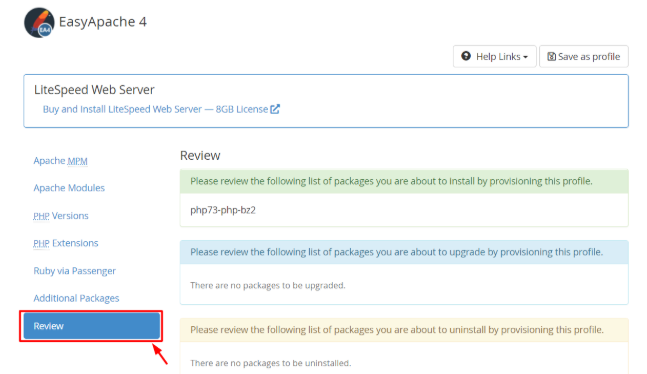
At the bottom, click on the Provision button.
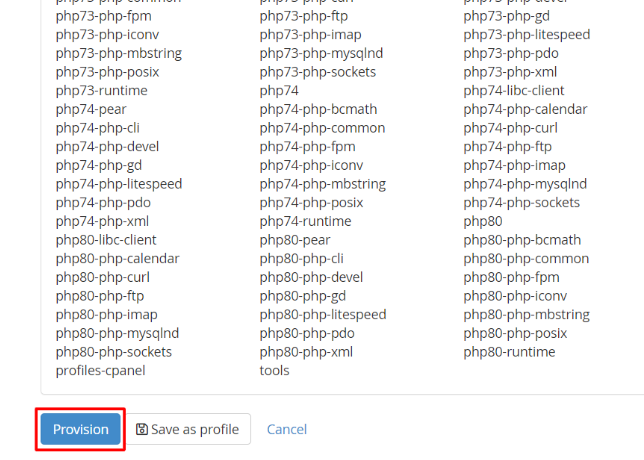
The installation of extensions will be carried on in the provisioning procedure. After some time, one will see the message on the screen saying that the provisioning process is complete. When it appears, press the Done button.
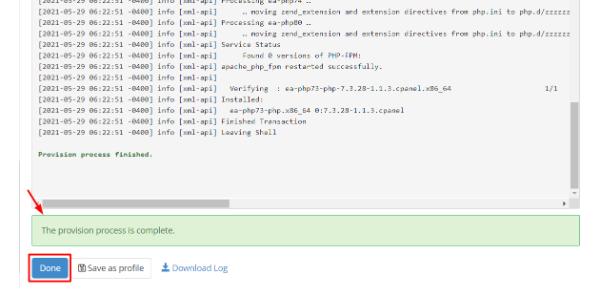
This way, you will have successfully installed PHP versions and PHP extensions in your cPanel/WHM server.
In order to designate a PHP Version to a Domain.
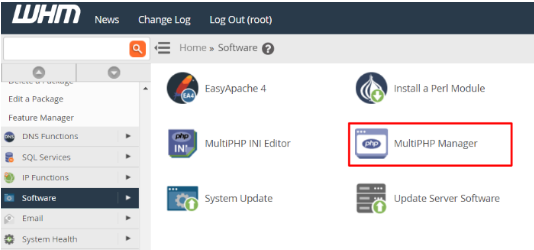
Get back to the Home screen and choose the Software option.
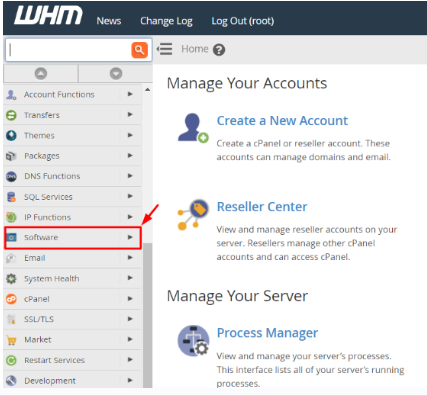
Click the MultiPHP Manager.
Go to User Domain Settings. In order to give a new PHP version to a domain, one has to simply click on the version of the desired version in the PHP Version column.

Choose the necessary PHP version in the dropdown menu and choose Apply.
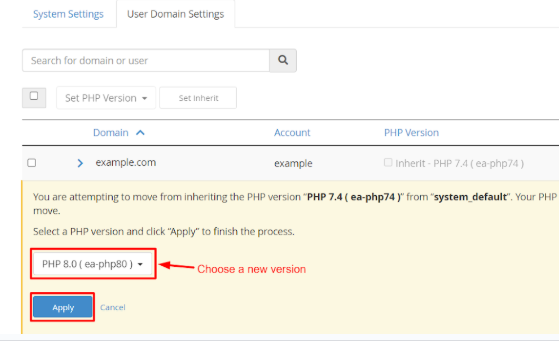
Therefore, you can set any PHP version that is installed on your WHM server on your domains.
