How to Use the WP Toolkit to Secure and Update WordPress?
WordPress Toolkit gathers every necessary tool in one place for managing a website, which involves many small tasks. You can find this interface inside your cPanel or Plesk dashboard.
What is WordPress Toolkit?
This tool acts as the main control room for your websites. It helps you manage updates and security without opening each site. You can use the free Lite version or the paid Deluxe version. Both versions help you keep your site files healthy and safe.
Basic Requirements for Setup
You do not need many things to start using this tool. Most standard hosting plans include it for their users.
1. Check Your Control Panel
You must use a hosting service with cPanel or Plesk. Look for the toolkit icon in the main menu area. It usually stays under the domain or application section.
2. Access the Interface
Every hosting user gets access to this tool automatically. You just log into your account and click the icon. The dashboard will then scan for your existing WordPress sites.
How to Secure Your Website?
Security keeps hackers away from your personal data. The toolkit provides several options to lock your site tightly.
1. Fix Security Gaps
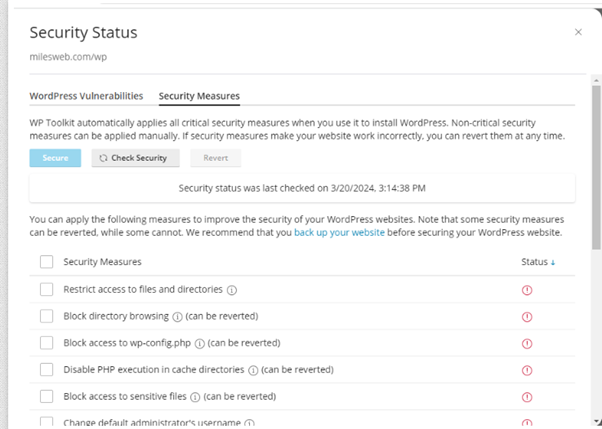
The toolkit lists different ways to make your site stronger. You can read about each choice before you apply it.
- Click the small symbol next to each option for more info.
- Tick the boxes for the security rules you want.
- Press the Secure button to save your choices.Use the Check Security button to verify the new settings.
2. Scan Your Site Files
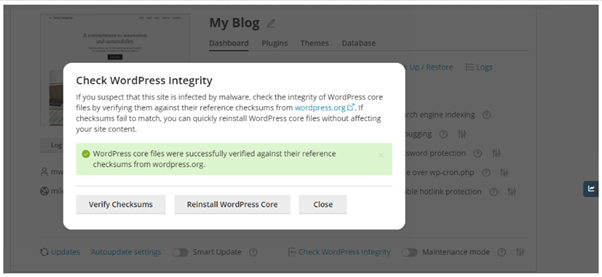
Files can sometimes get changed by mistake or by viruses. You should check your core files regularly for any odd changes.
- Go to the Security Status tab in your toolkit.
- Run a check on your core WordPress files.
- Replace any damaged files using the reinstall feature.
- Check the Vulnerabilities section for risky plugins.
Steps to Update Your Content
Regular updates prevent your site from crashing. You should update your core files and your design themes often.
1. Setup Automatic Updates
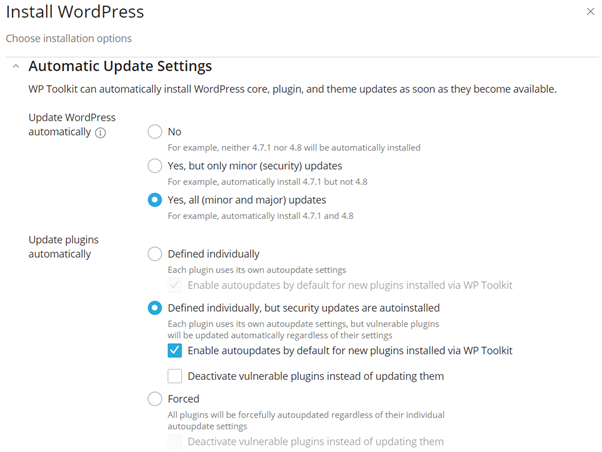
WordPress releases new software versions to fix old bugs. You can set the toolkit to install these for you.
- Open the update settings in your main dashboard.
- Choose the option for automatic minor version updates.
- Decide if you want major updates to happen automatically.
- Force updates for your themes and plugins if you prefer.
2. Use Smart Updates
Updating a plugin can sometimes break your entire layout. The Smart Update feature tests the change on a copy of your site first.
- Enable the Smart Update toggle for your important sites.
- Let the tool create a test clone of your website.
- Check the test results to see if the site works.
- Approve the update once the tool confirms everything is fine.
3. Manage Your Themes
Old themes can slow down your hosting server. You should delete themes that you no longer use.
- Navigate to the Themes section in the toolkit.
- Select the themes that have new versions available.
- Click the update button to refresh your design files.
- Set specific themes to update in the background.
Cantech Hosting Service Benefits
Cantech provides high-quality servers that run the WordPress Toolkit smoothly. Our hosting plans come with the toolkit ready for action. You get extra protection against web attacks and fast loading speeds. Our experts help you manage your network so you can focus on your business.
Conclusion
The WordPress Toolkit makes technical work very simple. It keeps your core files safe and your themes updated. You can avoid many common errors by using the smart update features. This tool is the best way to maintain a professional website easily.
Frequently Asked Questions
1. Where is the WordPress Toolkit in cPanel?
You can find it under the Domains section of your dashboard. Some providers also put it in the Softaculous or Applications area. You just need to click the icon to open the main hub.
2. Is the Lite version enough for a small blog?
The Lite version handles basic security and manual updates very well. It is perfect for people with only one or two sites. You get core management features without paying extra fees.
3. How do I restore my site if an update fails?
The toolkit creates a backup before it starts any major update. You can find these backups in the Backup and Restore tab. Click the restore button to bring your site back to its previous state.
4. Does this tool help with site speed?
It helps by keeping your PHP version and plugins updated. New software versions usually run much faster than old ones. It also protects your site from bad bots that waste server resources.
5. Can I manage sites on different hosting accounts?
The toolkit only manages sites on the current hosting account. You must log into each cPanel separately to use its toolkit. It provides a central view for all sites on that specific plan.
