How to Stop Web Server from Redirecting to Hostname in WHM?
Sometimes your browser automatically moves from your domain to the server hostname when you open cPanel or Webmail. This usually happens because the SSL certificate on your specific domain has expired. The server then tries to find a valid certificate on the main hostname instead.
This redirection can be confusing for users who want to stay on their own branded URL. You can fix this behavior by adjusting the security settings inside your WHM panel. Changing these options allows you to access your mail and hosting tools without jumping to a different address.
Why Does the Hostname Redirect Happen?
The server has a default rule to protect your data during login. If your domain does not have a secure lock icon, the system sends you to the hostname that has a valid SSL. This ensures that your passwords remain encrypted while you log in to your account.
You can disable this automatic jump if you prefer to use your own domain name. This is helpful when you are waiting for a new SSL to install or if you use a private proxy. Cantech hosting plans come with free AutoSSL to help prevent these redirection issues from the start.
Steps to Fix Redirection in WHM
You need to modify the Tweak Settings area to change how the server handles these connections. Follow these steps to update your redirection rules.
- Log in to your dashboard using the root administrator. These global settings can only be changed with complete access to your server.
- Locate the Server Configuration option in the left sidebar menu. This section has the key management tools to control server behavior.
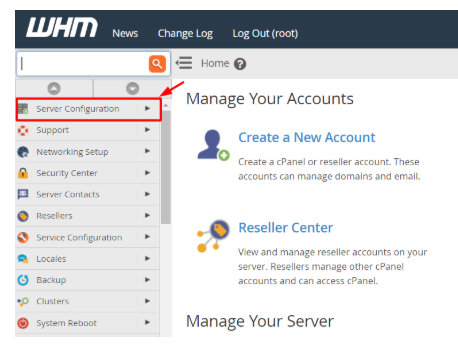
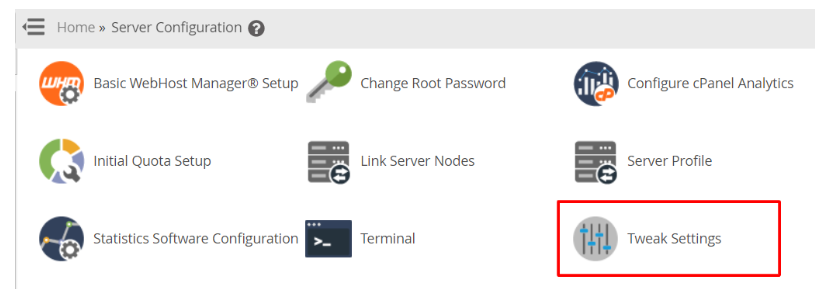
- Click the Tweak Settings option to display a large list of configuration tabs. This page controls the interaction of cPanel and WHM with your visitors.
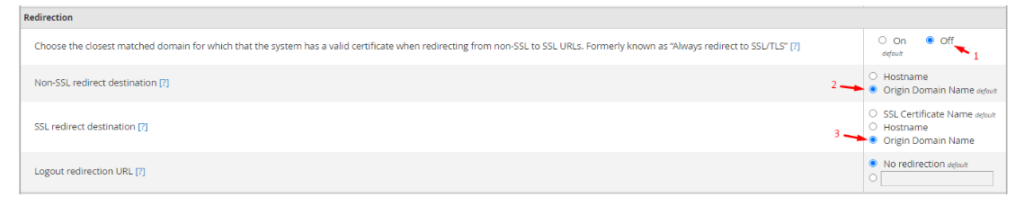
- Select the Redirection tab at the top of the interface. You will find a number of choices regarding SSL and non-SSL destinations.
- Find the option that states to select the nearest matched domain with a valid certificate. Change this to off to unlock the other configuration boxes.
- Locate the fields of SSL redirect destination and Non-SSL redirect destination. Choose both options in the radio button of Origin Domain Name.
- Go to the bottom of the page and press the Save button. The system will update and apply the new rules to all the accounts on the server.
Conclusion
Turning off the hostname redirect is a way of making your hosting environment feel more personal and professional. It enables customers to view their domain in the address bar when they are checking their emails. Always ensure that your SSL certificates are renewed to maintain maximum security for your users.
FAQs
Is it safe to turn off this redirection?
Yes, provided that you have a functioning SSL certificate on your own domain. Without an SSL, your login details might travel over an insecure connection. Always check for the green lock icon in your browser before you enter any sensitive passwords.
Why did this problem start suddenly?
The most frequent cause is the expired SSL certificate or the AutoSSL renewal process failure. Once the system realizes that your domain is no longer secure, it redirects to the server hostname. Repairing the SSL certificate is likely to fix the problem without any changes to WHM settings.
Will this change affect all my customers?
Yes, changing the Tweak Settings in WHM affects every cPanel account on that specific server. All your users will now stay on their own domain when they access Webmail or cPanel. This provides a consistent experience for all your hosting clients.
Can I go back to the old settings later?
You can return to the Tweak Settings menu at any time to revert these changes. Simply turn the matching option back to On, and the server will prioritize the hostname again. This is useful if you decide to use a central hostname for all your service logins.
