How to Set Up Private Nameservers in WHM/cPanel?
Installation or configuration of additional private nameservers on your cPanel server will allow all inbuilt DNS tools of cPanel, and in effect, it will be easy to adjust DNS settings.
You can also use a domain name that you already own as many users would prefer. The same domain is usually being used in the hostname of your server which will still have the running of the private nameservers.
To Configure Your Private Nameservers
You must set yourself three tasks.
–Enable the server to receive and handle the DNS requests.
Register the new servers with the registrar of your domain name.
‑- Set up point to new nameservers.
I. Configuring the Server
Use your root credentials to log in to WHM.
Go to Server configuration.
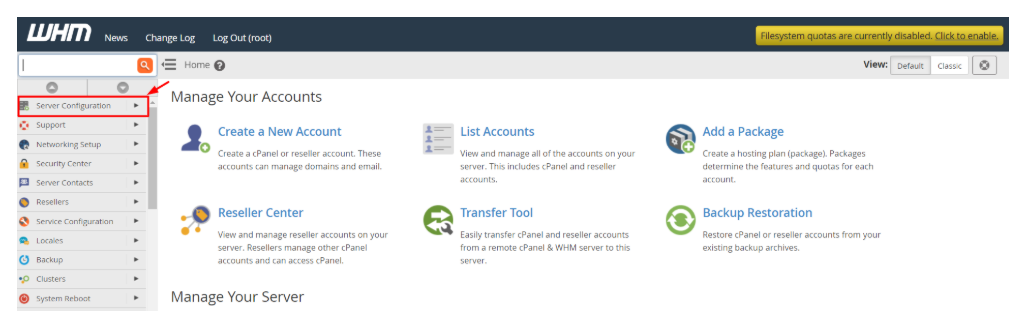
Choose Basic WebHost Manager Setup.

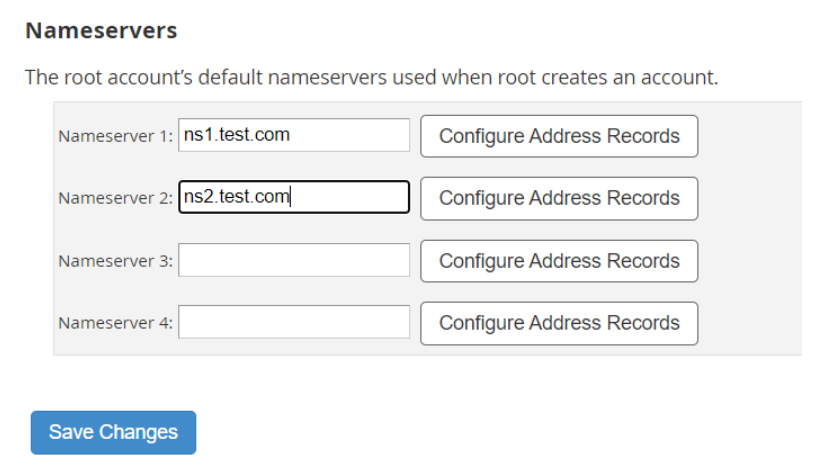
Click on the Nameservers section.
When this is the first configuration, the default entries will show two nameservers with identical domain name to the hostname of the server.
The new nameservers will have to be created in case they are not listed.
Insert the name of the nameserver with its IP address.
Once the name is typed in, select the button of Configure Address Records.
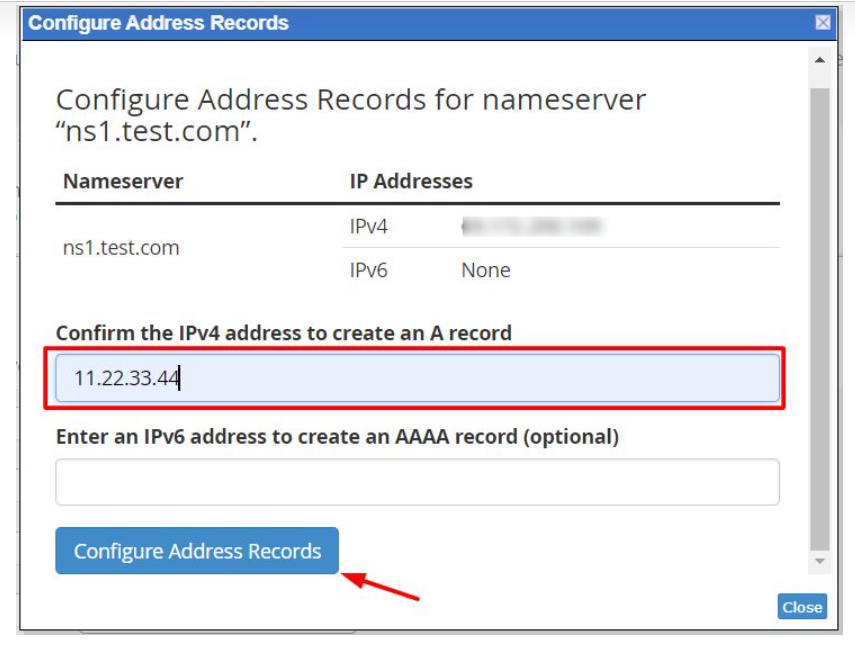
Enter the IP address of the hostname/server of your domain record after which you can press the configure address records button.
At least two nameserver records have to be set. Instructions The instructions will be similar to those in the first section to set up a second name server.
After making all the entries to the nameserver, select Save Changes.
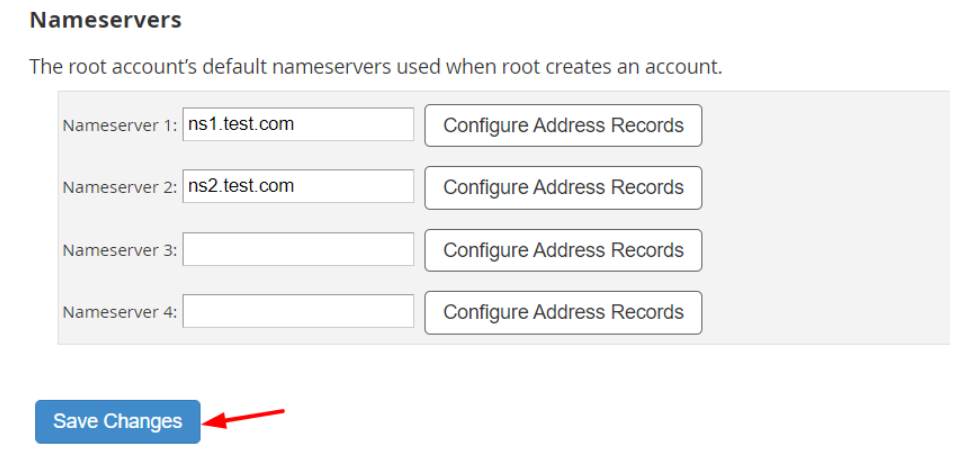
Note: When changing your current assignments of IP to nameservers, update your registrar. Before switching, ensure that all the necessary records are present in the new nameservers.
There are numerous registrars, such as Cantech, who are willing to register the nameservers of their clientele free of charge in case the primary domain name was bought with them.
In case the domain has been registered by another registrar, you will have to pay to have the nameservers registered or even to configure them.
II. To Observe the Registering the Private Nameservers
You will have to submit the application to the registrar where you will have to log in to your account and register the private nameservers.
As an illustration, in order to configure ns1.test.com and ns2.test.com, in case test.com was bought at Cantech, you would have to access your
Cantech Client area account to create the new nameservers. An example article is at hand: Register Private Nameservers for Your Domain.
III. Load Your DNSes to Private Nameservers
In order to complete the setup you need to direct your domains(s) to the new nameservers.
Edit the assigned name servers using the registrar application in order to refer to the newly created name servers of the private nameservers.
Warning: There will be a temporary stop in the functioning of the domain by altering the domain nameservers. The changes in settings will become effective in a couple of hours. These changes should be done at a time of little or no traffic to prevent downtimes.
Once the private nameservers have been configured and the domain set to those, the DNS tools of WHM can be used to edit your zone files.
