How to set up email forwarding in cPanel
Setting up email forwarding on cPanel is one of the simplest tasks as it allows you to automatically send an email addressed to one email account to another email account. In cPanel under the Emails tab, the Forwarders option allows you to create rules that dictate which email address will have their incoming emails forwarded to which destination email address.
Having email forwarded to other email accounts is also very useful if you want to combine many email accounts or if you want to create professional aliases for your main inbox so that you don’t miss any important emails.
How to Setup an Email Forwarder (in cPanel)
Here are the steps to set up an email forwarder:
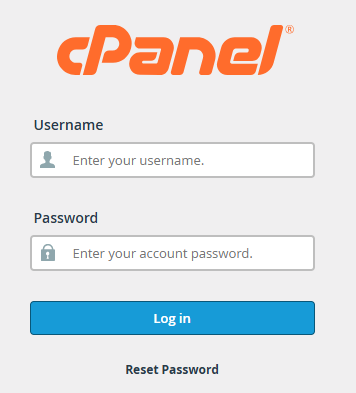
Step 1: Access your cPanel account.
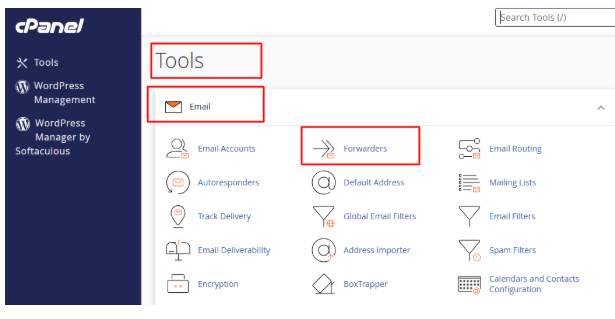
To open the forwarders menu, go to cPanel Email section, then to the email tools, and click on Email Forwarders.
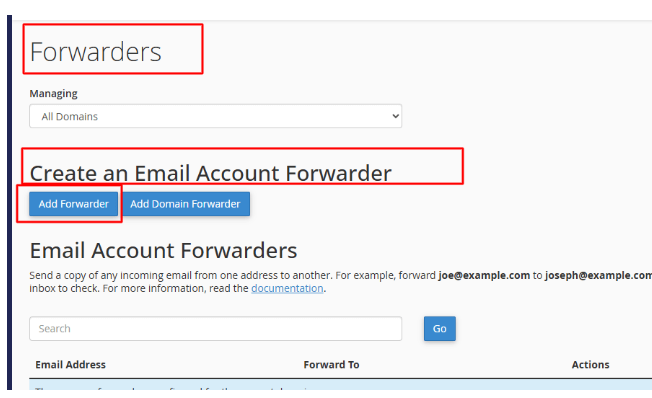
Step 2: Find and click on Add Forwarders under Create an Email Account Forwarder.
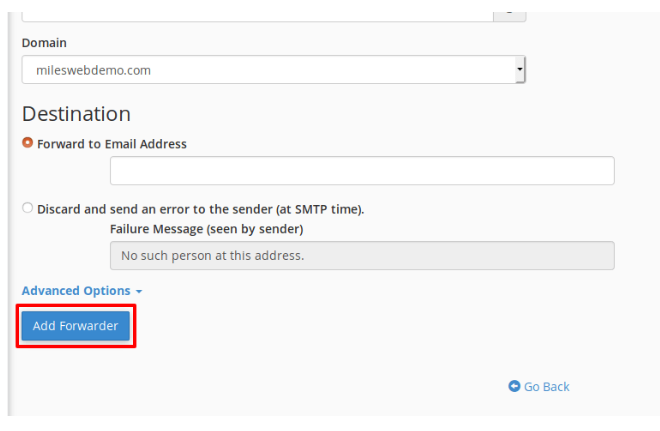
Step 3: In the first textbox, enter the prefix or the part before the @ of the email address you want to forward emails from.
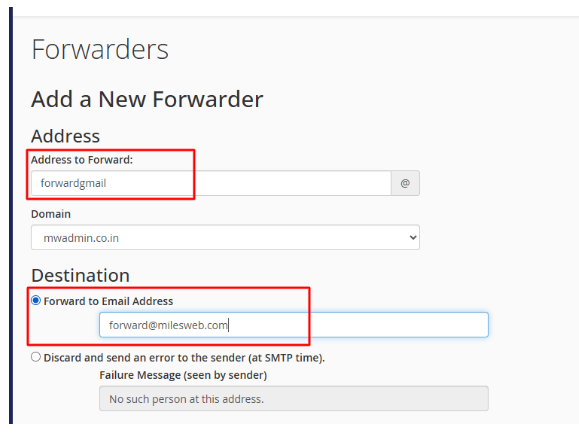
Step 4: You can select the email address to which you want the incoming emails to be forwarded.
Step 5: In the Advanced Options section, you have the ability to forward mail to a system account and choose whether to pipe it to a specific program or simply discard the forwarded mail.
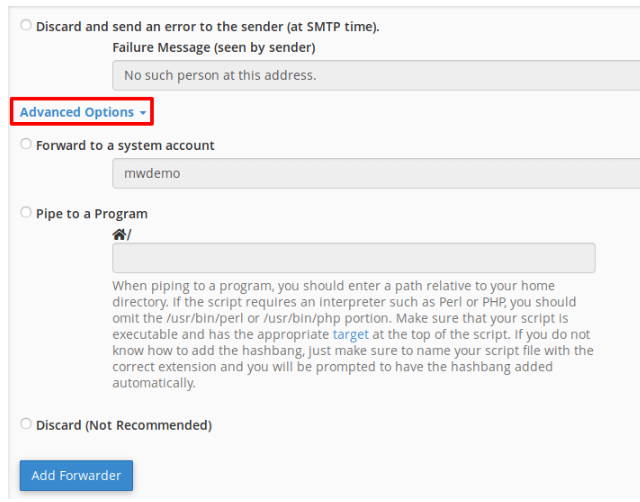
Step 6: To add the forwarder, you must click the Add Forwarder button.
Step 7: To remove the forwarder, simply click the Delete button.
Conclusion
This guide was about the process of managing and setting up e-mail forwarders. Be careful to ensure that the e-mail addresses have been entered correctly on both sides.
cPanel is the easiest to use if you have the optimal web hosting service to build a website. If you need to find a dependable hosting service to assist you in managing your website with cPanel, consult the cPanel hosting offers from Cantech. Look at the most suitable cPanel hosting offers and choose the best one that you need for your website.
