How To Restore Files/Folders In cPanel?
Website malfunctions such as unforeseen deletions, failed software updates, or random file corruption can all ruin a website in a short amount of time. For webmasters, the options to undo these issues are vital. While full account backups may be a hindrance due to the way they complicate moves to new servers, tools like JetBackup and Restore File and Directory tools allow webmasters to selectively copy over a file without having to restore a full backup. Instead, they can undo the actions of a single file or a folder and fix the account issues without having to restore a full backup and then complicating everything.
This guide will eliminate the problem of corruption and the time wasting due to website downtime.
Through the daily backups, clients are able to restore their files and folders. To do this, they go to cPanel > Files > File Restoration Tool.
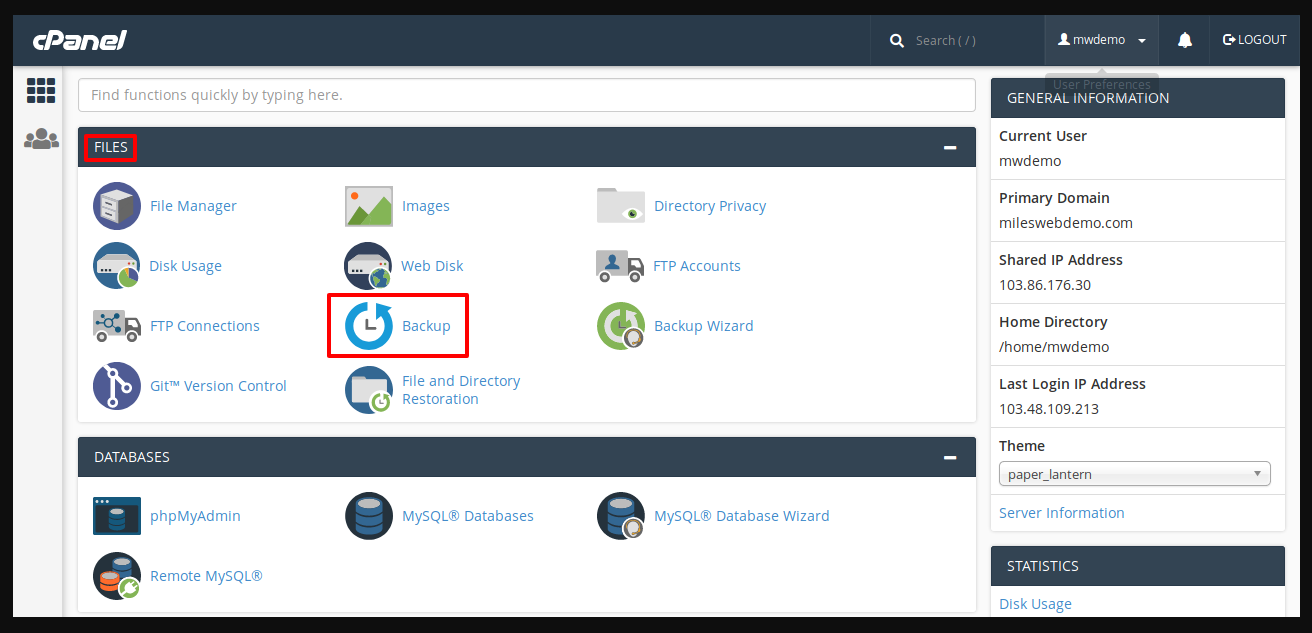
To restore your backup, go to the tool. When the new screen loads, the backup dates that your hosting account has will be shown. Click on a date of your choice and then click the Browse button that is located next to the date.
Then, you can go through the backup, choosing the files and folders you wish to restore.
Once you have chosen the appropriate files and folders, the top bar will show you 3 buttons.
- Restore Selected: This will restore the chosen files and folders to your account. This will take time, and once it has done, reaching back your files and folders from the backup date. Keep in mind that old files will be removed.
- Download Selected: Choosing this option downloads the selected files or folders to your computer.
- Send Selected To Agent: This option allows you to restore the chosen files and folder to your hosting account’s home directory, where they will be stored in an archive for your convenience. You can restore these files to your website or download them, if needed, in the future.
Conclusion
You have demonstrated the ability to utilize the cPanels granular restoration tool to restore specific files or directories. You have demonstrated that even large scale catastrophes do not have to lead to large scale downtimes. You are learning that the ability to restore from a specific date, and that the ability to target specific files, is a critical feature for efficient website management.
Always remember that the successful restoration of files depends on the frequency and reliability of your host’s automated backups. Make sure to verify the restored files and check the status of your files of your host’s backup retention policy. You know how to efficiently deal with typical file issues and can do so with confidence.
