How to Reset Email Account Password Through Plesk Control Panel?
Having to reset access to email is one of the most frustrating workflows email users have to deal with. Luckily, steps to reset a password in Plesk take, on average, less than 2 minutes. This is the case whether you’re an administrator resetting a user’s password, or an individual user needing to change your password to enhance your security. The Plesk Control Panel is very user-friendly, and you’ll be able to get your email password reset in no time.
To reset your email password, follow these steps.
Log in to your Plesk Control panel.
Select ‘Website & Domains’ from the available options.
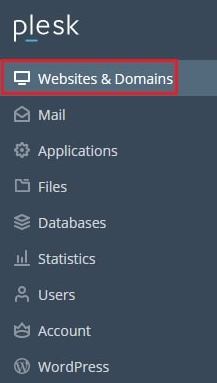
Find the domain for which you want to change an email account password. Click on the ‘Mail Accounts’ tab.
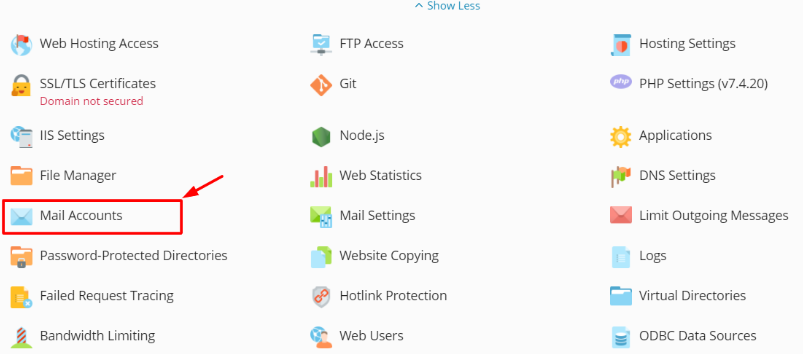
This will show you the email accounts you have created.
Select the email account you want to change the password for.
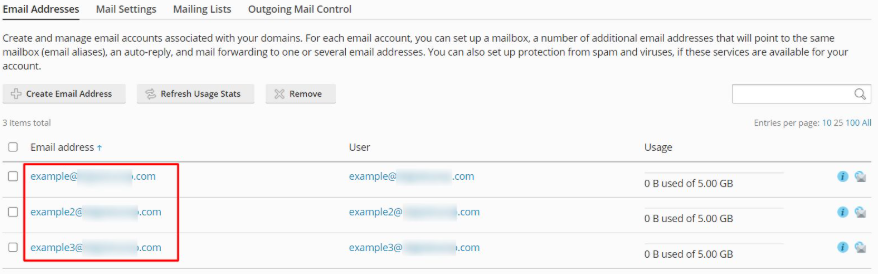
The following screen should appear once you click on the email account:
In the ‘Password’ box, type the new password you want to assign to the email account.
Type the new password again in the ‘Confirm Password’ box.
You can also click the ‘Generate’ button to have a password created for you.
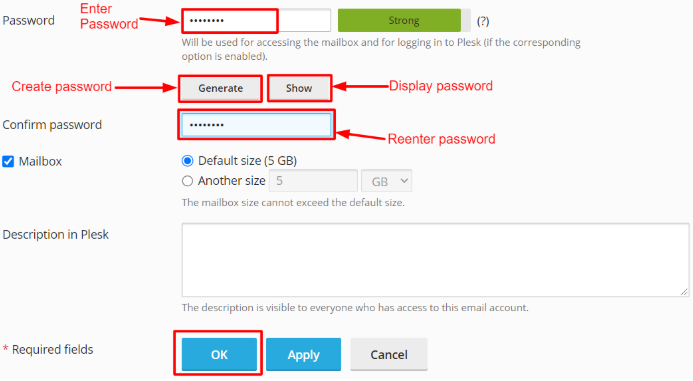
If you want to see the password, click the ‘Show’ button.
Remember to write the password down somewhere safe before continuing, so that you do not forget the email password.
When you press the OK button, the password will be changed, and you will see a message at the top of the screen that says password successfully changed.
Conclusion
Being able to reset your email password in Plesk is a crucial skill that helps you keep your communication system secure and working well. These are the steps you may follow to help you regain access and keep your system safe from unauthorized access. After making changes in the control panel, to avoid being locked out or getting an IP ban, be sure to do the settings updates on your mobile and desktop right away.
