How to Open a Port in CSF Firewall via WHM?
Ports act as the connection points where the IP addresses and other Internet Protocols start a communication session for both destination and origination addresses. These communication centers are important to clientserver model, which is uniquely identified with a 16bit number.
The CSF (ConfigServer Security and Firewall ) needs certain configuration to enable a port for usage, taking server security into account.
Why Adjust Port Settings in CSF?
A firewall blocks most ports in order to avoid unauthorized access. You will need to explicitly open the required port numbers in order to permit certain services such as web browsing (HTTP/HTTPS), email (SMTP/POP3/IMAP), or secure shell access (SSH).
Customising these settings ensures that only required services can send and receive data, while keeping the server safe and permitting the necessary operations.
How to Open a Port in CSF Firewall
These network security parameters need administrative root privileges in WHM. The following steps help you configure the allowed ports.
Log in to WHM with Root Access
Begin by entering your WHM panel. Ensure that you access administrative privileges with your complete root account credentials.
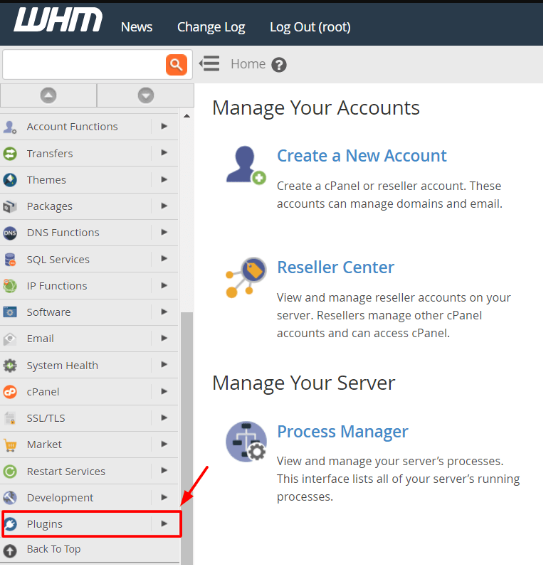
Navigate to Plugins
In the navigation menu, one must choose the option named Plugins.
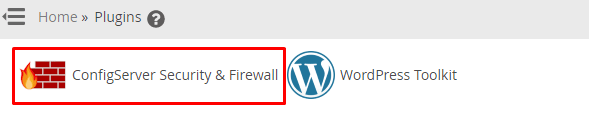
Open ConfigServer Security & Firewall
In the Plugins interface, click on the ConfigServer Security & Firewall link. This action will present the core management panel for the CSF application.
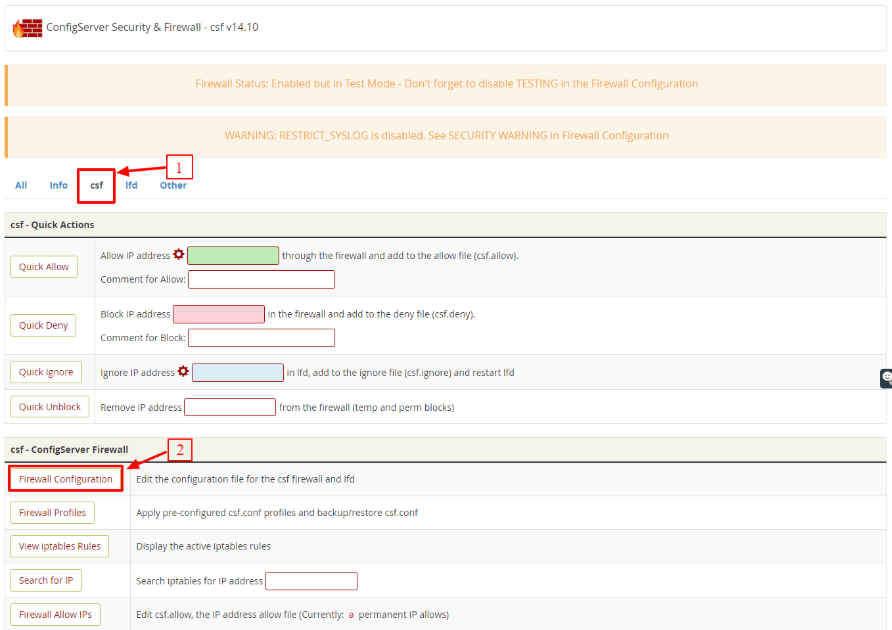
Access Firewall Set-up Configuration
Inside the CSF panel:
Select Tab: Choose the csf tab.
Click Button: Find the csf-ConfigServer Firewall section and click Firewall Configuration button.
A wide array of configuration options for the firewall will subsequently appear.
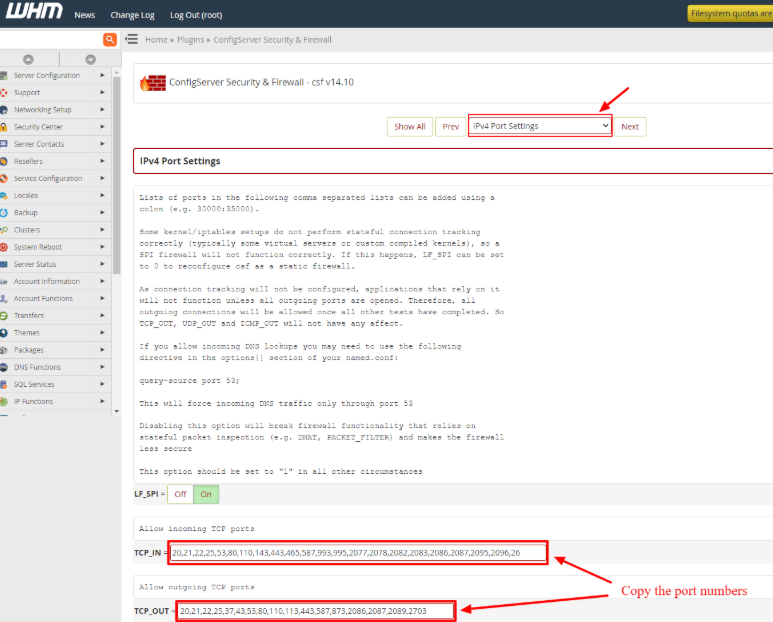
Configure IPV4 Port Settings
The next thing is to enter the list of authorized ports.
Select Section: Choose and select the IPV4 Port settings section in the available list.
Input Ports: The necessary port numbers should be copied or typed into the fields for ‘Allow incoming TCP ports’ and ‘Allow outgoing TCP ports’.
The following are some suggested port numbers:
Allow incoming TCP ports:
20, 21, 22, 25, 53, 80, 110, 143, 443, 465, 587, 993, 995, 2077, 2078, 2082, 2083, 2086, 2087, 2095, 2096, 26
Allow outgoing TCP ports:
20, 21, 22, 25, 37, 43, 53, 80, 110, 113, 443, 587, 873, 2086, 2087, 2089, 2703
Although we recommend the use of these numbers, you can always define other port numbers depending on your unique operational requirements.
Save and Restart Services
In order to accomplish the process, the new settings should be saved, and the firewall service reloaded.
Click Change: Click the Change button located at the end of the panel. This will save the changes that you made to the firewall configuration file.
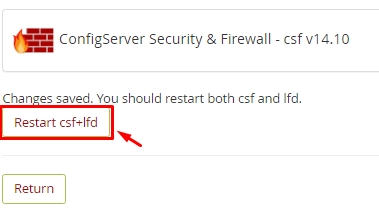
Click Restart: To enable the changes, click on Restart csf+lfd. This will also re-initiate the CSF firewall and enforce the new settings.
Conclusion
A basic step to server configuration is to open the ports required in the CSF Firewall. Using the IPV4 Port Settings option in WHM, an administrator can specify exactly which communication channels are active. It is always necessary to save the changes and restart the CSF service to implement the new rules.
FAQs
What does the number ’53’ typically signify in a port list?
Port 53 is the standard port used for DNS (Domain Name System) lookups. It is essential for translating domain names into IP addresses.
What is the difference between TCP and UDP ports?
TCP (Transmission Control Protocol) is a connection-oriented protocol, which guarantees data delivery. UDP (User Datagram Protocol) is a connectionless and faster protocol, but it does not guarantee delivery. This configuration focuses on TCP ports.
Why are there separate lists for incoming and outgoing ports?
There are separate lists because security requirements are different for each direction. You might need to allow incoming web traffic (80, 443), but you need to block outgoing spam ports (like 25) to prevent abuse.
Which WHM menu option gives access to the CSF firewall?
Access to the CSF firewall is gained by navigating to the Plugins option in the WHM main navigation menu.
Why do I need to restart csf+lfd?
The service will need to be restarted as it will make the firewall read the modified configuration file and implement the new set of permitted port rules to the server’s network stack.
