How to Transfer Backup from cPanel to VPS?
Introduction
Regularly taking data backups is a wise habit that would guarantee that there will be a back-up copy in case of an emergency. This can be achieved by making a copy of the site and posting it to your VPS server. In this article, you will know how to transfer a backup of a web site to a VPS, using cPanel.
To Migrate Backup cPanel to VPS
Step 1: Log in to your cPanel account.
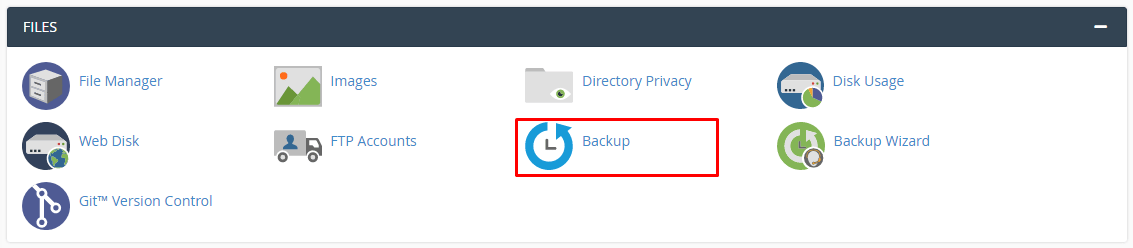
Step 2: Go to the files section and select Backup.
Step 3: Click on the Download a Full Account Backup button.
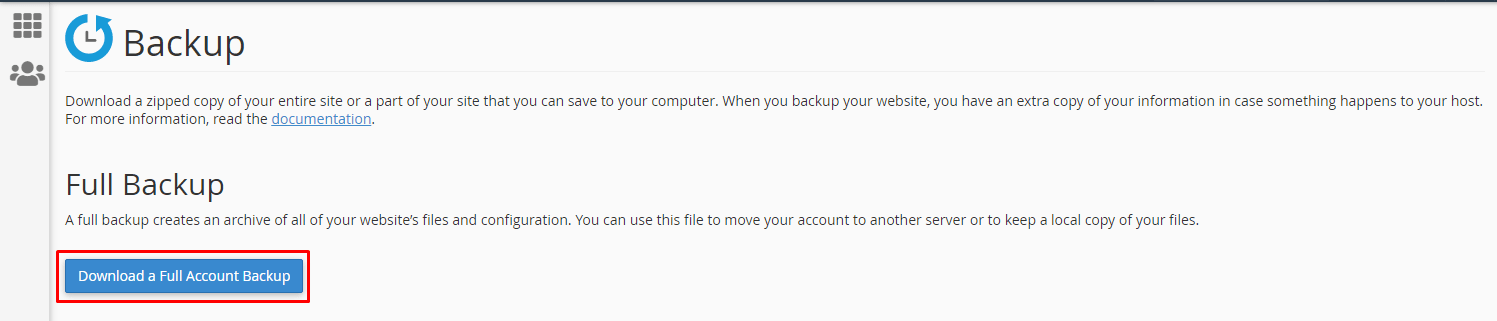
Step 4: The Generate a Full Backup form will be made available to you.
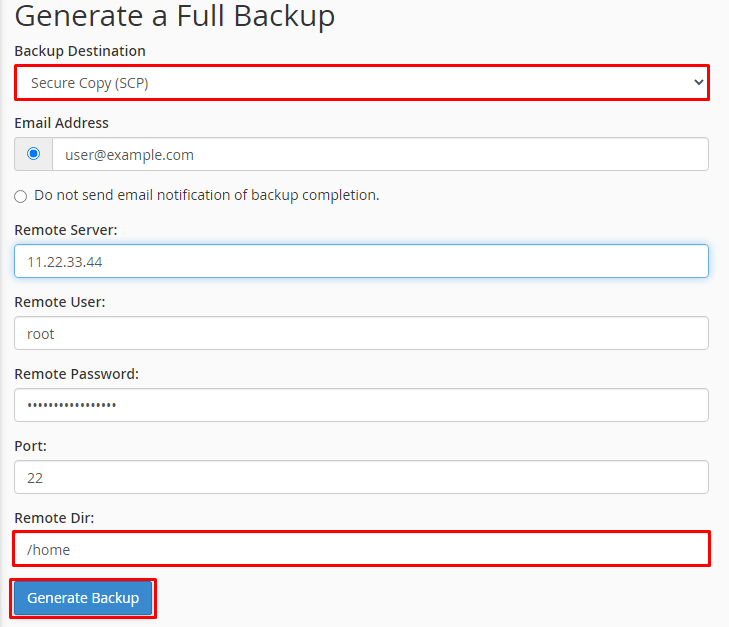
Step 5: Select the option of Secure Copy (SCP) in the dropdown list and fill the necessary information in each field.
-
- Email Address: This is where you type the email address that you will be listed at after the backup has been transferred.
- Remote Server: Add the IP address of your VPS.
- Remote User: Type the name of the hosting account. Otherwise, the system will default to the root user.
- Remote Password: Type in the user account password.
- Origin (optional): This is optional and is usually left blank when you would like to move on with the default port, or you can type the particular port mentioned in your VPS description.
- Remote Dir: Provide the folder where the files are going to be restored in your VPS.
Note: In case you leave the Remote Dir field blank, the backup files would be automatically copied to the root directory of your VPS.
Click on the Generate Backup button.
This system will show a message that Full Backup is being generated.
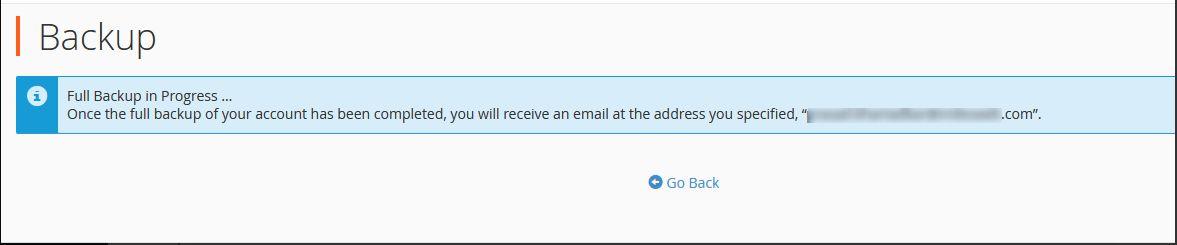
After the process finishes, the backup file will be uploaded in the indicated folder on the VPS, and a copy will be dispatched to the address indicated.
