How To Install Third-Party Software Applications In Plesk?
Using third-party applications can increase the potential of your website. These applications can include content management systems such as WordPress or provide point of sale solutions for e-commerce. Plesk offers an easy way to install third party applications via its proprietary Application Catalog. This Application Catalog is a collection of software that has already been configured, and software can be deployed in a matter of seconds.
Using Plesk’s built in software, the labour intensive tasks of file management, database configuration and server integration will be done, allowing your server to work without your external tools.
Searching & Installing an Application
Log in to Plesk.
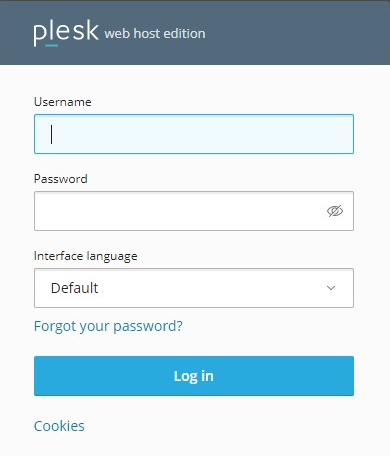
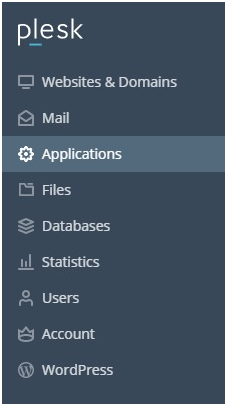
In the left sidebar, select `Applications`.
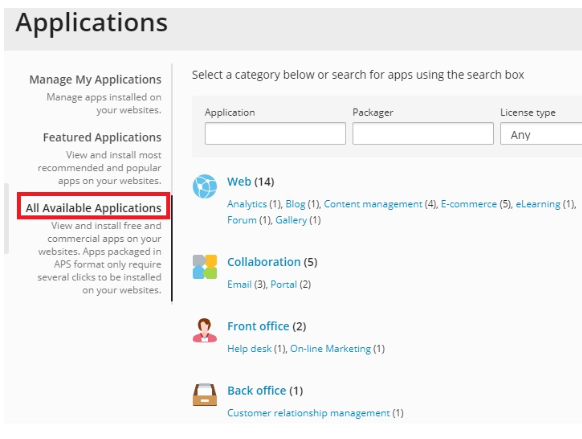
On the Applications page, select `All Available Options`. This section will show all applications, paid or free.
The section `Featured Applications` is a great way to discover some of the most popular and recommended applications.
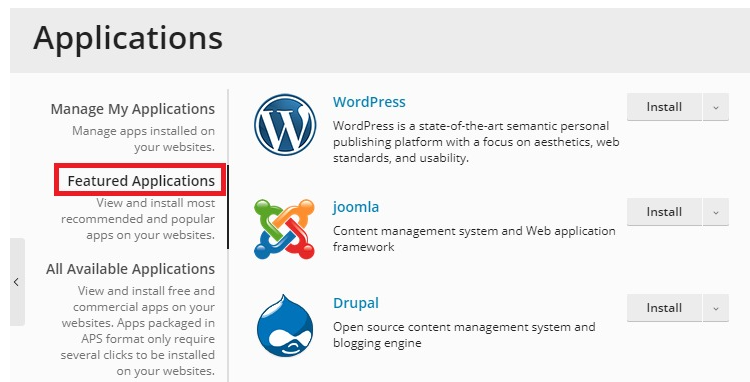
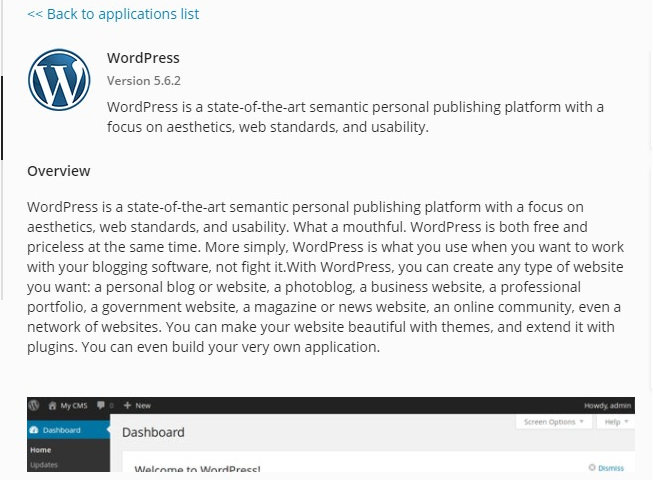
Select an application to see more information about it.
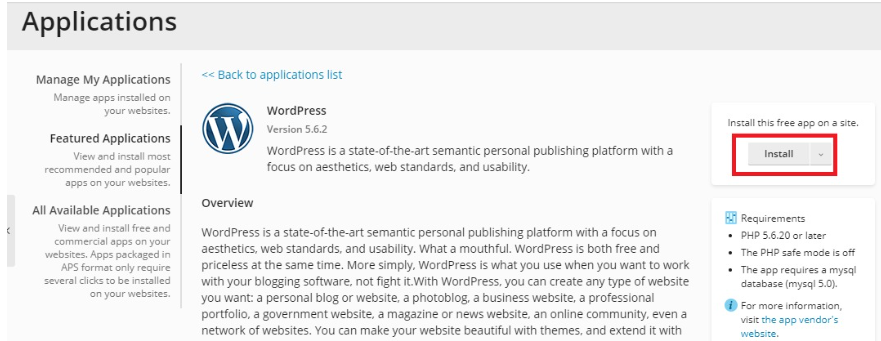
To install the application, select `Install`.
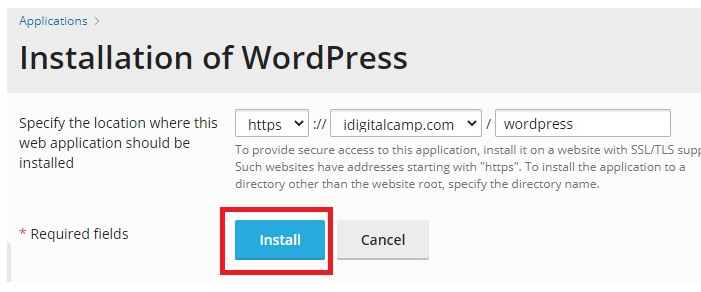
7. On the install page, complete all the fields and select `Install`.
Plesk will take care of the application installation.
Managing Your Applications
Use the following steps to manage the applications that you have already installed:
Access your Plesk account.
Click on ‘Applications’ in the left sidebar.
On the Applications page, click on the option ‘Manage My Applications’.
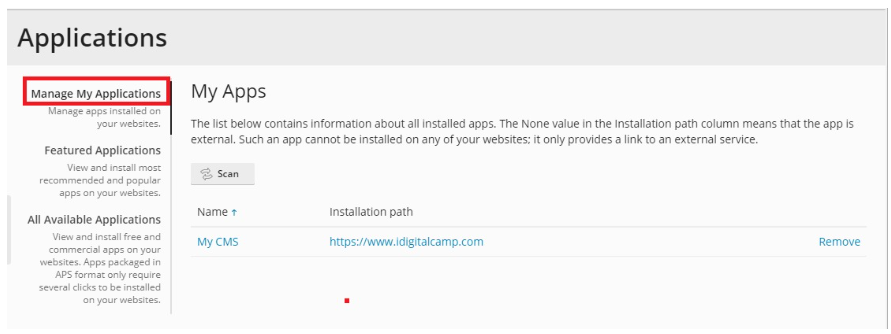
You will be sent to the ‘My Apps’ section. Here, click on the name of the application you want to manage.
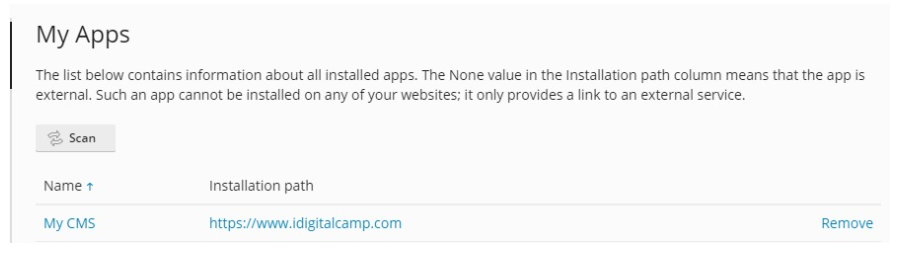
On the applications page, you have the following options:
To change the application settings, click on ‘Change Settings’.
To delete an application from your account, click on ‘Remove’.
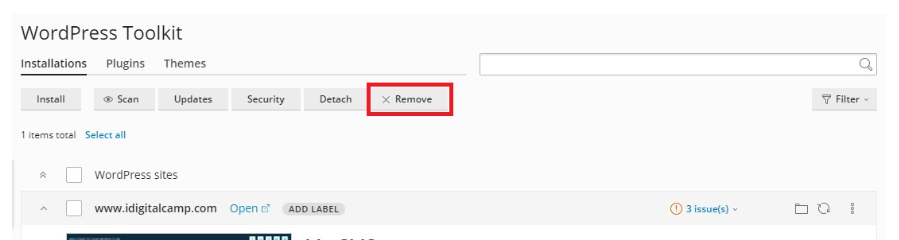
To access the administrative page of the application, go to ‘Administrative access entry points’ > ‘Administrative interface’.
To view the public-facing site, click on ‘Site’ under ‘Public access entry points’.
Conclusion
To conclude, installing and managing third-party applications via Plesk gives you the ability to efficiently grow your web presence without the need for advanced technical knowledge. Plesk guarantees that your software will be organized and easy to maintain, regardless of whether you go for the Quick Installation for faster installations or Custom Installation for more control over settings and updates. Frequent monitoring of your installed applications through the Manage My Applications section helps you evolve your project by keeping your site secure, up to date, and performing at its best.
