How to Flush WordPress Caching Plugins?
Introduction
One of the best ways to speed up your website is by enabling caching. It works by storing a static copy of your website, which means that it saves your server from having to run complex scripts each time a visitor lands on your site. But when you update your design or publish a new article, your visitors could end up seeing the old version. To resolve this issue, you will need to clear the cache manually.
Why You Need to Clear the Cache?
If you update a plugin, switch themes, or edit a page, the “saved” version of the site in the cache becomes outdated. By clearing the cache, you make sure that all users see the most up-to-date version of your site. Most common plugins have a one-click option for this process.
Flushing the Cache with Popular Plugins
The following plugins have their own settings pages, but the logic is the same. Here are the steps to find the “Delete” or “Empty” buttons for the four most popular caching plugins.
W3 Total Cache
This is an all-in-one tool popular with pro sites. It keeps a number of different layers of data, but you can clear them all at once.
- Go to your WordPress Dashboard.
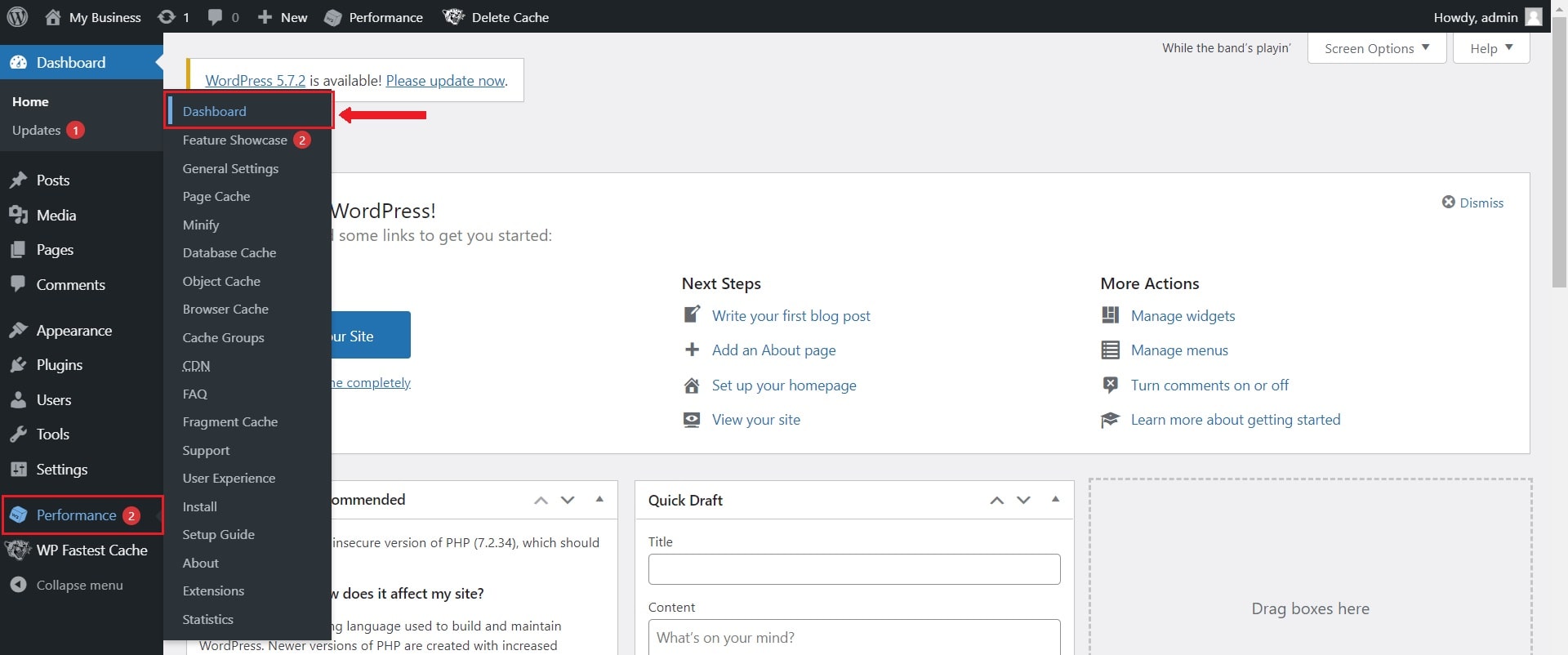
- Click on the Performance tab in the sidebar and then click on Dashboard.
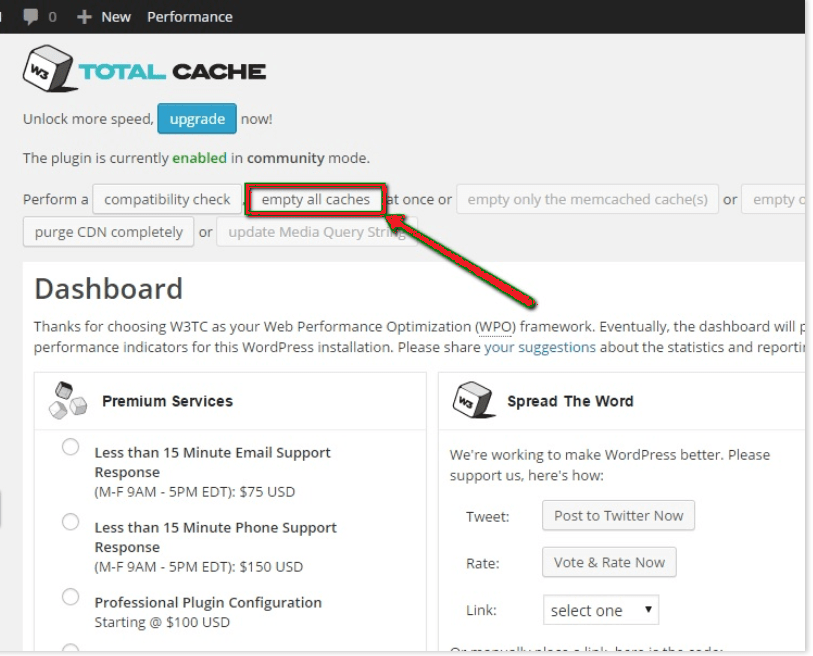
- Look for the button at the top that says empty all caches.
- You will see a green bar indicating the task has been completed.
WP Super Cache
This is a fast and easy-to-use plugin. It has two types of categories: “expired” and “active”.
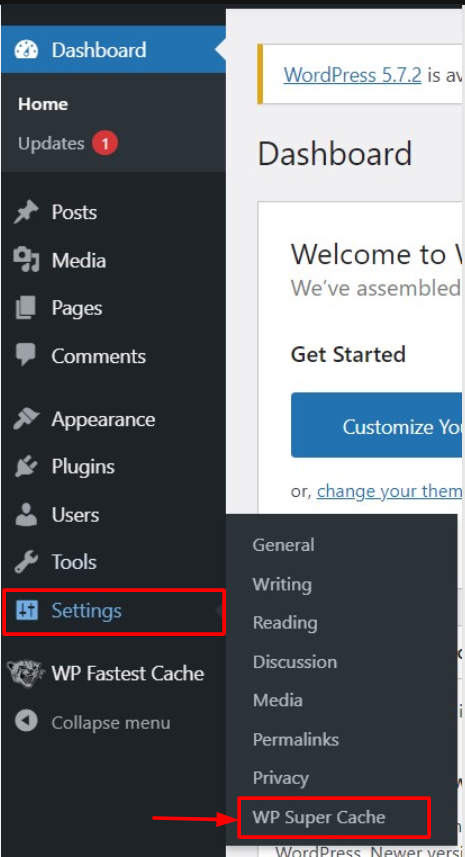
- Click on Settings, and then WP Super Cache.
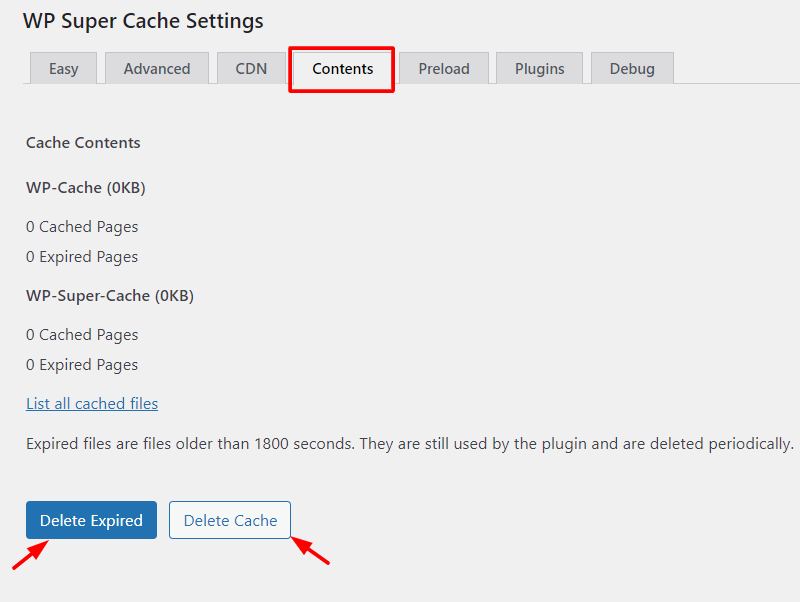
- Open the Contents tab at the top of the settings page.
- You can either click Delete Expired to remove old files or click Delete Cache to wipe everything and start fresh.
WP Fastest Cache
This is a popular plugin due to its simplicity. You can delete specific file types.
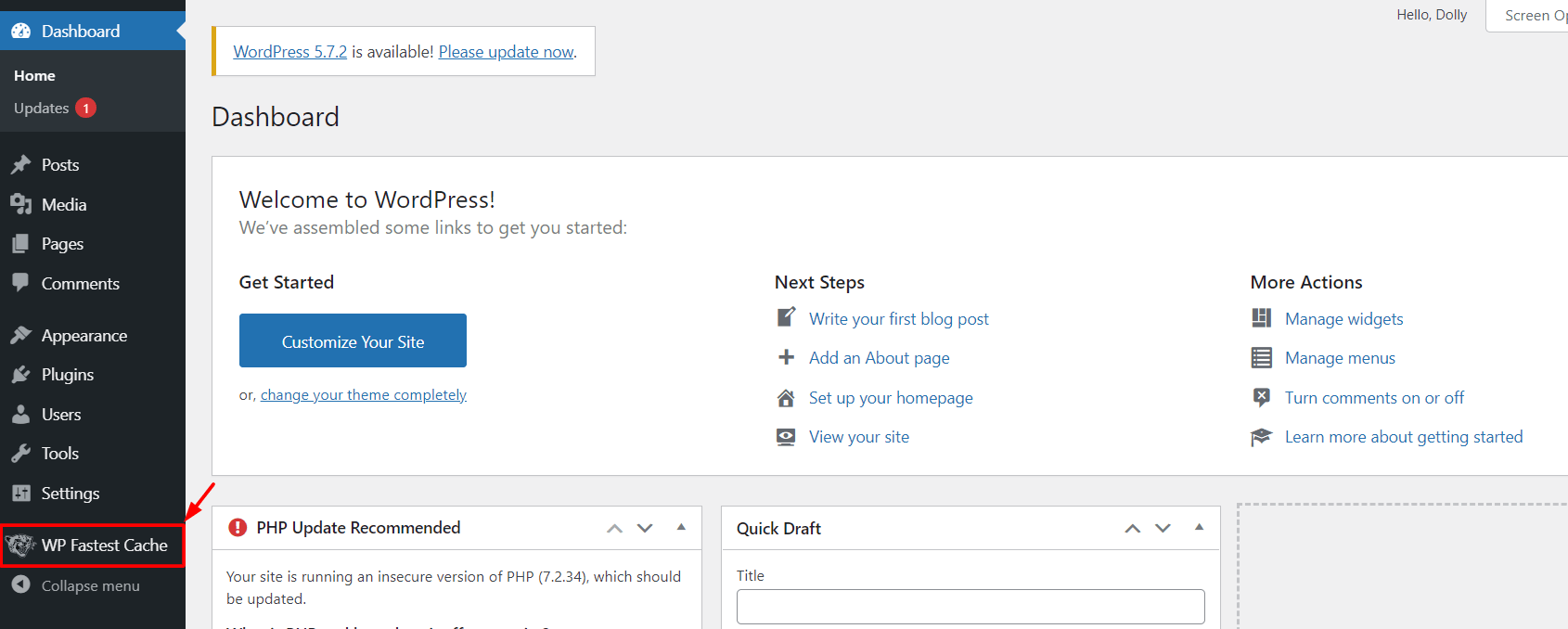
- In the left-hand menu, click on WP Fastest Cache.
- Switch to the Delete Cache tab.
- You will see two main options: Clear All Cache or Delete Cache and Minified CSS/JS.
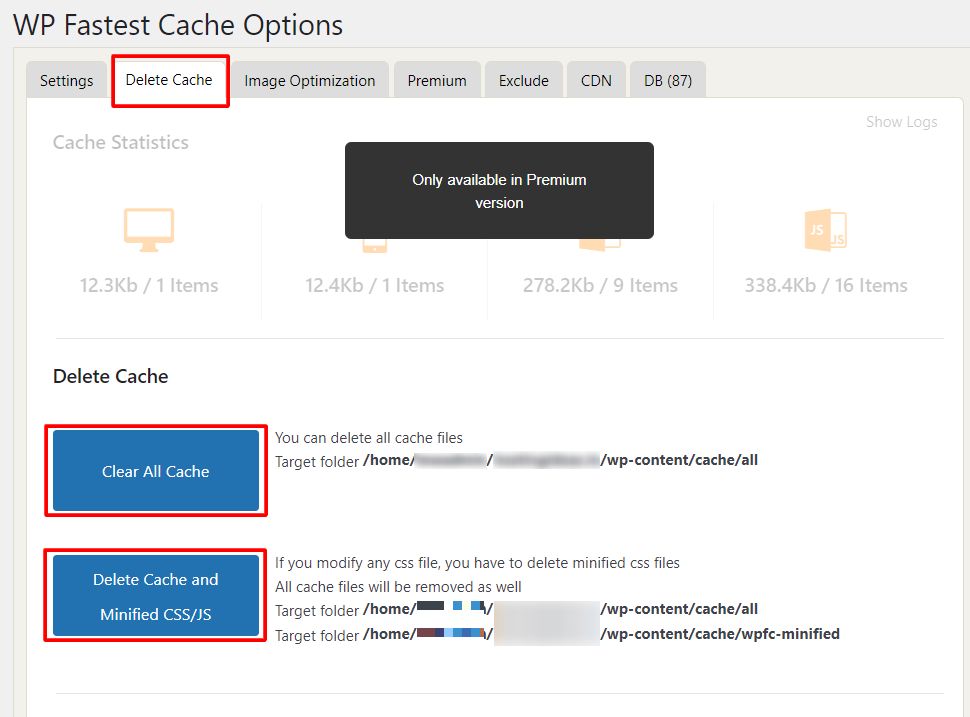
- If you have recently made changes to fonts, colors, or layout of your site, select the “Minified” option.

Hyper Cache
Hyper Cache is a simple plugin, ideal for small blogs. It has a simple management page.
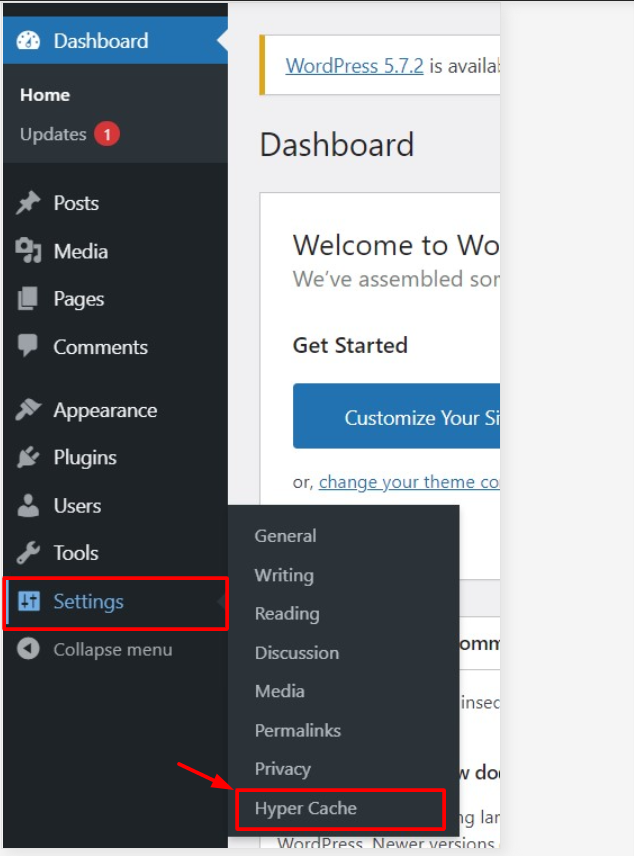
- Go to Settings and click on Hyper Cache.
- Click on the large button that says Clean the whole cache.
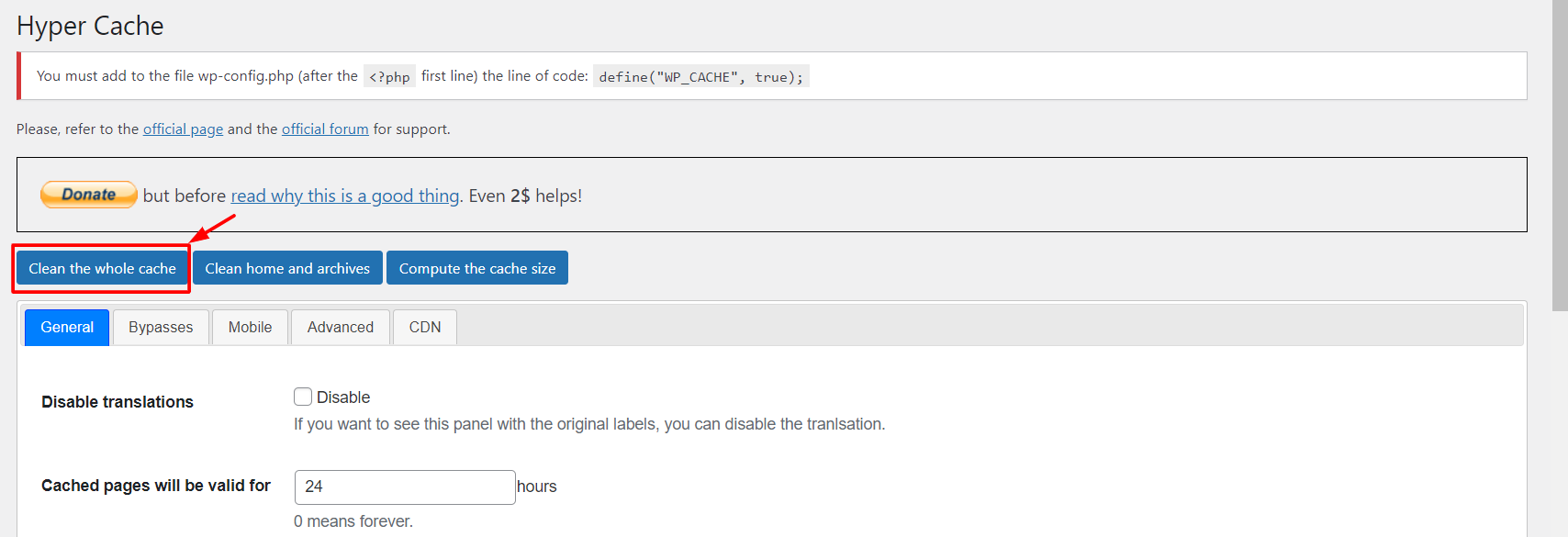
- You will see a confirmation message saying the folder is empty.
Cantech Performance Optimization
At Cantech, we offer hosting plans that are already optimised to work with these caching plugins. We also use Nginx and LiteSpeed technology to further speed up your static file delivery. If you are on a Cantech plan, we suggest clearing your server cache from our control panel, too, for complete synchronization. Our 24/7 support team is available if you have any questions about setting these tools for optimal performance.
Conclusion
Clearing your cache is an essential part of managing your site. Using either W3 Total Cache or the more basic Hyper Cache is a quick and easy process. A clean cache means that your visitors will always see the best possible version of your website without any technical glitches.
FAQs
Does clearing the cache delete my website content?
No, clearing the cache only removes the “temporary copies” of your pages. Your actual posts, images, and settings are stored in the database and are safe.
How often should I clear the cache?
You should clear it every time you make a visible change to your site. This might be changing your site’s header, changing the price of a product, or installing a new plugin. Some plugins also allow you to schedule an automatic cleanup once a week.
What is ‘Minified CSS’?
Minification is a way to reduce the size of your code files to make them load faster. If you make changes to the styling of your site, but the colours don’t change, this could be because the old minified CSS file is still being served.
Will my site be slow after I clear the cache?
Your site will be a bit slower for the first person who visits after a cleanup. This is because the server will need to build a “new” copy of the page. But it will be back to full speed for subsequent visitors.
Can I use two caching plugins?
No, you should never use more than one caching plugin at a time. This can cause major conflicts, leading to broken layouts or even a 500 Internal Server Error. Use the one that suits you best and stick with it.
