How to Fix the “Invalid cPanel License” Error?
One of the typical server-side errors, which causes the inability to access cPanel and WHM (Web Host Manager) control panels, is the Invalid cPanel License error, which means that the validity of the software license has been unsuccessful.
The failure can typically be due to one of three reasons, which are: the cPanel license has really expired or been suspended by the provider, the public IP address of the server has changed, but the record of the license has not been updated to reflect this new address, or a temporary outage of connectivity, or an incorrect server time is preventing the server to connect to licensing servers at cPanel to be able to verify the key.
A system administrator will usually have to run the /usr/local/cpanel/cpkeyclt command to update the license record on the server, or call the hosting provider/cPanel store to renew the license or revisit the IP address associated with it.
Three main reasons can lead to the occurrence of the error of the Invalid cPanel License.
- The cPanel license has been expired.
- The IP address of the server has been modified.
- There is a need to update the license.
The fault occurs during the process of logging in to WHM.
To Fix the “Invalid cPanel License” Error
In order to fix the Error of the non-valid cPanel License, one will need to confirm whether the license based on the IP address you are using is up to date. In order to do this you should open your web browser and visit the following site: http://verify.cpanel.net.
You should enter your IP address to the field provided and press Verify License.
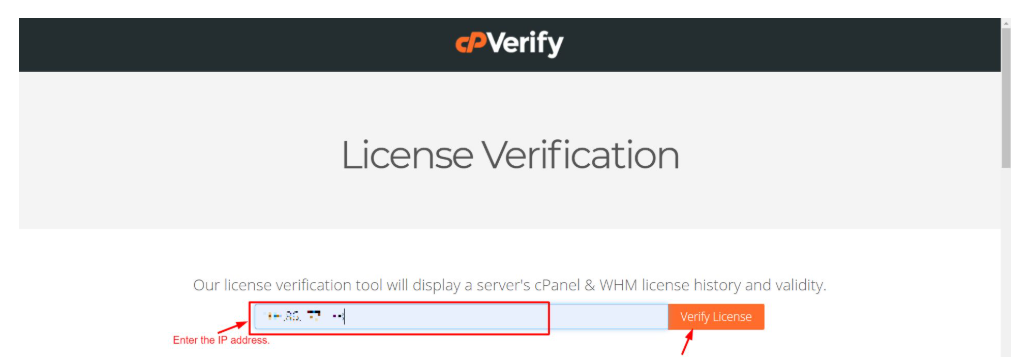
You can scroll further down and would find the License History of your IP. Make sure that the status is active.

In the event of an active status, then log into the server using SSH.
The following command can be executed in the module:
/usr/local/cpanel/cpkeyclt
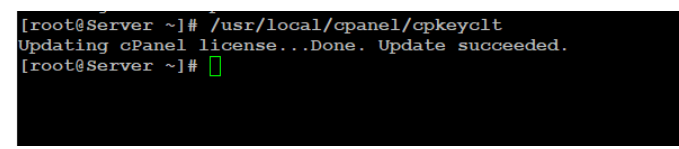
This will refresh the license and hence correct the error.
