How to Exclude Files from Backup of a cPanel Server?
Backups usually include saving the data from all the web files on a server. But, if you are hosting on a cPanel server, you may need to exclude certain files from the backup.
To exclude files from user backups, you can do either of the following:
- Exclude files from all users’ backups.
- Exclude files from an individual user’s backups.
Steps to Exclude Files from the Backup
Step 1: Log in to Your cPanel Account
Log in to your cPanel account.
Step 2: Open File Manager
Click on File Manager from the Files section.
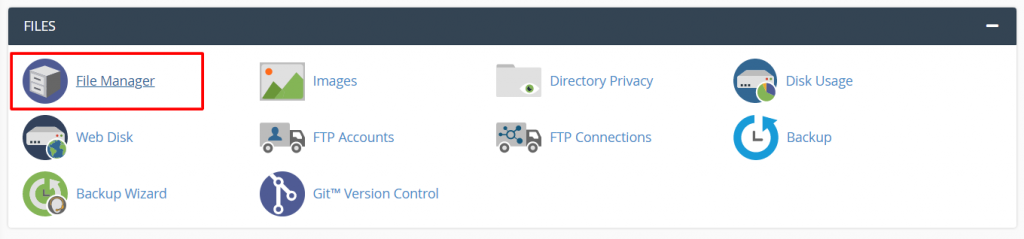
File Manager will open in a new tab. Here, you have to create a new file in the home folder of your hosting account.
Step 3: Create a New File
Select the + File button in the top-right corner.
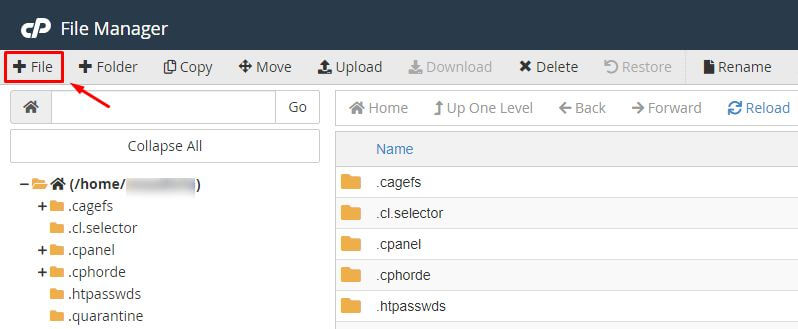
The New File window will open.
Step 4: Enter the File Name
Enter cpbackup-exclude.conf as the new file name and choose Create New File.
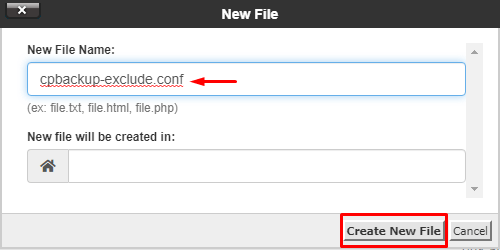
The cpbackup-exclude.conf file will appear in the file list.
Step 5: Edit the File
Right-click on the cpbackup-exclude.conf file and choose Edit from the context menu.
The file will open in the text editor.
Step 6: Add the Exclusion Patterns
Copy the following code into the file:
*.jpa
backup-*.tar.gz
cpmove-*.tar.gz
site-*.tar.gz
*/com_akeeba/backup/*
*/backupbuddy_backups/*
public_html/cache/*
tmp/*
logs/*
softaculous_backups/*
*/wp-content/uploads/wpcf7_captcha/*
*/wp-content/widget-cache/*
*/wp-content/cache/*
*/wptsc-cachedir/*
*/wp-content/ai1wm-backups
Step 7: Save the Changes
Click Save Changes and close the file.
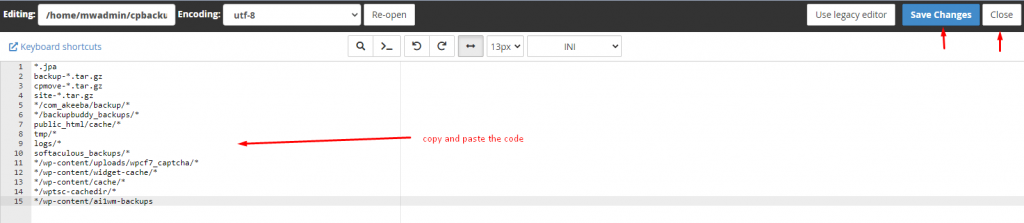
The backup system will exclude matching files if it supports this exclusion file and its patterns.
Conclusion
Certain files may need to be excluded from cPanel backups for security purposes or to reduce the size of backup files. Configure the appropriate exclusion patterns and verify that they work with your backup system.
