How to Delete a MySQL Database in a cPanel Account?
Introduction
Deleting a MySQL database could sound complicated, but it is only about a few clicks. If you are trying to free up server resources, remove clutter or eliminate outdated projects, these are very simple steps to delete a database in the cPanel account.
In this article, we will walk you through some easy steps on how to delete the MySQL database in a cPanel account. Let’s begin.
Steps to Delete a MySQL Database
Below are some of the simple steps to delete MySQL databases.
Step 1: Log in to your cPanel account.
Step 2: Go to the Databases section and select “Manage my databases”.
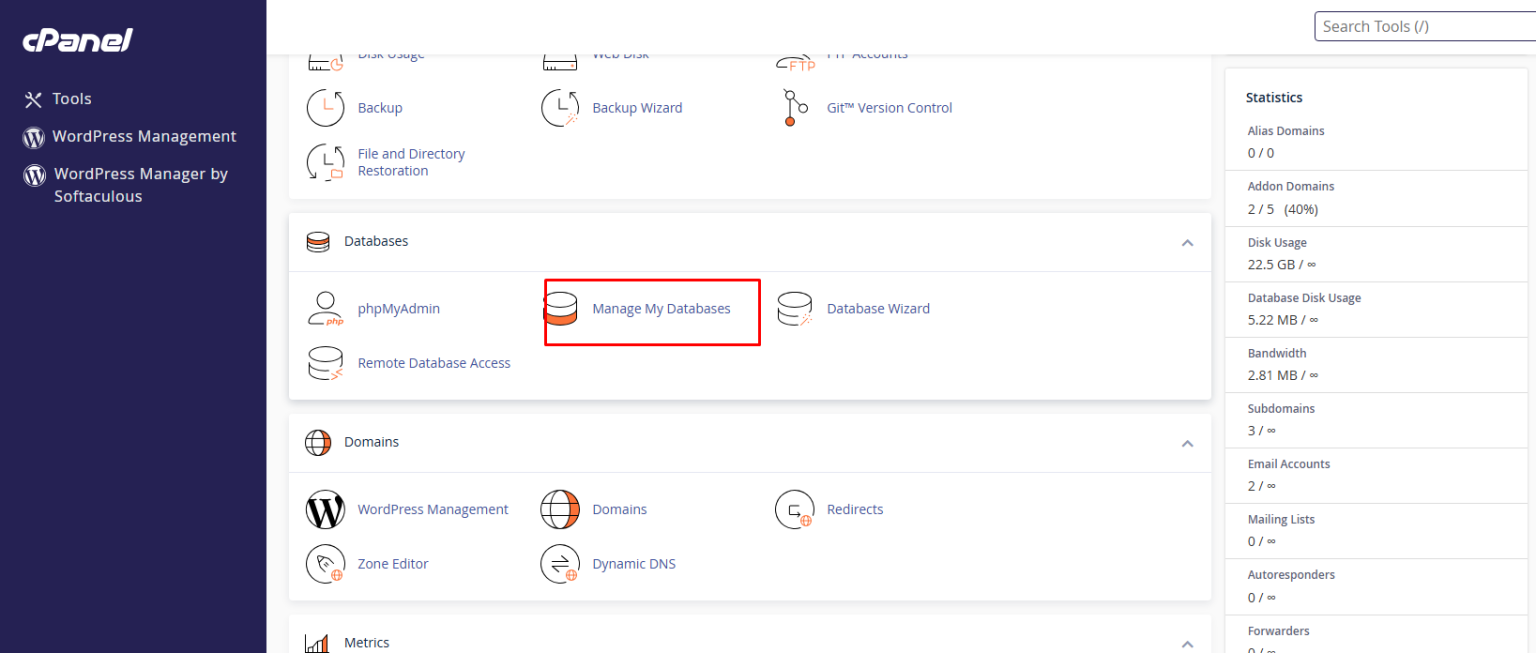
The managed database application opens.
Go to the current databases section, where you may see a list of active databases.
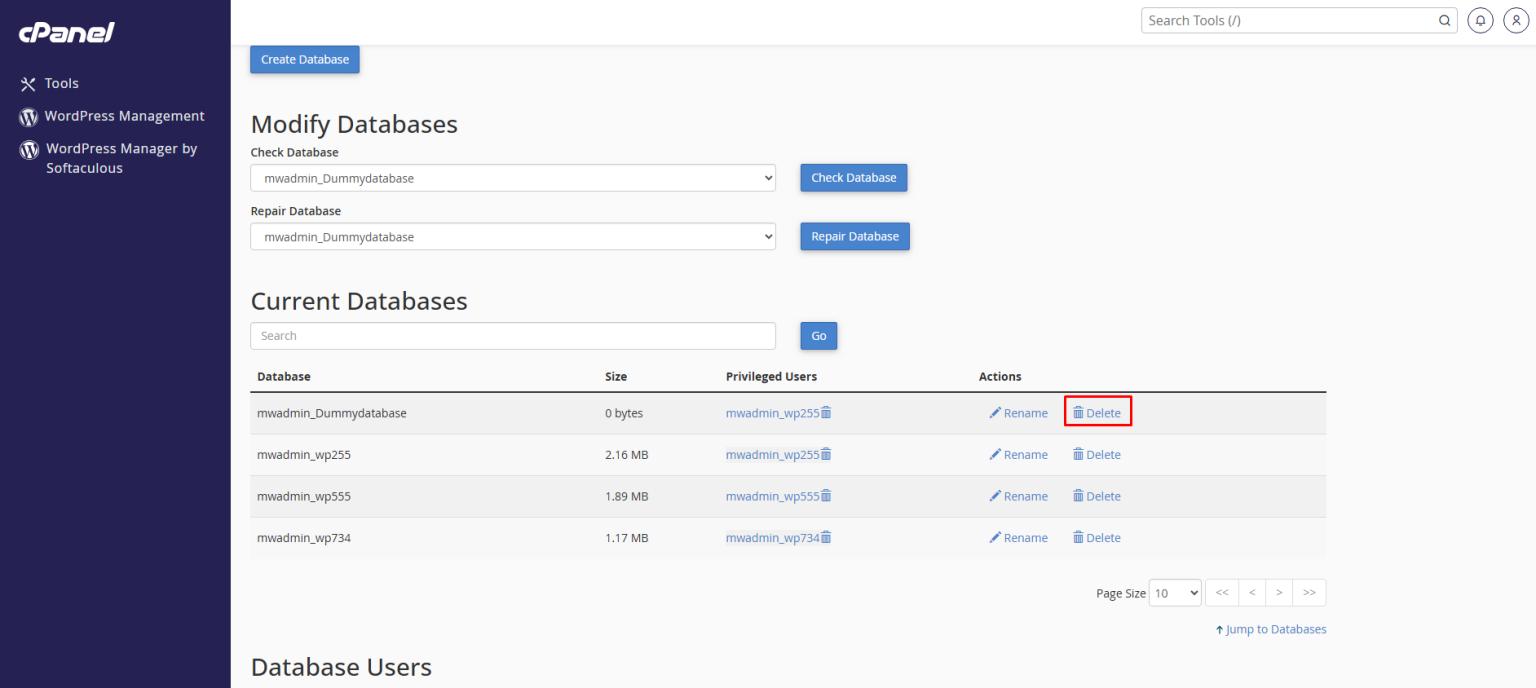
Step 3: Click on Delete under the Actions column for the database you would like to delete.
A message appears that asks for your confirmation.
Step 4: Click on Delete database.
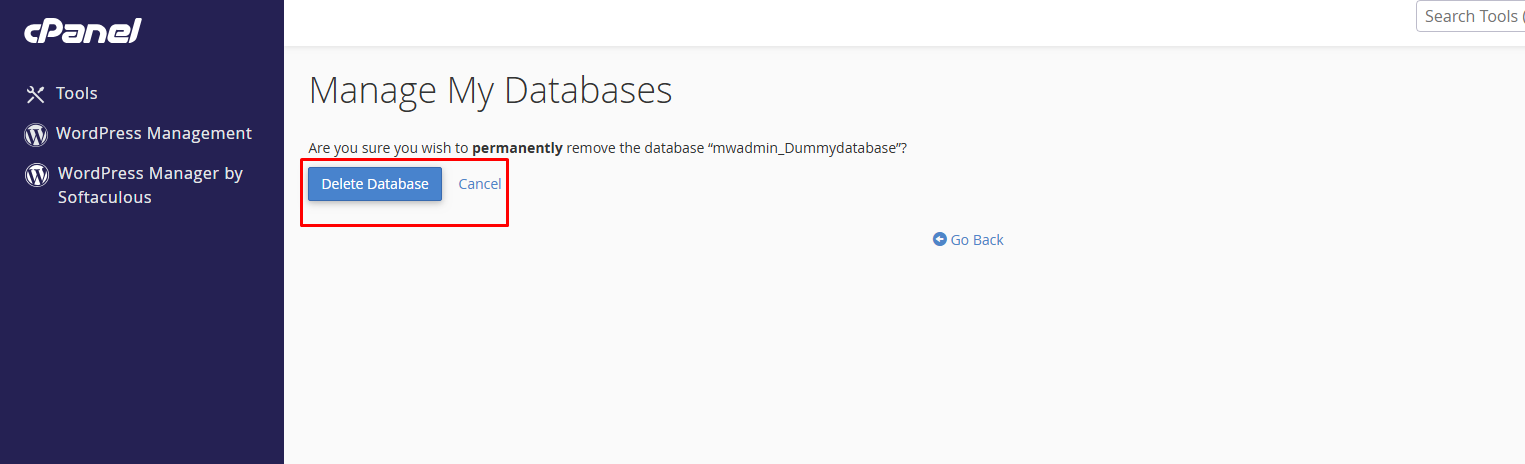
cPanel deletes the MySQL database and removes it from the list of current databases.
Conclusion
Follow the above steps to delete the database in the cPanel account. These are easy steps mentioned, where you will be armed with everything you need to manage databases space efficiently and securely.
