How to configure a password-protected directory in Plesk?
Whether you need to secure a staging area or a private segment of shared documents, a folder’s access restrictions in Plesk can be a great way to keep some parts of your site more secure. Folder access restrictions ensure that only users with the right credentials can access the contents of the folder. This is more secure than regular web permissions. Below is a short guide on how to set these access restrictions.
How can a directory be made password protected?
When a directory is assigned password protection, users are prompted to enter a username and a password in order to gain entry. It should be noted that if you password protect a directory, all of the directories that are under it are protected as well. To set password protection on a directory, please do the following steps:
Log in to Plesk.
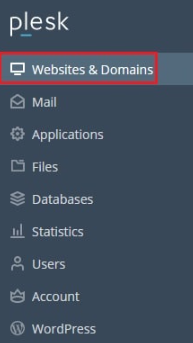
On the left sidebar, select ‘Website & Domains’.
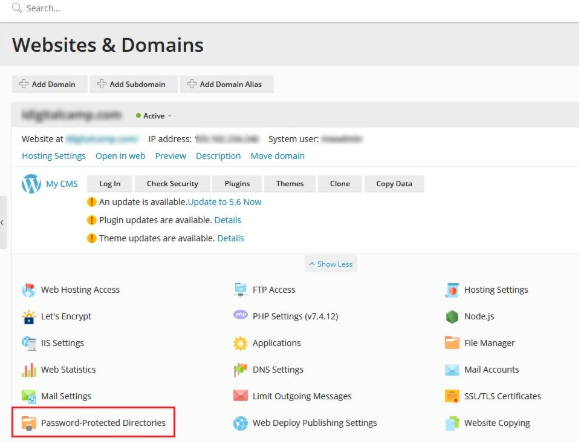
Select the ‘Password-Protected Directories’ option.
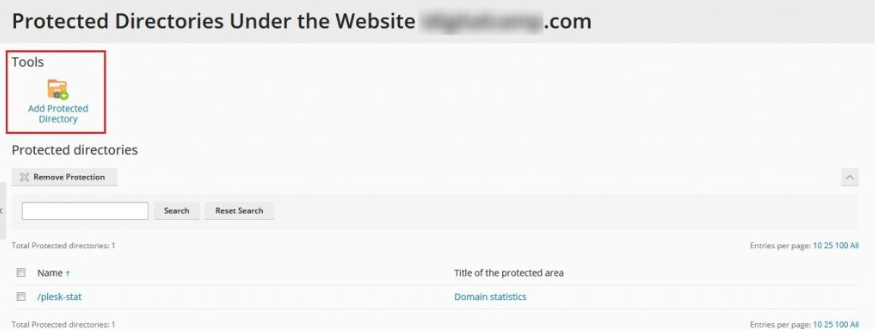
Under the ‘Tools’ menu, select ‘Add Protected Directory’.
In the “Settings” section in the “Directory Name” text box, insert the name of the directory that you would like to protect. Note that you should not write “httpdocs” in the directory name. Just write the directory name.
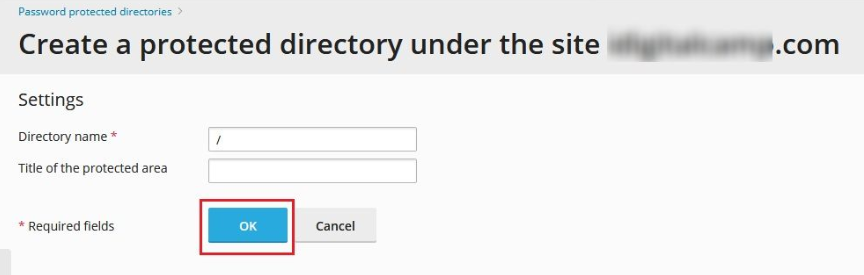
In the text box, “Title of the Protected Area”, you may add the name of the directory that you would like to protect, but this is optional.
Press “OK”.
In the section “Protected Directories”, click the directory name you mentioned before.
In the “Tools” section, click “Add a User”.
In the section “Protected directory user”, under the “Username” text box, write the user’s name.
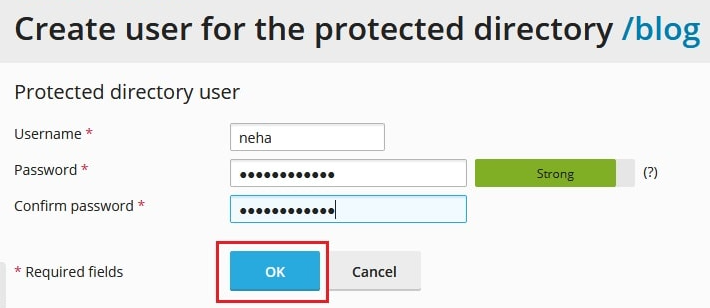
In the “New Password” and “Confirm Password” text boxes, write the user’s password.
Press “OK” to activate password protection on that directory.
How To Remove Password Protection From A Directory?
You may also remove password protection from any directory in Plesk in case you want to unlock it. Do the following steps to password protect a directory in Plesk.
Access Plesk.
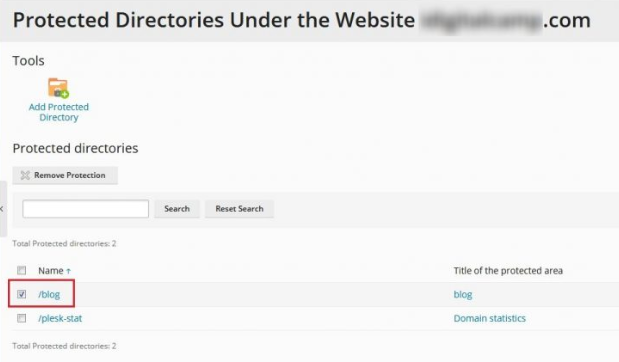
Locate the directory from which you want to remove password protection. Once you find it, click the checkbox to the left of the directory name.
Select ‘Remove Protection’.
On the ‘Removal Confirmation’ page, check the box for ‘Confirm Removal.’
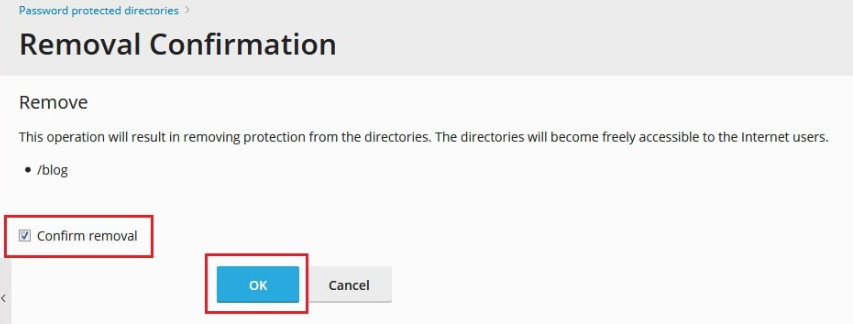
Click ‘OK’.
Conclusion
Managing directory privacy in Plesk is straightforward and is an invaluable feature for any website admin. As demonstrated, you can easily change the level of security on particular folders without the hassle of manually reconfiguring a bunch of .htaccess files. Just keep in mind that if you remove the protection, any sensitive data in that folder will become immediately accessible to the public.
