How to Clear Nginx Cache for User from WHM?
Your site remains fast and updated through proper server cache management. This article describes the process of using NGINX Manager in WHM to clear temporary data.
Managing NGINX Cache in WHM
NGINX is an effective web serving and load-balancing tool on your server. It enhances the speed of the site by storing copies of your pages in a cache. There are occasions when you are forced to empty this cache in order to show new changes on your site.
Definition of NGINX Manager
NGINX Manager is a special interface within the Web Host Manager (WHM) panel. It enables the server owners to install and control NGINX services without complex commands.
- Reverse Proxy: This option will be used as a link between the user and the web server. It helps in handling high traffic smoothly.
Caching System: This system is used to store the static content to reduce the load on your server. This makes your pages load much quicker for repeat visitors. - Load Balancing: NGINX allocates the incoming traffic to multiple paths. This means that when your site stays online during busy hours.
Impact of Clearing Cache
Clearing the cache would delete the stored versions of your website files from the server memory. This will compel the server to retrieve new data each time the visitor comes.
- Update Visibility: Your visitors will get to see the latest version of your site on the spot. It comes in handy when you update prices or images on your site.
- Storage Space: When old cache files are deleted, small disk space can be freed. It maintains a clean and efficient server environment.
Steps to Clear NGINX Cache for Users
To be able to manage these settings, you need root access to your WHM account. Follow these instructions to clear data for specific users or the whole server.
- Find NGINX Manager: Enter NGINX Manager in the search box of WHM. Open the management dashboard by clicking on the icon.
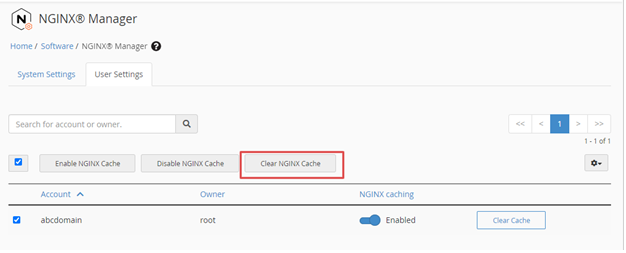
- Clear Individual Cache: Click on the User Settings tab, and you will see a list of all accounts. Check the box beside a specific username and click Clear Cache.
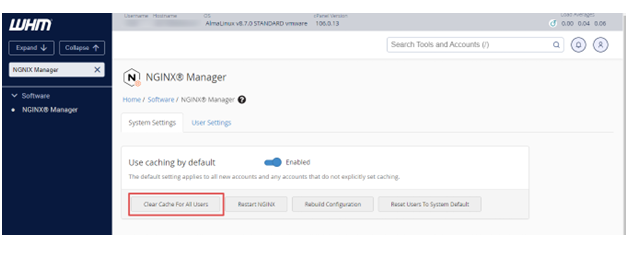
- Clear Global Cache: Select the System Settings tab for server-wide settings. Click on the button to Clear Cache for All Users to refresh the whole server.
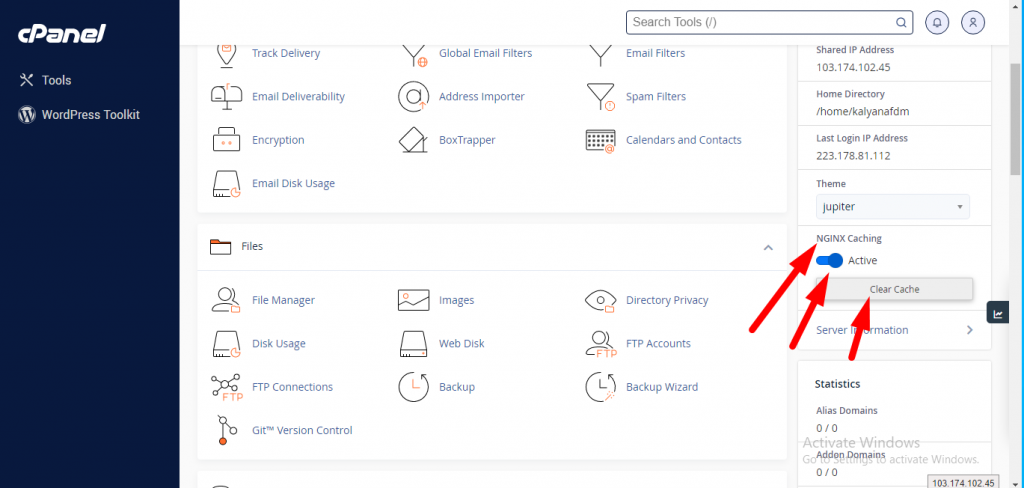
- Use cPanel Option: Users can also log in to their individual cPanel accounts. They will find a Clear NGINX Cache button directly in their dashboard.
Cantech Hosting Advantages
NGINX is already installed on our specific servers to provide you with the best performance. We optimize the caching layers so your site runs at peak speed.
Cantech monitors your NGINX service to ensure that it does not go offline. We make sure that the proxy server always responds quickly.
Our 24/7 support team is available to assist you with setting up custom caching rules for your applications. You leave the technical arrangement to us so that you can concentrate on your business growth.
Conclusion
The convenient method of managing NGINX with WHM ensures that your site data is up to date. It only takes a few clicks to clear the cache of one person or all people. This makes your visitors see your latest updates on your website.
Frequently Asked Questions (FAQs)
1. Will clearing the NGINX cache delete my website files?
No it just removes temporary copies of your pages. All your original files and database are totally safe during the process.
2. How often should I clear my server cache?
Clearing should only be done when making major changes to your site. Frequent clearing can slow down your site because the server must rebuild the cache.
3. Why do I not see NGINX Manager in my WHM?
First, you may have to install the NGINX software from the software section. Your hosting provider can also enable this for you upon request.
4. Can my clients clear their own cache?
Yes they are allowed to use the NGINX icon in their cPanel. This allows them to have control without access to your main WHM account.
