How to Check Disk Space Usage from cPanel?
To support you in managing and monitoring your storage usage, cPanel offers a graphical overview of your disk space. The disk usage in cPanel shows the disk space used by directories. But, it does not display the space taken up by individual files. This blog helps you to check your disk usage with step by step instructions.
Steps to check disk space in cPanel
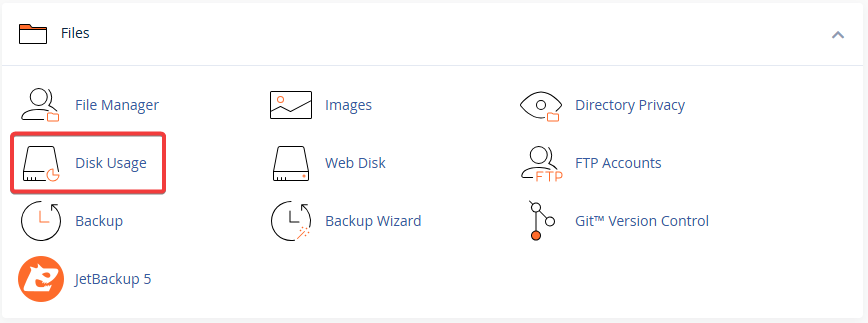
1. In cPanel, search for Disk Usage option under the Files tab.
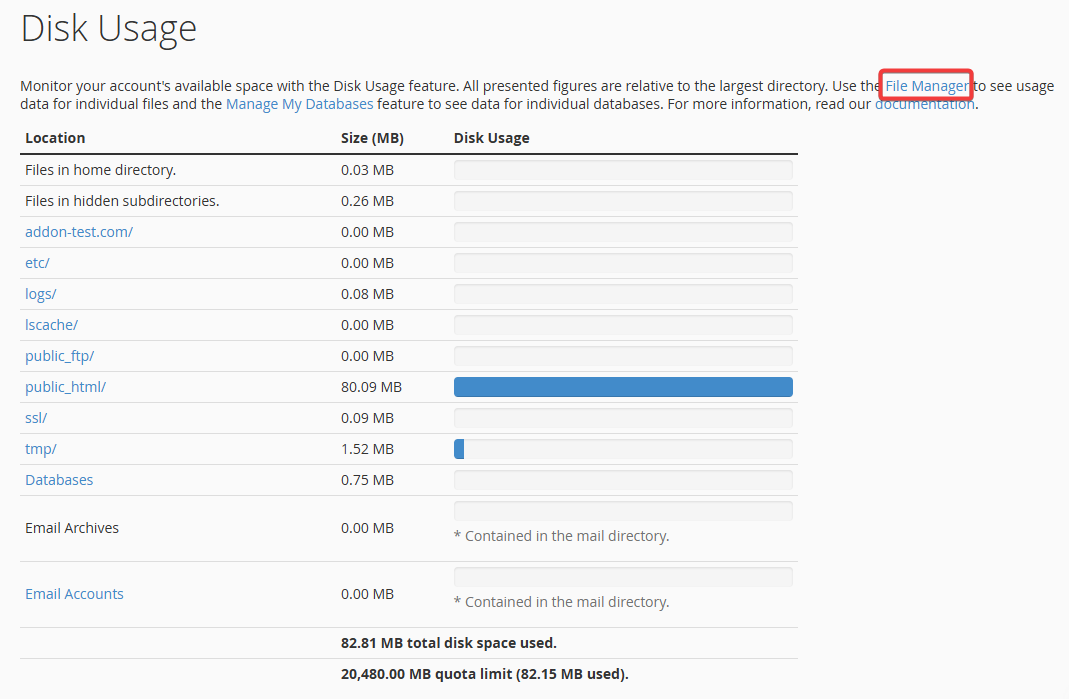
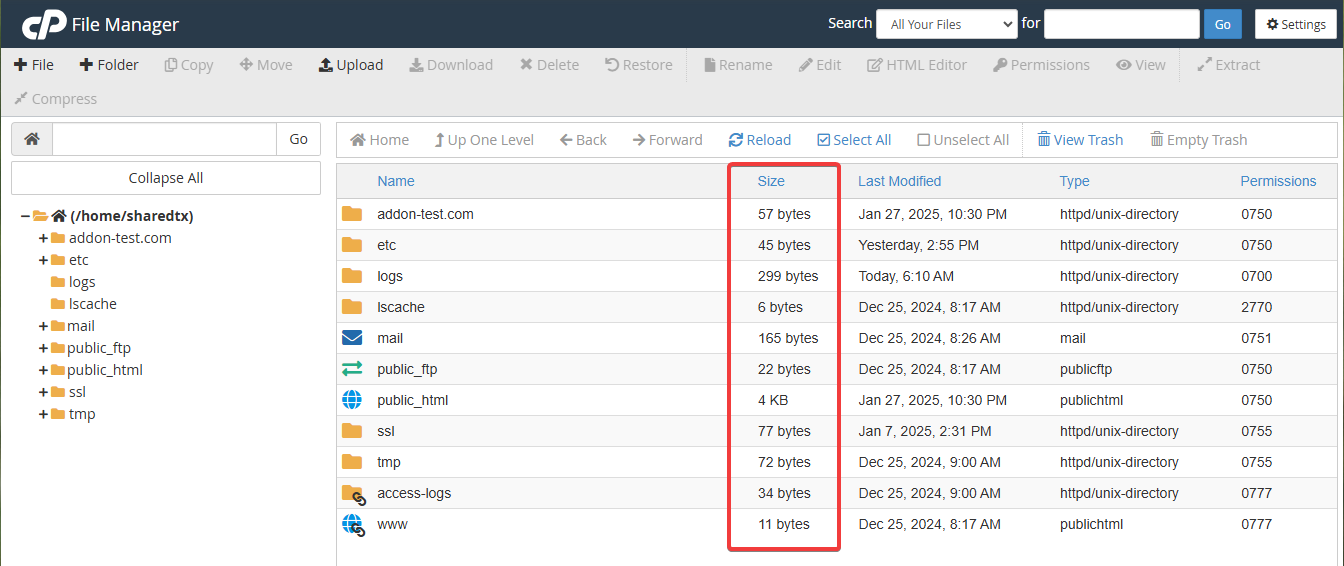
2. In the disk section, you can find an overview of what is consuming space in your directory, along with available storage. At the top, a table displays the location, size and disk usage of databases. If you would like to see the space usage of individual files, you can just click the link to file manager to see all the files in the directory.
3. At the bottom of the disk usage page, you can find another table that will show how much space the contents of each directory use, rather than the size of the directory itself, as files most often take up space than their actual size.
In this table, you can see the information that is sorted by Name or disk usage.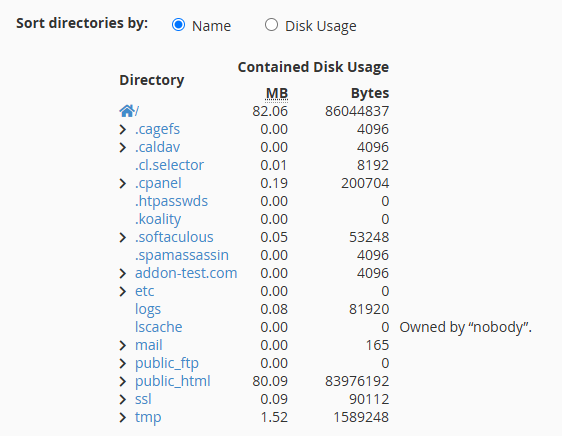
Conclusion
If your web hosting account has a large amount of data on it, it may take a while for the cPanel disk space usage application to retrieve the statistics. In case of a large hosting account, the cPanel disk space usage utility may not be able to load your statistics.Then, please contact our support department & we can provide you with your space usage details
