How to Change the Primary Domain in cPanel?
WHM allows one to change the primary domain name of any cPanel account. This article will be useful to the VPS, reseller, or dedicated hosting users. It is recommended that some changes will occur when you change the default domain name of a cPanel account.
The server shall reconfigure the DNS records of the new specified domain to default settings upon clearing the ones of the old domain. As a result, you need to re-enter the non-default DNS records with the use of the Zone Editor.
Please refer to the article given below, DNS Zone Editor, learning how to use it in cPanel.
You have to change the email address and username to the new domain.
Some content on the websites might not be loaded or visible. Under these conditions, contact your programmer and change the hard links of your Web page.
In case an SSL certificate has been issued to the primary domain, then you will require reissuing it to the new domain.
To Change the Primary Domain Name of a cPanel Account
You can change the primary domain name of a cPanel account by following the steps below:
Log into your WHM account.
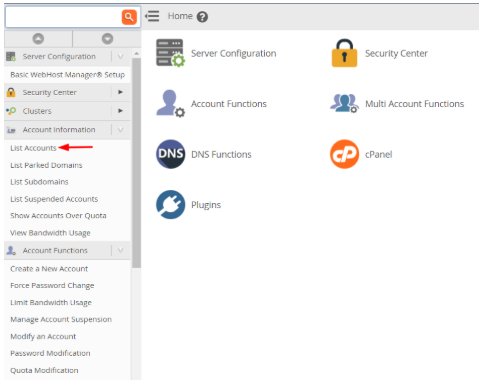
Choose the option of List Accounts in the account information part.
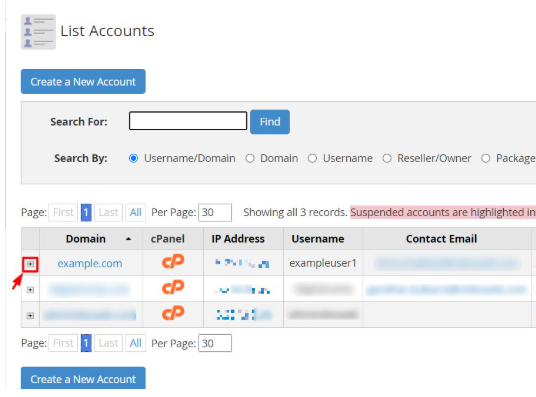
Click the + next to the domain that you want to edit
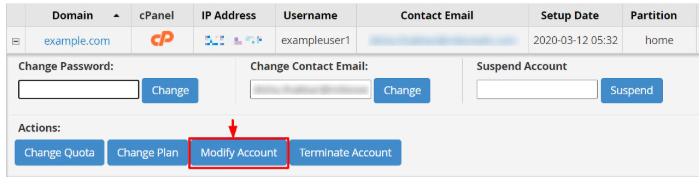
Click the button of the Modify Account.
Add the new domain name into the field of Primary Domain.
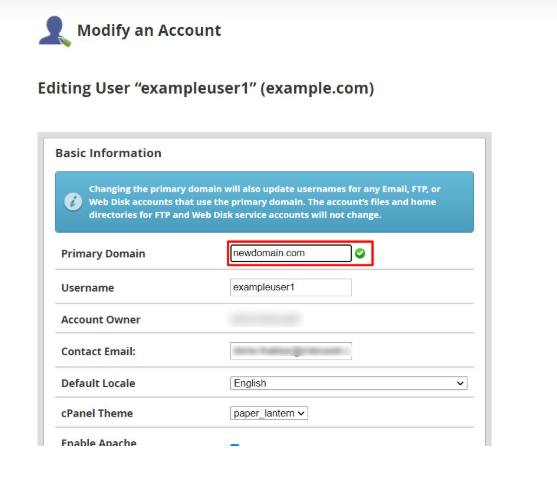
Prerequisite: One should not make alterations to Username field because altering the user name can cause issues with the database connections that will cause the site code or configuration errors.
Go to the bottom and click the Save button.
