How To Change PHP Settings or Parameter Manually From Plesk Obsidian
Quick Answer Box
To change the PHP settings in Plesk, you need to log in to the system, go to Websites & Domains, choose the domain you need, go to PHP Settings, and change the desired parameters (e.g., memory_limit or upload_max_filesize). Then, you need to click Apply or OK.
Introduction
Modifying the PHP settings is required to ensure that the website functions correctly in all aspects. It may be necessary to increase the limits for memory, execution time, and upload size if a particular application needs it. Plesk Obsidian allows changing the parameters manually in case a user wants to customize them. Aside from that, it is possible to configure all of the domains and hosting accounts present in the system. This blog explains how to manually change PHP settings in Plesk Obsidian.
Steps to Change PHP Settings from Plesk Obsidian
Below are the steps to change PHP settings:
Step 01: Login to the Server’s Plesk Obsidian Panel.
Step 02: Choose Websites & Domain and select the hosted Domain Name.
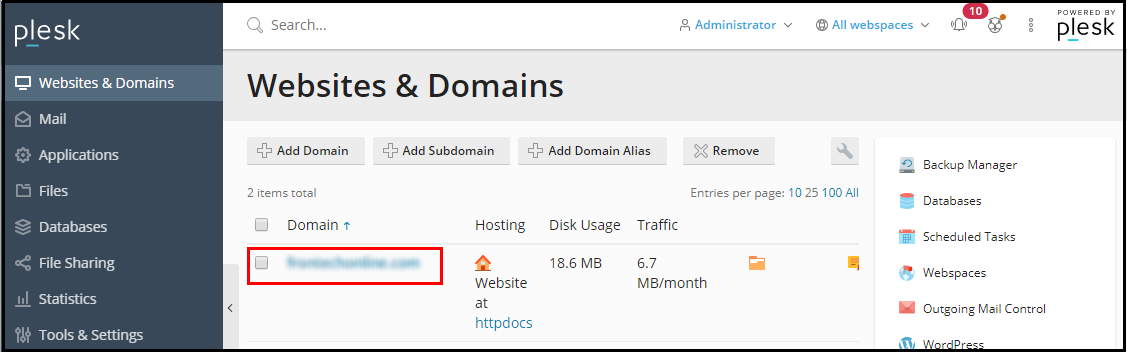
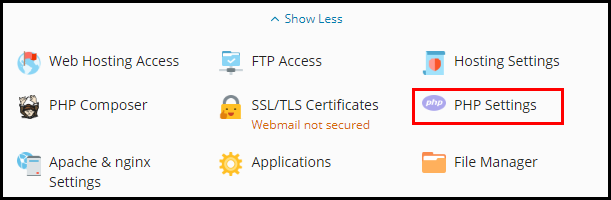
Step 03: Click on PHP Settings.
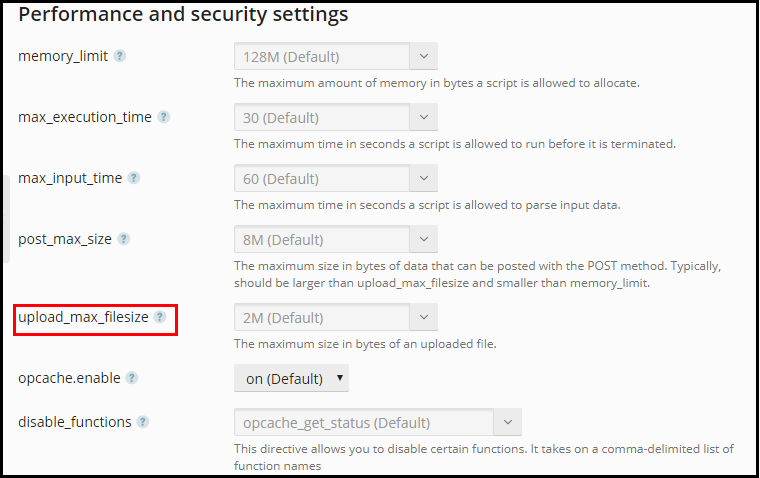
Step 04: Modify the necessary parameters as shown in the below screenshot.
(If the parameter value is not shown in the drop down menu, please manually put it the given space)
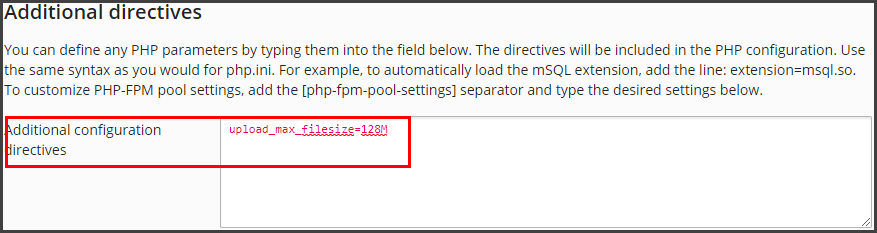
Step 05: Other parameters can be manually put in the Additional Configuration Directives box ( proper syntax mandatory as shown below screenshot ).
Step 06: Choose OK.
Manual PHP settings in Plesk Obsidian offer more control over the performance of your sites and apps by allowing you to make changes according to your specific needs. By applying the described above steps, you will be able to change the PHP settings in Plesk Obsidian and resolve potential compatibility issues. The updated settings will also contribute to the overall stability and performance of your websites. Thus, you will be able to ensure that your apps and sites function properly on your hosting account.
