Change PHP Settings in cPanel Using the MultiPHP INI Editor
The fundamental for web hosting is flexibility. Particularly, for developers and website owners who desire their websites to load quickly. Many websites and applications simply couldn’t exist without PHP. It tones its performance-safety-compatibility features to the maximum efficacy. If you need to increase the memory limit, set the max files upload or tweak error reporting - editing PHP configuration is a must.
cPanel does a fantastic job of simplifying the task for you using the MultiPHP INI Editor. This handy feature allows you to modify PHP settings per domain without having to dig into complex server-side files. In this guide, we will show you how to easily update your PHP settings with the MultiPHP INI Editor in cPanel and ensure that your website performs as expected.
How to Edit PHP Settings on cPanel Using MultiPHP INI Editor If you are a shared hosting user running your websites on the popular cPanel platform, this guide is for you.
Login to yourcPanel.
Navigate to the Software area, and then choose MultiPHP INI Editor.
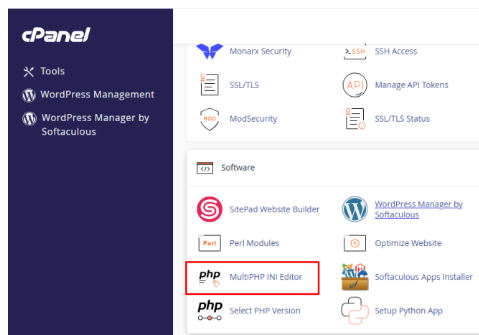
MultiPHP INI Editor
The MultiPHP INI Editor has two basic and editor modes, which offer some flexibility in the PHP configurations.
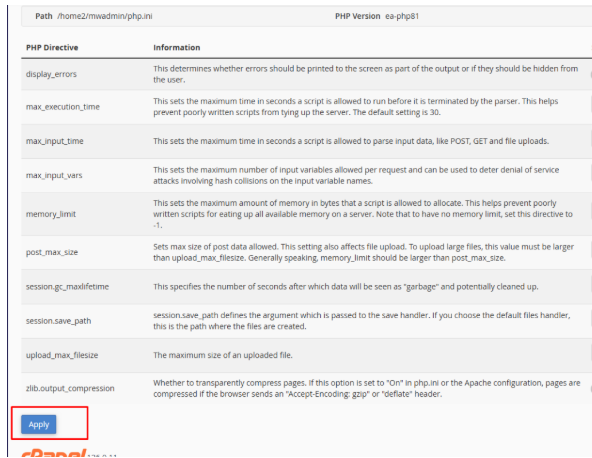
This mode returns more information on a per-option basis, depending on which version of PHP is used. You can use the system to make your PHP config changes.
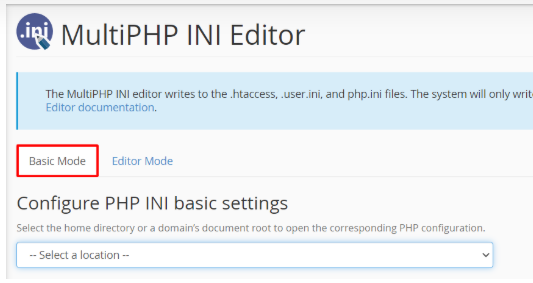
Click on the Basic Mode tab.
Choose the domain you want to edit from the dropdown that says— Select a location —
Perform the modifications and settings, then press Apply.
MultiPHP INI Editor with the Editor Mode
Editor Mode reveals all of the cPanel php. ini directives. It makes it easier for users to include their custom PHP configurations.
Select the Editor Mode tab.
Choose the domain you want to edit from under the dropdown that says -Select a location –
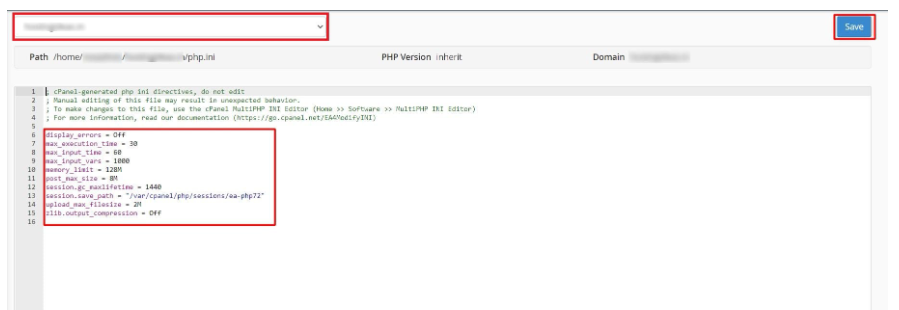
Edit the script as per requirement and click on Save button.
Conclusion
Tweaking PHP settings used to be reserved for those with higher technical knowledge, access to config files, and more than a little bit of nerve. But today, thanks to cPanel’s MultiPHP INI Editor, you have a safe and easy way to make important PHP changes across all of your sites. From raising resource limits to displaying errors during development, it is all up to you.
Whether you’re a script programmer who just wants to maximize personal scripts, or a business owner that demands the best performance and nearly perfect uptime, having the ability to optimize your PHP settings can be the difference between failure and success. Utilize this functionality in cPanel to precisely configure your site’s PHP configuration in the manner you need it, so that you can get a response from our servers at optimal speed and efficiency for what you want to accomplish — with zero command-line commands.
