How to Backup Your Database in cPanel?
The database is the most essential part of your site because it contains the content that makes your site active, such as user profiles, blog entries, products, configurations, etc. Without it, your site is nothing but a skeletal framework. Backing it up is not a best practice but a necessity because data loss is the unfortunate reality of accidental deletions, cyberattacks, or crashes.
The good news is that cPanel has an easy way for you to make a copy of your database. This article will show you how to easily make a manual database backup in cPanel, so you will always be able to have a properly functioning backup of your data.
As a safety measure, before making large changes to my website, updating to the latest version, or publishing a major new post, I make a backup copy of my database.
Backup database in cPanel
Step 1: Log in to your cPanel.
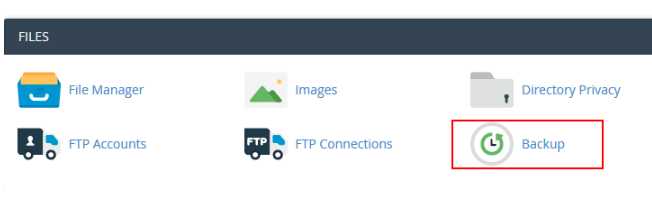
Step 2: Click backups in the files section.
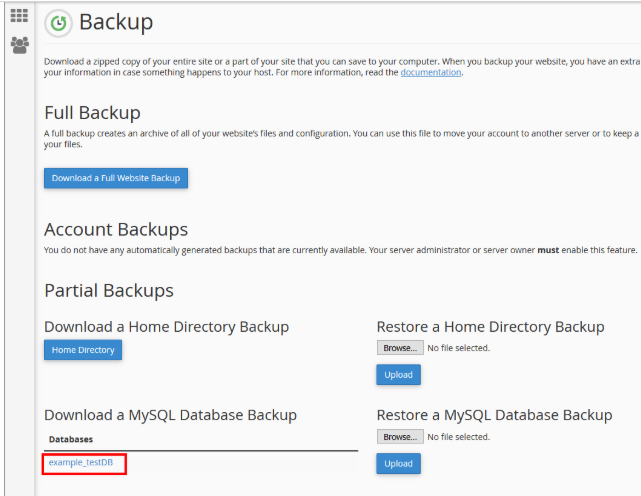
Step 3: In the section that shows Download a MySQL Database Backup, click your database name, here it is username5_wordpress.
Step 4: Now, you should have a .sql.gz file that is compressed. On your local device, go to the folder that your web browser saves your downloads to, and you should see your file.
Step 5: If you have to delete something and your database is having a problem, you should be able to make your database a copy from the backup you have stored locally on your device.
The Bottom Line
You have now created a complete backup of your database by following the simple steps listed. Archive files that have been created as a compressed .sql.gz file will serve as your safety net. Keep this file in a secure location which is off your server, as this will protect the most vital information about your website, while also allowing you to recover it if necessary.
Don’t forget to keep backups on a regular basis, as backups form the foundation of effective website management.
