How to Add Password to WordPress Admin (wp-admin) Directory via cPanel?
Introduction
The wp-admin folder is the most critical and sensitive part of your site as it controls your complete dashboard. A second password to this directory “double locks” your website. This prevents hackers and bots from even accessing the WordPress login page.
Why Password Protect the wp-admin Folder?
Even if someone manages to get your WordPress password, they still can’t get into your dashboard until they get past this step of server-level lock. It is a great way to protect against brute force attacks because it uses the server’s security, not a plugin. This makes your site faster and more secure.
How to Password Protect wp-admin with cPanel
You can set up this protection directly from your hosting dashboard without editing any code. Here’s how you can protect your directory.
1. Locate the Directory Privacy Tool
You will first have to find the security tool in your control panel.
- Access your cPanel account.
- Click on the Files section and then the Directory Privacy icon.
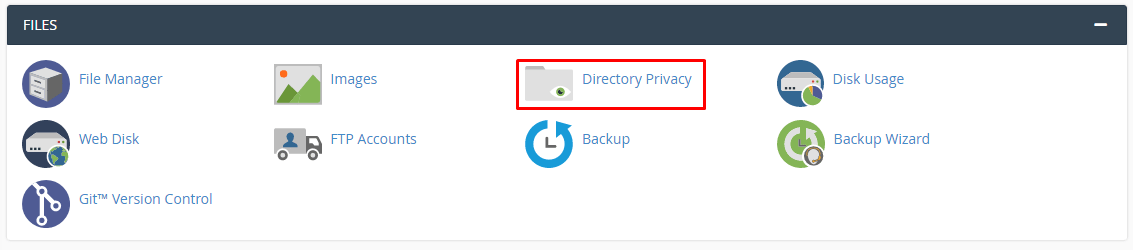
- This will display all your folders. Look for public_html and then for your WordPress folder.
2. Choose the wp-admin Folder
We only want to secure the admin part of the website and not the whole website.
- Find the wp-admin folder.
- Click the Edit button next to it.
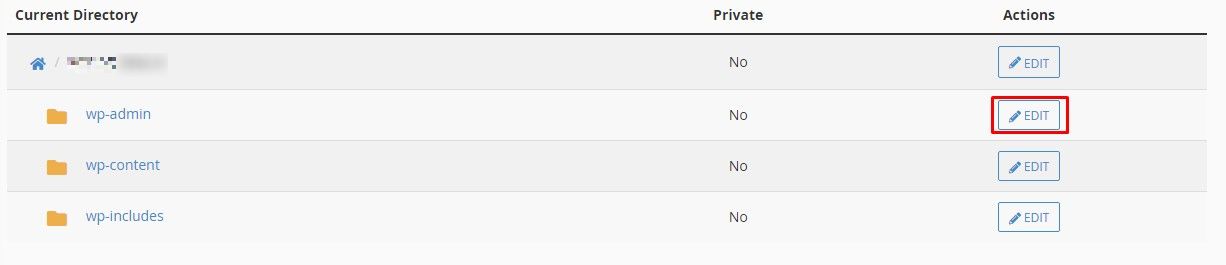
- This will take you to the security settings for that particular folder.
3. Turn on the Protection
Now you have to instruct the server to make this folder private.
- Select the box ‘Password protect this directory’.
- In the field for ‘Name of the protected directory’, type something like “Private Admin Area”.
- Click the Save button.
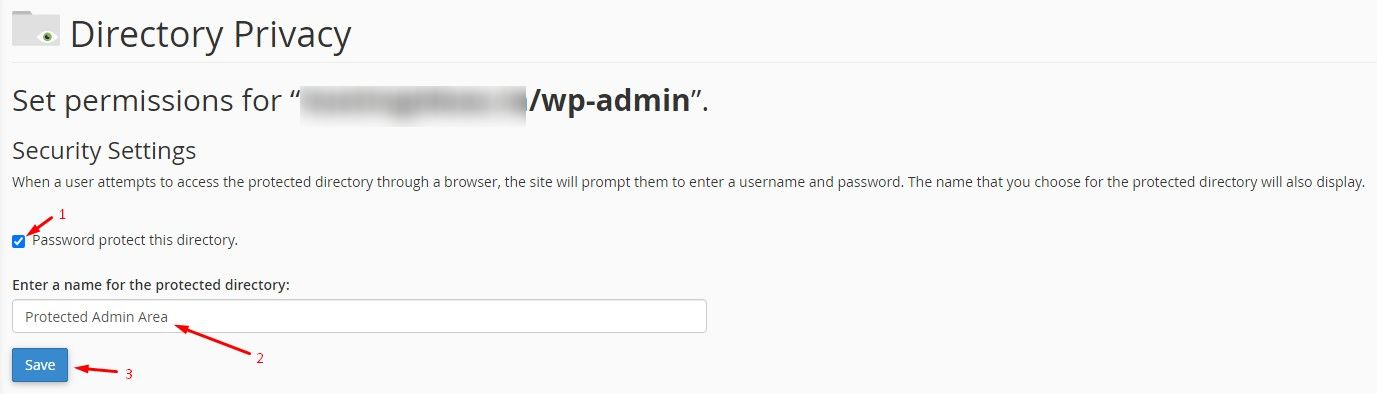
- You will see a success message. Click Go Back to go back to the previous page.

4. Create an Authorized User
The folder is now secured, so you need to create a different set of credentials to access it.
- Click the Create User section on the same page.
- Username: Type a different name (not your WordPress admin name).
- Password: Enter a secure and random password or use the built-in generator.
- Confirm Password: Re-enter the password.
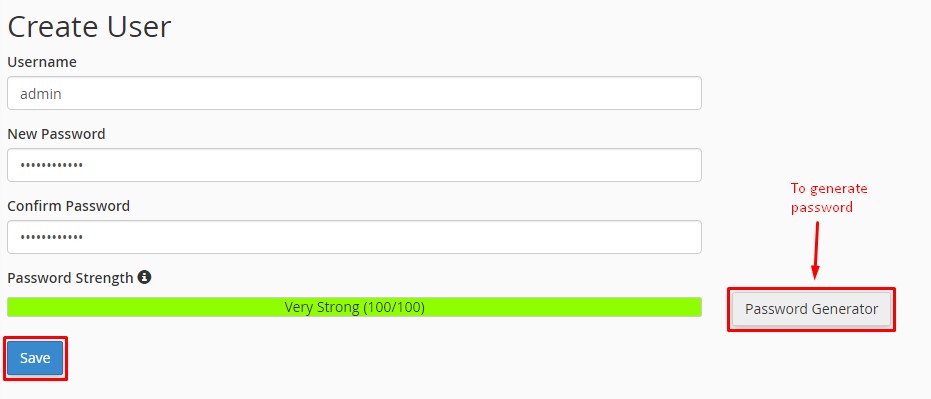
- Click the Save button.
What Happens Next?
When you next access your website.com/wp-admin URL, your browser will show a pop-up window requesting a username and password. This is the server lock you have just set up. After this, you will be presented with the normal WordPress login page, where you can use your site’s username and password.
Cantech Management Tips
Cantech hosting is designed to handle these security redirects without any performance loss. We encourage all business sites to use this “double-authentication” method to protect their sites from unauthorized access. Our 24-hour support team will assist you in resetting the configuration from the server terminal in case of any issues.
Conclusion
Securing your admin folder is a great way to protect your website. It is an easy configuration that offers professional protection from hackers. You secure your site using cPanel’s features, without relying on security plugins.
Frequently Asked Questions (FAQ’s)
1. Does this change my WordPress login password?
No, it is an additional password that is “in front” of your website. You will still need your WordPress username and password to access the WordPress dashboard once you have logged into the folder.
2. Will this affect my website visitors?
No, it will only lock the wp-admin folder. Your regular visitors will be able to view your homepage, blog posts, and products as they always have done without seeing any login popups.
3. What if I get a 404 error after enabling this?
This security feature may interfere slightly with your site’s redirections. To resolve this issue, add ErrorDocument 401 default to the beginning of your .htaccess file.
4. Can I create multiple users for this folder?
Yes, you can create different usernames for different team members in the “Create User” section. This is helpful if you want to track who is accessing the back-end of your server.
5. How do I remove the password later?
Simply go back to the Directory Privacy tool in cPanel, uncheck the Password protect this directory box, and click save. The folder will immediately become public again.
