How to Add an SSL Certificate from Other Certificate Authorities on Plesk?
Quick Answer box
In order to add another SSL certificate in Plesk, you need to log in, go to the Websites & Domains menu, choose the necessary site, proceed to the SSL/TLS Certificates section, create a CSR, submit it to the certificate authority, and then upload the received files on their website, after which it is necessary to click Upload Certificate and select the required domain.
Introduction
Adding an SSL certificate to your site is one of the best things you can do for your customers, business, and even search engine optimization (SEO). Plesk allows you to secure your site with a free Let’s Encrypt certificate. However, some companies are more likely to choose other CAs (Certificate Authorities) such as DigiCert, Sectigo, GlobalSign, etc. So, if your company prefers another CA, do not worry; Plesk has many helpful tools that allow you to install your desired certificate. This article will explain how to create a Certificate Signing Request (CSR), obtain the certificate from the CA, and install it on the domain. Plesk makes it super easy to make your website more protected.
Steps to Add an SSL Certificate from Other Certificate Authorities on Plesk
Here are the steps to add SSL certificate from Other certificate authorities on plesk:
1. Log in to Plesk.
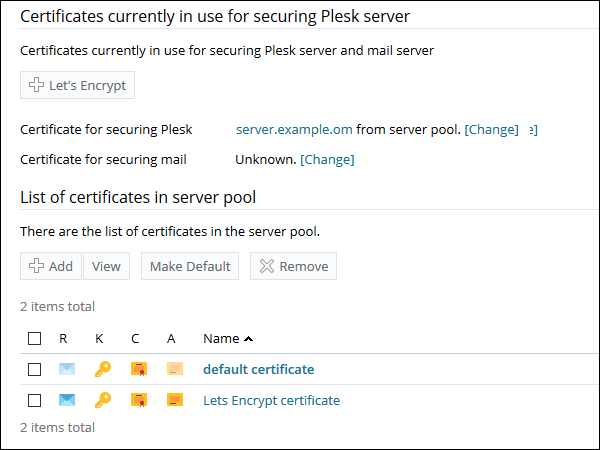
2. Go to Tools & Settings and click SSL/TLS Certificates.
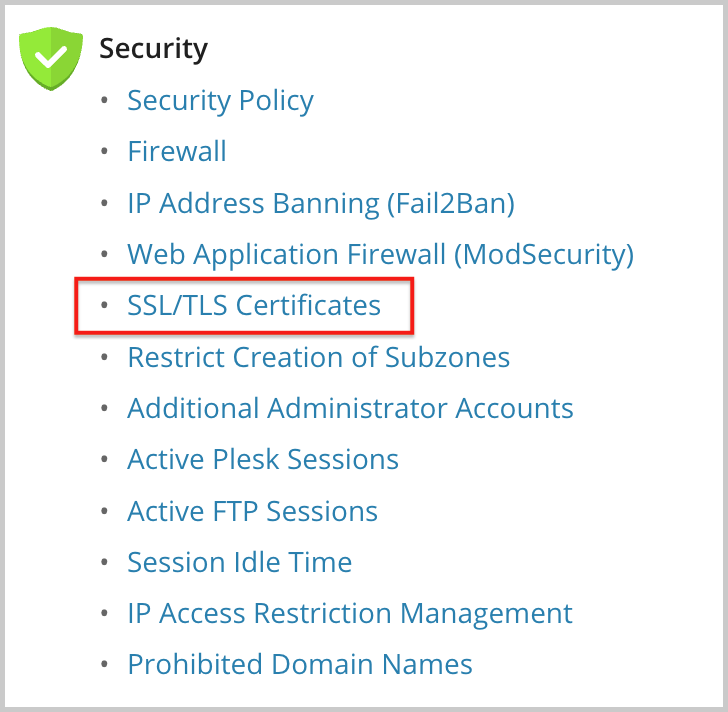
3. On the SSL/TLS Certificates page, add your certificate:
Note: If you are facing issues with a certificate installation, contact your certificate seller and ask for instruction for Plesk.
If an SSL certificate is stored in a single *.crt file:
Select File to select a certificate file. Then click Upload Certificate.
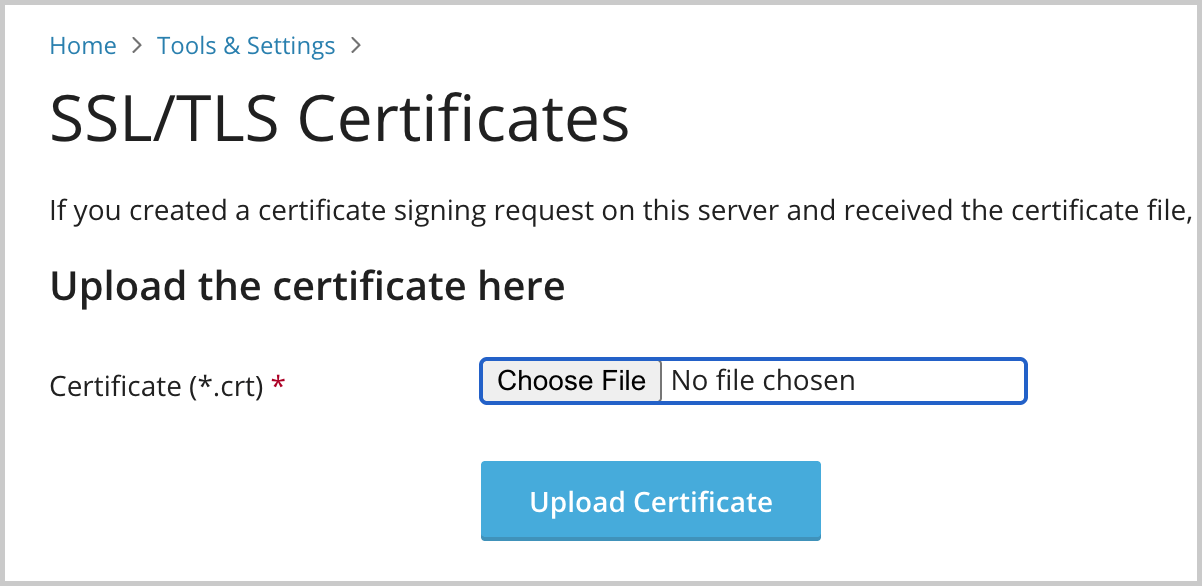
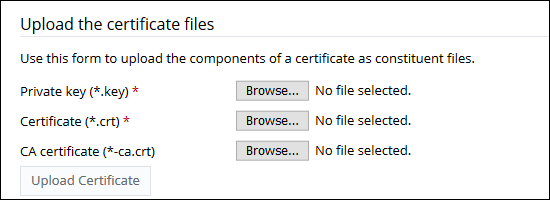
If an SSL certificate is stored in the form of *.key and *.crt files:
Click Add under List of certificates in the server pool and scroll down to the Upload the certificate files section and upload these files. If both the certificate and the private key parts of your certificate are contained in a *.pem file (you can check it by opening the *.pem file in any text editor), just upload it two times, both as the private key and the certificate. Click Upload Certificate once it is completed.
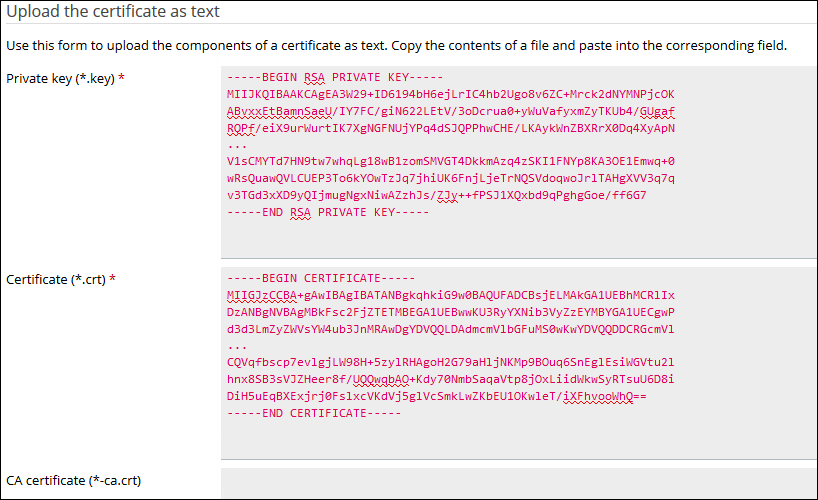
If an SSL certificate is stored as a text:
Click Add under List of certificates in the server pool and scroll down to Upload the certificate as text section. There, paste the certificate and the private key parts into the corresponding fields. Click Upload Certificate when you have finished.
4. Click [Change] next to Certificate for securing Plesk > select an uploaded certificate > click OK. Now the Plesk interface is secured with an SSL certificate.
Conclusion
Installing an SSL certificate from a third-party Certificate Authority is a relatively simple task on the Plesk platform. The main steps are to prepare a certificate signing request, install a certificate on your domain, and upload the signed document from the Certificate Authority. Moreover, choosing an extended validation certificate, wildcard, or additional warranty options will further qualify your website. To accomplish the task, you will need to submit the CSR, validate the request, and download the issued certificate. After that, it is required to bind it to your domain and redirect HTTP traffic to HTTPS. In addition, it may be helpful to check the site’s appearance using an online SSL tool and set a reminder to renew the certificate. Finally, after the described steps, your website will be prepared for secure communication.
