How to Add a Google Tag Manager to WordPress?
Monitoring user activity helps you expand your online business. Google Tag Manager simplifies and speeds up this process for all website owners.
Google Tag Manager with WordPress
Google Tag Manager is a tool for millions of web owners across the globe. It enables you to manage various tracking codes using a single dashboard. This is also useful for your site to load more quickly by organizing all the scripts in a single place.
Meaning of Google Tag Manager
Google Tag Manager is a free website tag management tool without the need to edit the code. It serves as an intermediary between your website and tracking software such as Google Analytics.
- Ready-made Templates: There are pre-made tags for Google Ads and other marketing tools.
- Preview Mode: This option allows you to test your tags prior to making them live on the site.
- No Coding Requirement: You do not require being a developer to add new tracking pixels.
Benefits for Your Website
With this tool, your workflow is enhanced, and your site stays clean. It minimizes the risk of breaking your site while adding marketing scripts.
- Faster Speed: The system loads tags asynchronously so that your content loads at a better speed.
- Easy Updates: You can update your tracking preferences at any time in the Tag Manager interface.
How to create a Google Tag Manager Account?
Before adding any code, you need to create a container for your website. Get unique tracking snippets by following these steps.
-
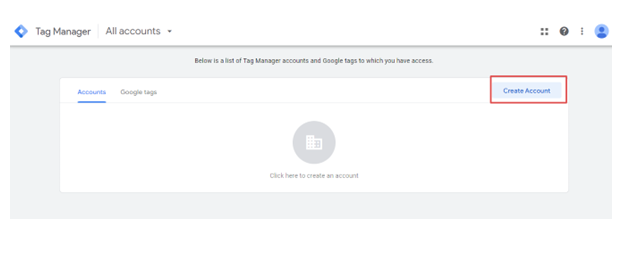
Go to the Website: Open the official Google Tag Manager page and click on Create Account.
-
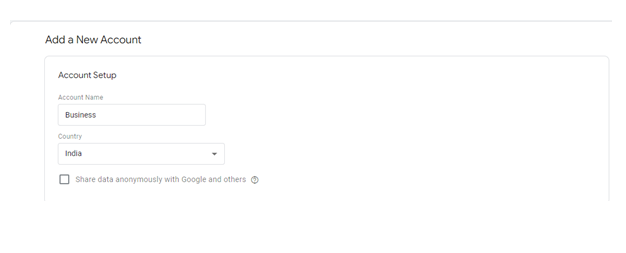
Enter Details: Enter your company name and choose India as your country in the setup box.
-
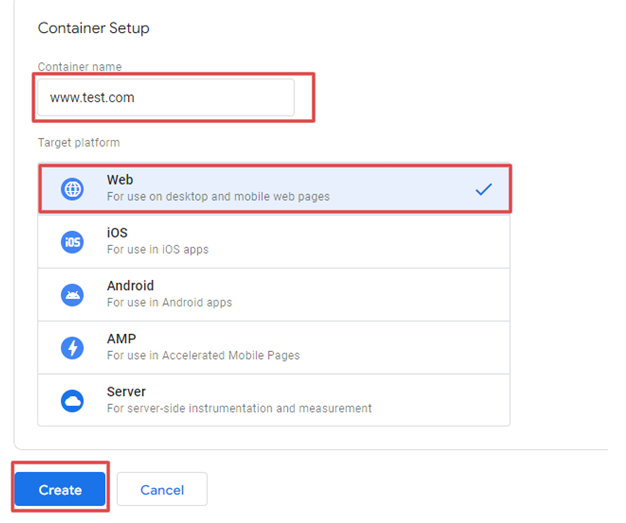
Create Container: Enter the URL of your website and choose the Web option as your platform.
-
Accept Terms: After you click on ‘Create’, read the service agreement and check the box for data processing terms.

-
Copy the Codes: The system will show two separate code snippets for your header and body sections.
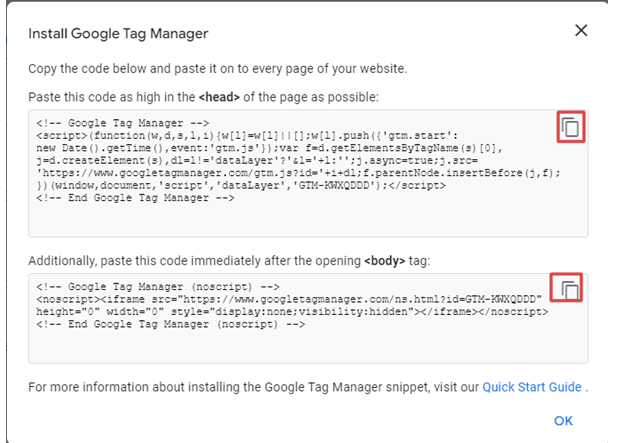
Half of the process is to get your codes. To start tracking your visitors, you have to insert these codes in your WordPress files.
-
Installation of the Code: The two Google code snippets should be inserted in certain areas of your website theme. This ensures the tracking starts when a visitor visits your page.
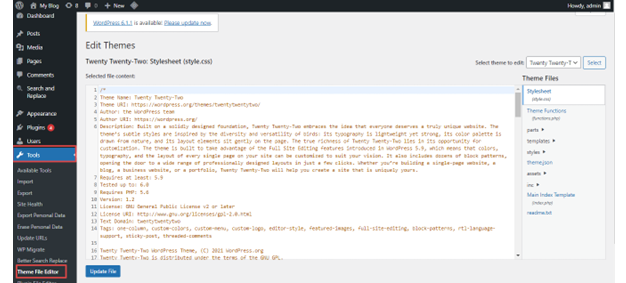
Step 1: Access Theme Files: To access the Theme Files, log in to your WordPress dashboard and go to the Theme File Editor, which is located in the Appearance menu.
Step 2: Edit Header File: Find the header.php file in the list on the right of your screen.
Step 3: Paste First Code: Locate the opening tag and paste the first snippet right after it.Paste Second Code: Find the opening tag and paste the second snippet immediately after the tag
Step 4: Save the File: Click the Update File button to make these changes to your live site.
-
Verifying the Installation: You need to always ensure that the tags are firing properly. This eliminates loss of data and makes sure that your marketing reports are accurate.
Step 1: Preview Mode: To open the Tag Assistant, click the Preview button in your Google Tag Manager dashboard.

Step 2: Enter Site URL: Enter your web address in the box to begin a test session.
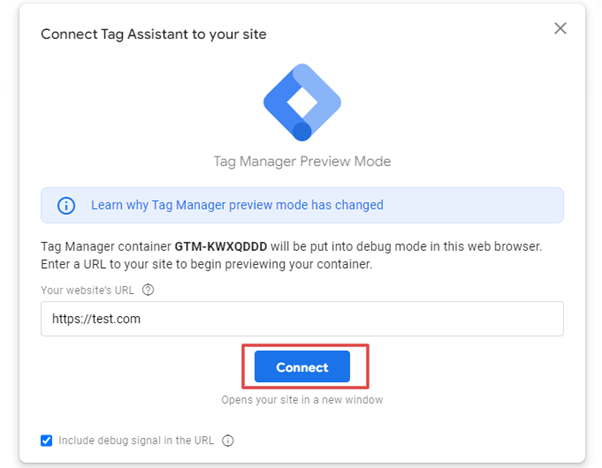
Step 3: Check Status: Look for the “Connected” message to confirm the tags are working on your site.
Cantech Specialized Services
Cantech offers high-performance hosting, which is compatible with Google tools. We make sure that your server handles all tracking scripts without slowing down your visitor experience.
Our technical staff can assist you in installing the Tag Manager code in your theme files. We offer stable uptime for your tracking with our 99.97% uptime guarantee.
Conclusion
Google Tag Manager is an important tool to monitor the usage of your site. It is time-saving and keeps your website code organized so that it performs well. Start using it today to make data-driven decisions for your brand.
Frequently Asked Questions
1. Is Google Tag Manager free for everyone?
Yes it is a free tool for every user. It takes only a Google account to begin using these tracking features.
2. Do I need to remove Google Analytics code from my site?
Yes you should move your Analytics code into the Tag Manager container. This prevents double tracking and keeps your data accurate.
3. Will this tool slow down my WordPress site?
No it actually makes your site load more easily. It adds several scripts into a single request for the browser.
4. Can I use a plugin to add these codes?
Yes there are lots of plugins that can assist you in inserting these snippets easily. But the manual one is better for keeping your site lightweight.
