How to Fix the 404 Page Not Found Error in WordPress?
Introduction
If you have managed a WordPress website ever, you have probably encountered the 404 Page Not Found error. It occurs when you click on an internal page from your home page, but your server can’t locate the link.
Why Does This Error Happen?
This usually happens when you move a website to a new host or make changes to your server configuration settings. Put simply, the “map” that tells your server where to find your posts has gone missing or been corrupted. You can usually fix this by updating your .htaccess file or resetting your link structure.
Method 1: Update Your Permalinks
This is the simplest method and should be the first to try. WordPress has a feature that can automatically rewrite your site’s access rules.
- Access your WordPress Admin dashboard.
- Click on Settings and then on Permalinks.
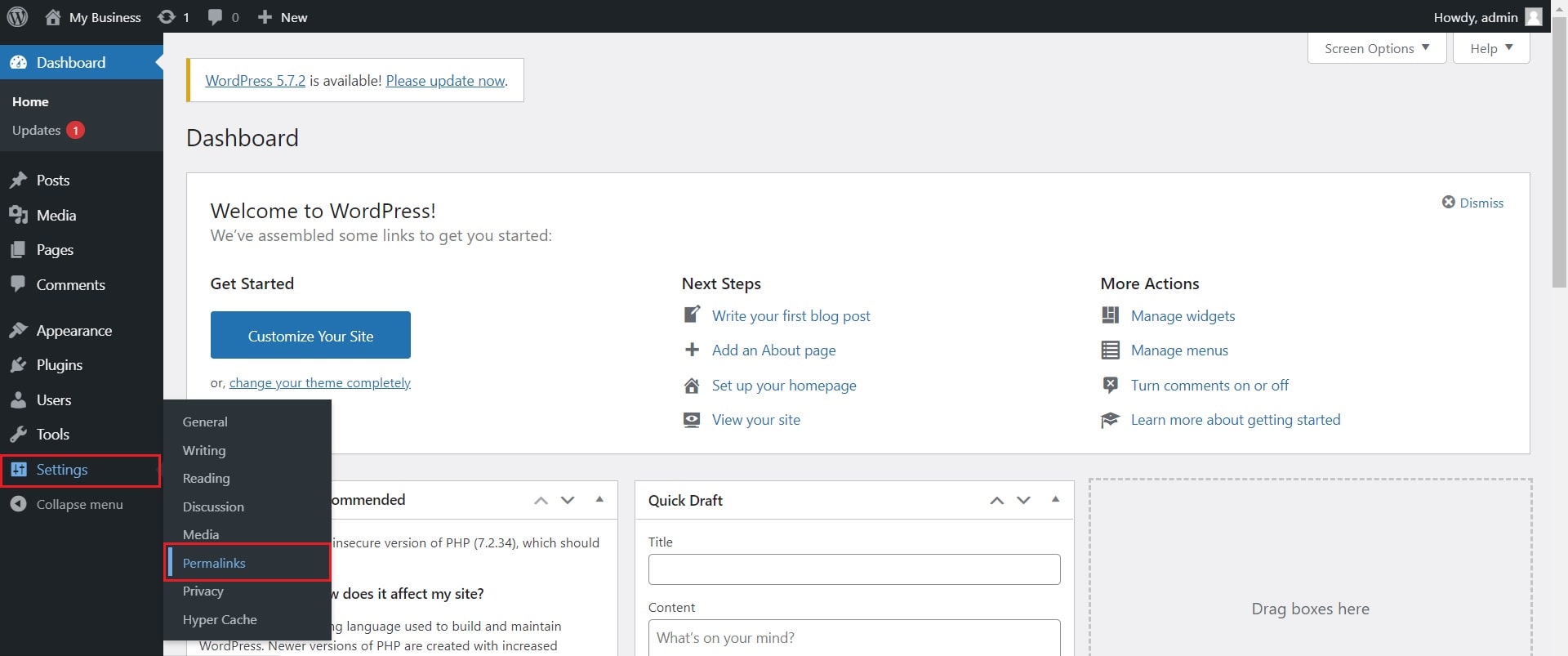
- Look at the available structures and select Post name.
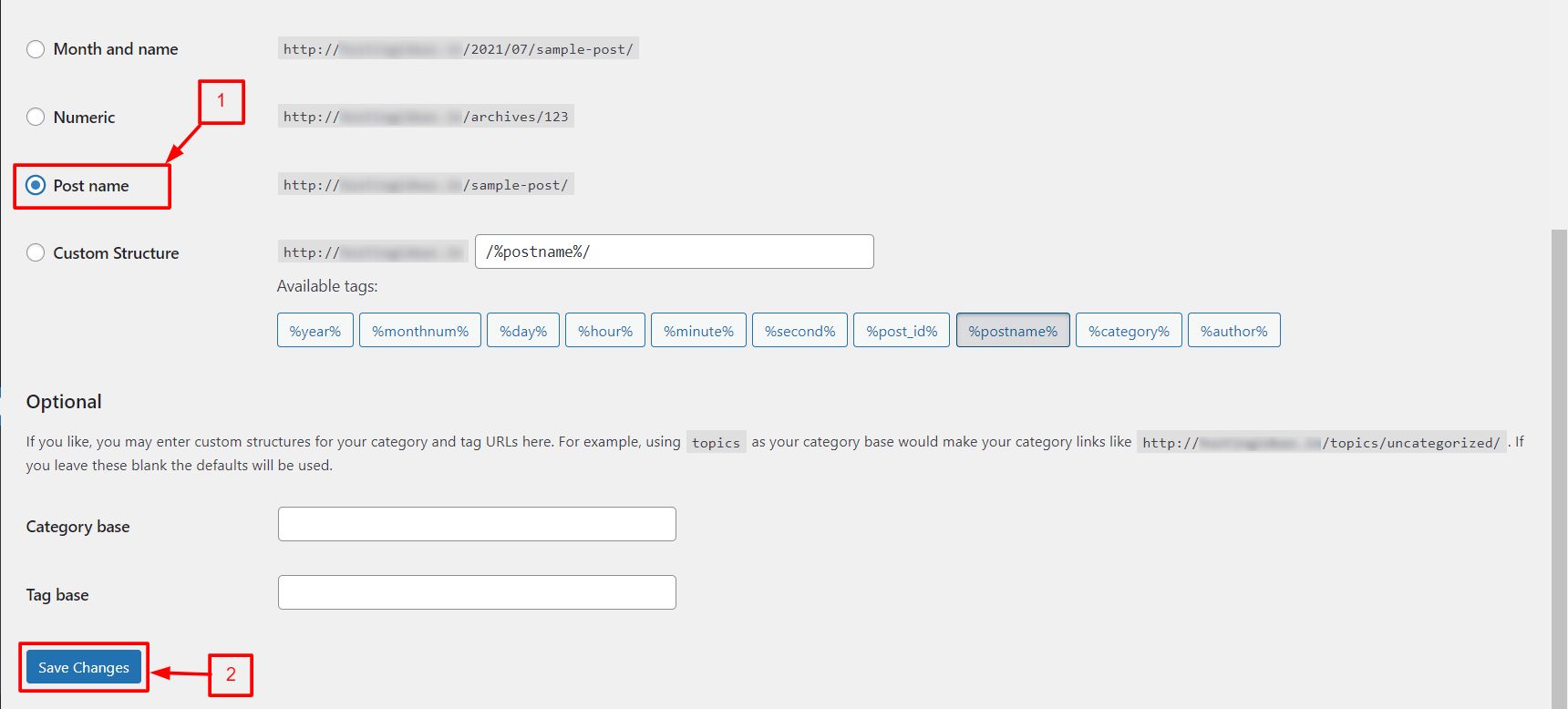
- If it is already selected, click the Save Changes button at the bottom of the page.
- This will cause WordPress to create a fresh .htaccess file, and can resolve your 404 error immediately.
Method 2: Manually Create or Edit the .htaccess File
If changing the permalinks is not the solution, you may need to check the server files manually. This is common after migrating a site where the hidden configuration file was left behind.
Step 1: Find the File in cPanel
- Access your cPanel and navigate to the File Manager.
- Navigate to the directory where your WordPress site is located (usually public_html).
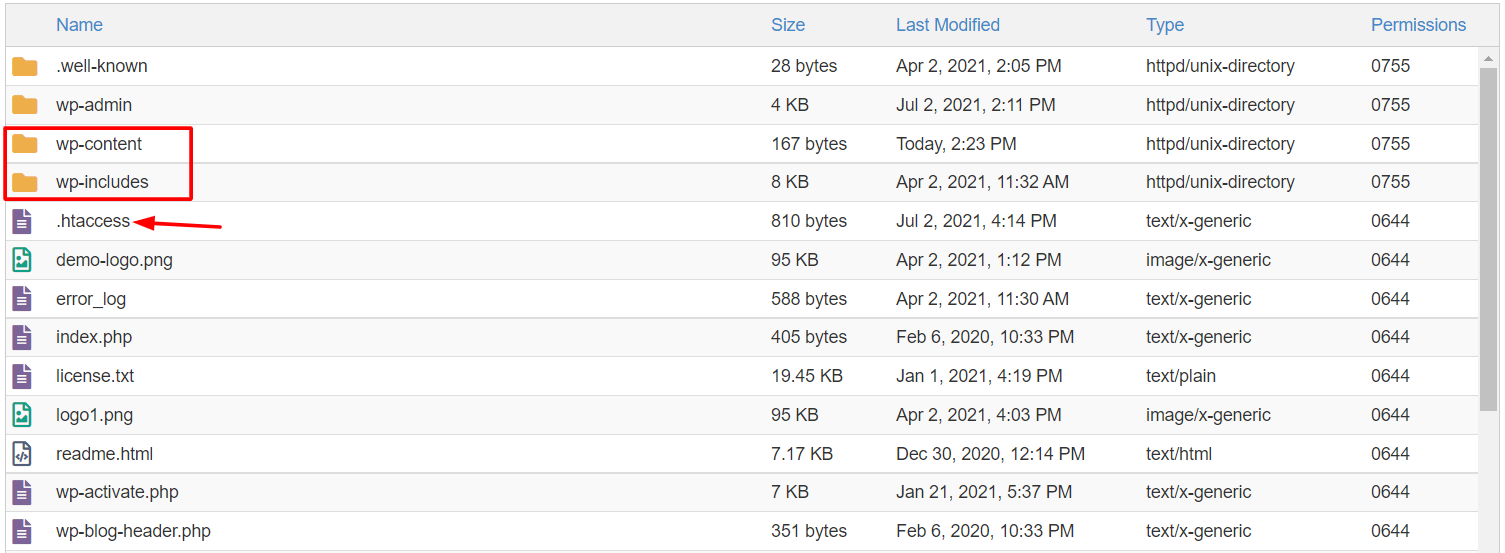
- Click the Settings button in the top right , and make sure Show Hidden Files (dotfiles) is checked.
- Locate the .htaccess file.
Step 2: Update the Code
- Right-click the .htaccess file and choose Edit.
- If the file is blank or doesn’t exist, paste the following code:
# BEGIN WordPress

RewriteEngine On
RewriteBase /
RewriteRule ^index.php$ - [L]
RewriteCond %{REQUEST_FILENAME} !-f
RewriteCond %{REQUEST_FILENAME} !-d
RewriteRule . /index.php [L]

# END WordPress
- If you did not have a file, click the + File button in the top left, enter the name the file as .htaccess (the dot is important), and paste the above code.

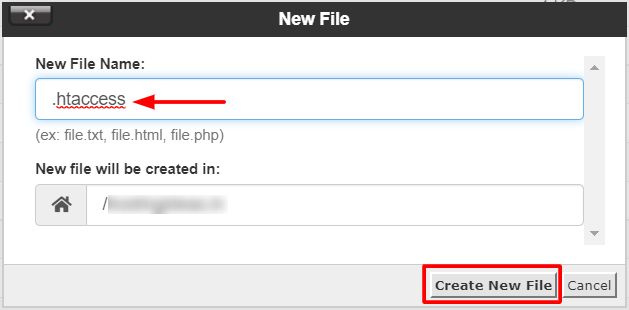
- Save Changes and refresh your website.
Cantech Support and Performance
Cantech hosting is well-equipped to support WordPress permalinks. We use fast software that reads your .htaccess rules, so your site visitors never experience a 404 error because of server delay. If you are still experiencing errors after following these steps, our 24/7 support team can help you resolve these issues with your file permissions or configuration settings in a matter of minutes.
Conclusion
A 404 error may seem alarming, but it is usually a minor miscommunication between WordPress and your hosting server. Most often, resetting your permalinks or editing your .htaccess file will resolve the error. It is important to keep these settings right so your site’s search engine optimisation is not affected and your visitors can always access your content.
FAQ’s
Why did 404 error happen after I moved my site?
During a site move, hidden files such as .htaccess are often overlooked in basic copy-paste methods. This file is required to tell the server how to process “pretty” URLs, hence the 404 error on all pages except the home page.
If I remove the .htaccess file, will I lose my blog posts?
No, your posts are safe in the database. The .htaccess file is simply a set of rules for the server. You can always create a new one if you delete it, using the WordPress permalinks menu.
What if I don’t see the ‘Settings’ button in File Manager?
In other versions of cPanel, the settings icon is a little gear in the top right. It is important to click this to show hidden files, otherwise, you won’t be able to see any file that begins with a period.
Will this error hurt my Google ranking?
If you don’t fix it, then yes. Google won’t index a page that returns a 404 error. You should fix this as soon as possible so that your site can be indexed and your customers are happy.
Do plugins cause this error?
Yes, some security and caching plugins edit the .htaccess file. If this error occurred after installing a new plugin, try disabling that plugin and then following Method 1 above to reset your links.
