How to Enable/Disable Directory Listing with .htaccess via cPanel?
Directory listing is an important part of web hosting. As a cPanel user, you can enable or disable directory listing with .htaccess.
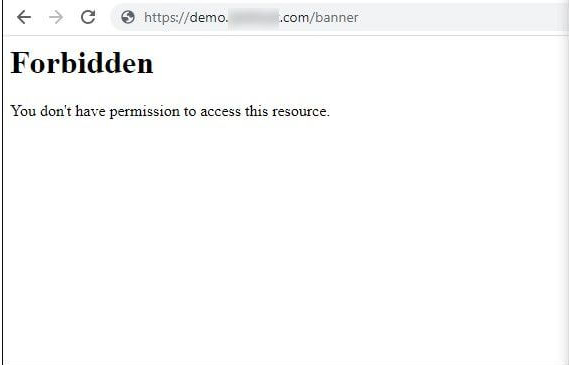
For security reasons, it is very common for the web servers to disable directory listing. You’ll get a 403 HTTP forbidden access error if you do not have an index file in a directory. It should not allow the client to see files in the directory. If you want to show these files, you need to enable directory listing.
How to Enable Directory Listing with .htaccess
- Create a .htaccess file in the cPanel File Manager.
Name the file as . htaccess.
If you already have the .htaccess file and edit the file in cPanel file manager.
For users, who do not know how to create/edit a .htaccess file, refer to article:
How to edit a .htaccess file through the cPanel File Manager
2. Type or copy at the start of the file.
Options + Indexes
3. Click Save Changes and Close
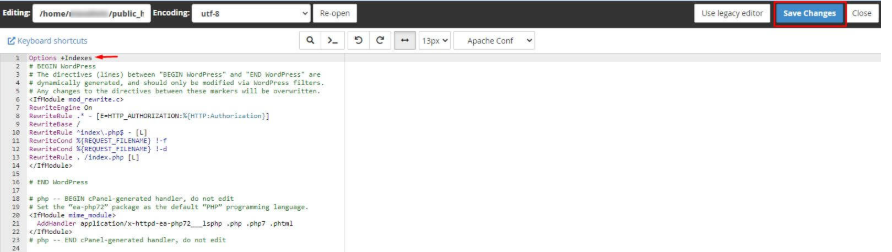
So the next time you browse for the directory listing, it will display the index.
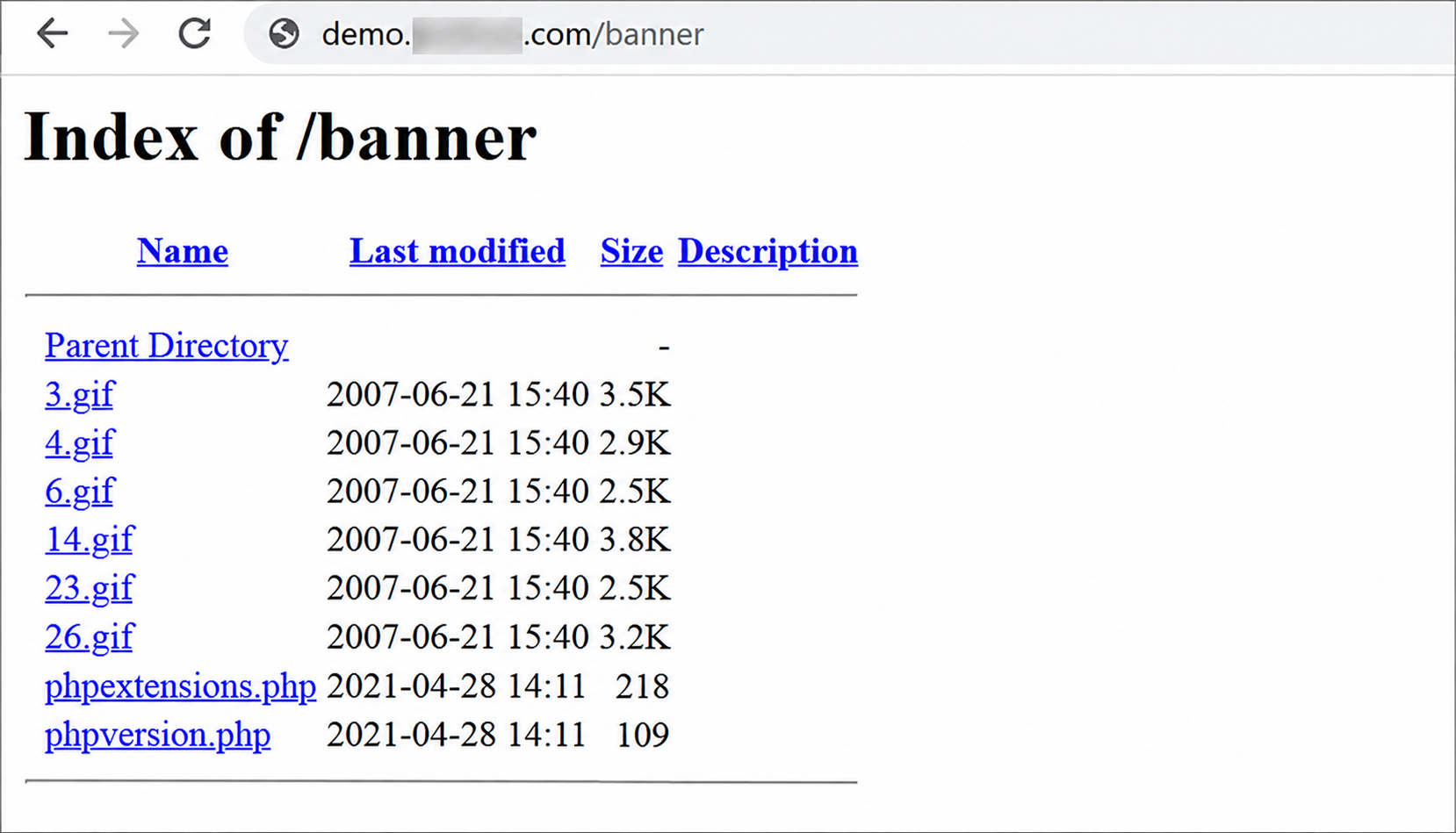
How to Disable Directory Listing with .htaccess
- Create or edit the .htaccess file in cPanel file manager.
- Enter or copy this code at the beginning of the file.
Options-Indexes
3. Select Save Changes and Close
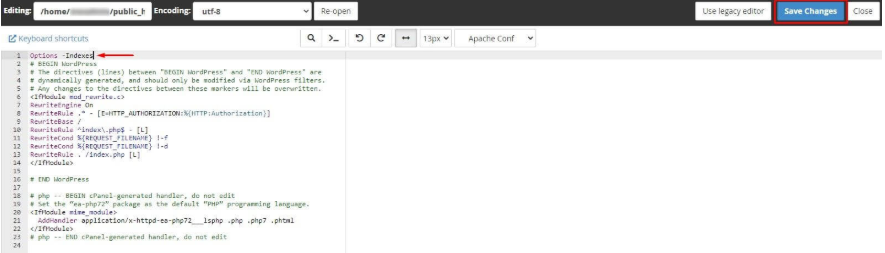
The next time you browse for the directory listing, it would display the 403 HTTP Forbidden Access error.
Conclusion
By following the above steps you can the configure the .htaccess file through cPanel to enable or disable directory listing.
