How to Create a URL Redirect from cPanel?
Redirection of URLs is an essential web management method, which allows an automatic transfer of a browser to another site via a different address (source URL) to another (destination URL). This feature will be necessary in all kinds of tasks, such as the correcting of broken links, merging of content after a reorganization of the web site or simply redirecting traffic on an outdated domain name to a new domain. It is especially made much easier by the cPanel Redirects utility, which enables administrators to set up redirects without requiring to open and edit the often high-context server configuration files like .htaccess.
Through this guide, we would learn how to take advantage of the easy-to-use interface of cPanel to quickly and correctly create both Permanent (301) and Temporary (302) redirects so that I can provide a seamless and SEO-friendly experience to the visitors of a website.
Caution: Do not make a redirect of domain.com to domain.com/index.something or domain.com to domain.com/www.footnote.com. These arrangements will create a vicious circle. To have the ability of controlling either the www subdomain or the index page, use the mod rewrite by including the relevant. htaccess code.
Steps to Set Up a Redirect
Log into cPanel.
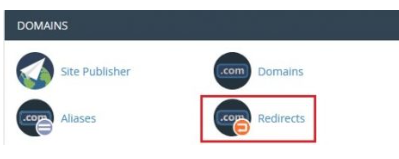
In the Domains section, press the Redirects icon.
Under the Type drop-down menu, you have the option of choosing the type of redirect that you want to put in place.
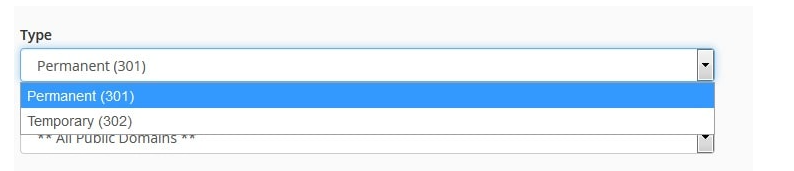
- Permanent 301: Under this redirect, the visitor will have his/her bookmarks and direct search engines redirected to the new site.
- Redirect Temporary: This redirect would forward the visitor or search engine but would not refresh the bookmark, and the search engines would still index the original page.
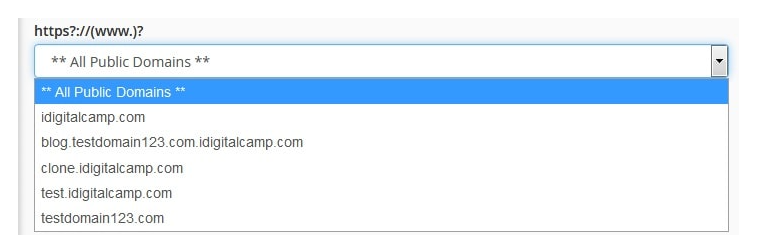
Then, by the https?://(www.)? drop-down menu, select the domain name you want to redirect.
To redirect one page or folder, use the text box that starts with a forward slash (/), and type in the name of the folder or file that you want.

Add the entire destination page URL in the Redirects to the field.

Select one of the options of redirection of www when determining whether the domain is going to be redirected:
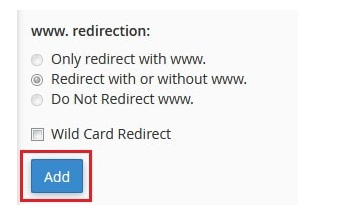
- Only redirect with www: The option will only redirect the visitors who are using the URL with www.
- Redirect and/or without www: This alternative will be used to redirect all visitors with or without the inclusion of www in the URL.
- Do Not Redirect www: The alternative does not redirect the user who includes the prefix www in the URL.
You can choose the option of Wild Card Redirect and set a redirect of the same file to a new location.
- When you choose Wild Card Redirect, the URL of the given example i.e. www.designauraexample.com/about.html will be redirected as www.designauraexample-destination.com/about.html.
- Unless you choose Wild Card Redirect, the site www.designauraexample.com/about.html would be redirected to the site www.designauraexample-destination.com.
After doing this, choose the redirect as required by clicking the Add button.
Then, once the visitors open the specific URL that you have provided, they will be redirected to the target site you have placed.
Conclusion
You have now learnt how the redirects tool in cPanel can be used in managing the URL structure of your site. With proper specification of the redirect type (301 when making permanent moves and 302 when making temporary changes), you can be responsible of giving users a positive experience by avoiding 404 errors and what is more important, maintain the SEO value of your site by showing the search engines where your contents have moved permanently.
