How to Copy or Move Files in cPanel File Manager?
You can make use of the cPanel File Manager, which is a browser support utility that provides a complete interface for all the files and folders in your web hosting account. The ability to quickly copy or move files or folders is essential whether for frequent maintenance, organizing files, saving important files or for a website migration. It is also important to differentiate the two actions; in copying, a duplicate is made in a different location and the original is left intact, while in moving, the file is located in a different place entirely.
This article guides the user in a stepwise format on how to use the Copy and Move options in the cPanel File Manager so the user is able to manipulate the structure of their data on their portal with ability.
Do you wish to move or copy files in the File Manager? Simply follow these steps:
Log in to cPanel.
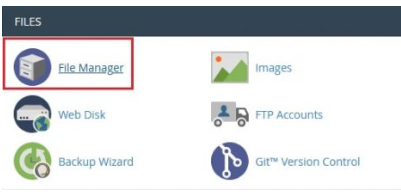
Look for Files and click on the File Manager option.
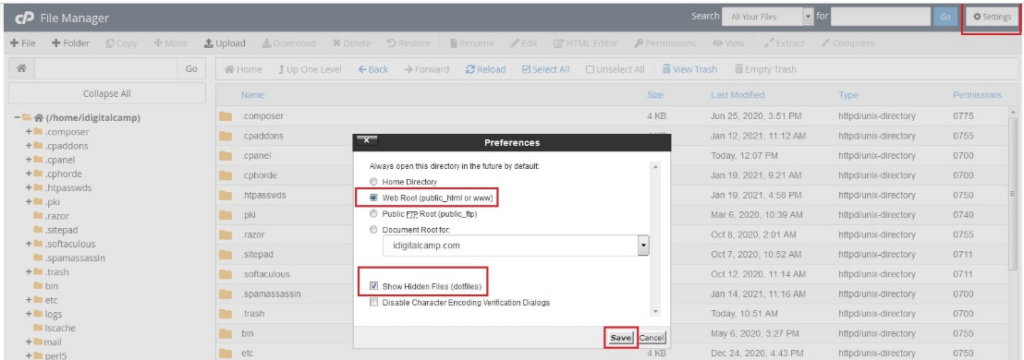
In the settings option, select Show Hidden Files, Show Web Root and hit the Save button.
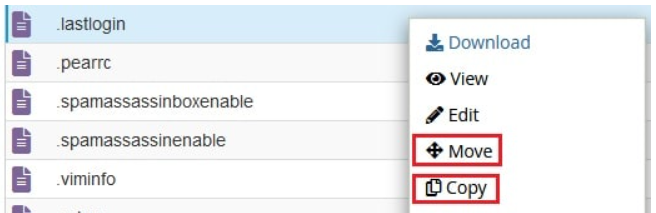
You are able to select the files or folders you are moving or copying (hold Ctrl to select multiple items or Shift to select a group of items), right-click on these items and select Move or Copy.
Enter the destination file path in the pop-up window that appears after you select which action you are taking. Type /folder_name and keep the /public_html if you are copying to a folder on public_html.
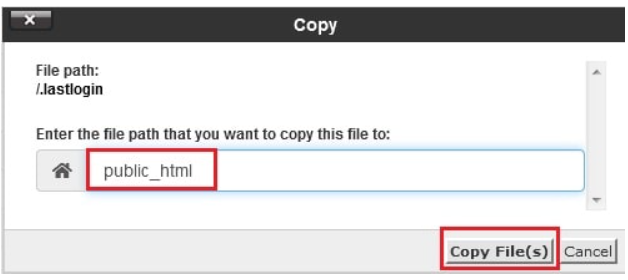
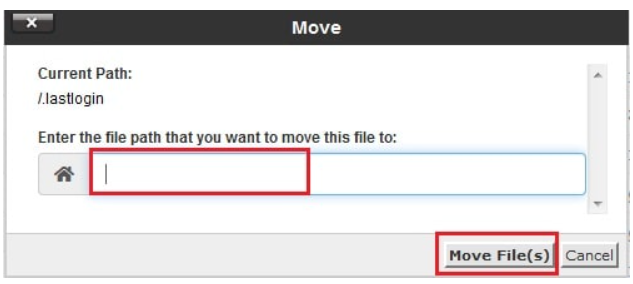
Click Move Files or Copy Files after you select the action.
Note: These tools behave in the same way, although one of them is called Move and the other is called Copy. When you select Move, the files will be removed from the folder they are currently in and placed in the destination folder. Copy, on the other hand, will create another version of the files in the new folder and the files will exist in the original folder too.
Conclusion
To efficiently manage a website, knowing how to Copy and Move functions work in the cPanel File Manager is simple but very useful because of how often you will need to use them. Achieving the ability to Copy files for backups and test purposes and Move files to create a more organized directory on your website is something you should be quite proud of.
As long as you use the destination path field correctly, you will be able to maintain an organized and useful file structure. This is important for the development and security of your website, as well as the overall performance. Make sure to pay attention to your destination path, particularly in the case of a Move, as misplaced files can create organization problems. This will create a time-saving organizational file structure for your website to help it maintain an efficient working environment with a well-maintained hosting system.
