How to Compress/Decompress Web Files with File Manager via cPanel?
Users can compress or decompress web files uploaded on a cPanel hosting. Through the file manager tool, it is possible to carry all kinds of file-related functions on web files.
Steps to Compress a Web File
- Log in to your cPanel account.
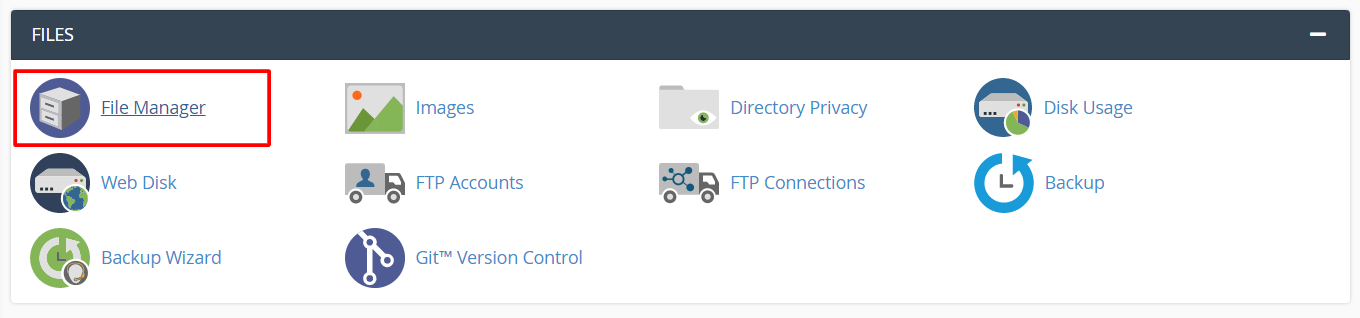
- Go to the Files section and click on File Manager.
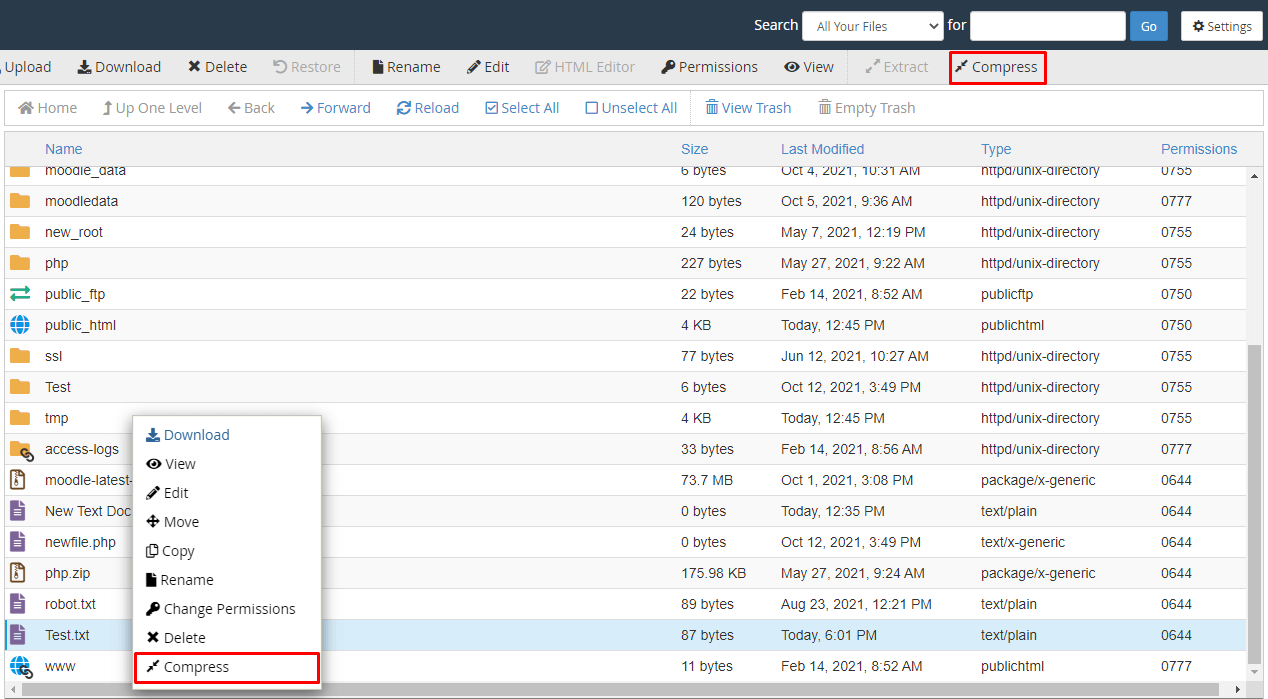
3. Right-click on the file you would like to compress and select Compress.
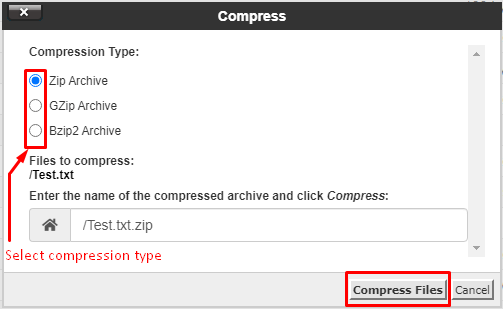
A popup will show up which will display options for file compression.
4. Select the Compression Type of your choice. You may also edit the name of the compressed file in the text box.
5. Click the Compress button.
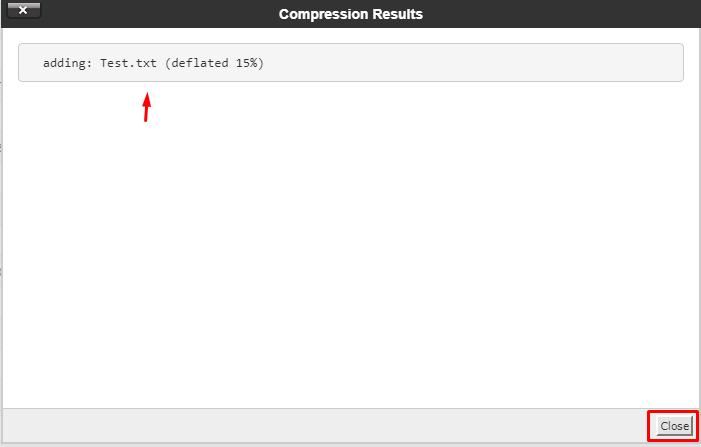
Another window will show the compression results. Close.
The compressed file shows up in the list of files.
Process to Decompress a Web File
- Log to cPanel account.
- Go to Files section and Click on File Manager.

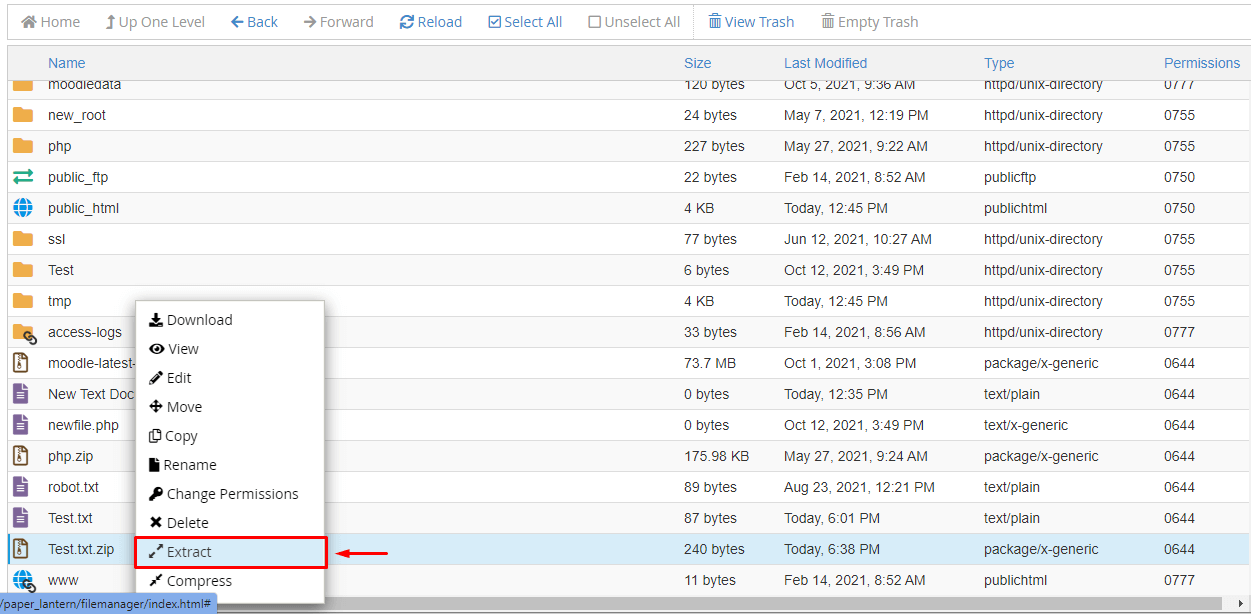
- Right click on a compressed file and click on Extract. The Extract window will open.

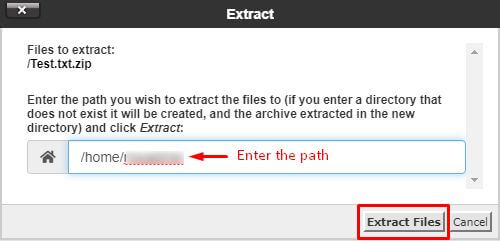
- Add the path for file extraction in the text box and click Extract Files.

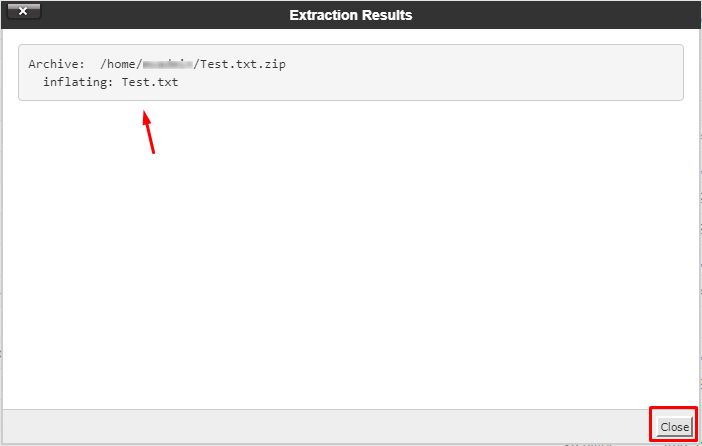
- The Extract Results window will display the summary of extraction. Close it.
Conclusion
Finally, by following the above steps you can compress/decompress the web files on cPanel server with File Manager.
