How to Clone your WordPress Website via Softaculous in DirectAdmin?
Introduction
You do not need to edit your live site and risk a white screen or a broken layout when you can have a clone as a staging area. It mirrors your entire database, media library, and theme settings. You can verify that everything works perfectly on your specific server configuration before your visitors ever see it.
A cloned website is an identical replica of your existing WordPress site. This is an essential tool for developers and business owners who want to experiment with new designs, test plugin updates, or trial custom code without risking the live version of their website. Clone can work safely in a private environment before pushing the final version to your audience.
Steps to Clone Your Site via DirectAdmin
DirectAdmin makes this process simple through the Softaculous installer. You don’t need to manually copy files or export databases.
Step 1: Access the Auto Installer
- Log in to your DirectAdmin control panel.
- Scroll down to the Extra Features section.
- Click on the Softaculous Auto Installer icon.

Step 2: Find Your Current Installation
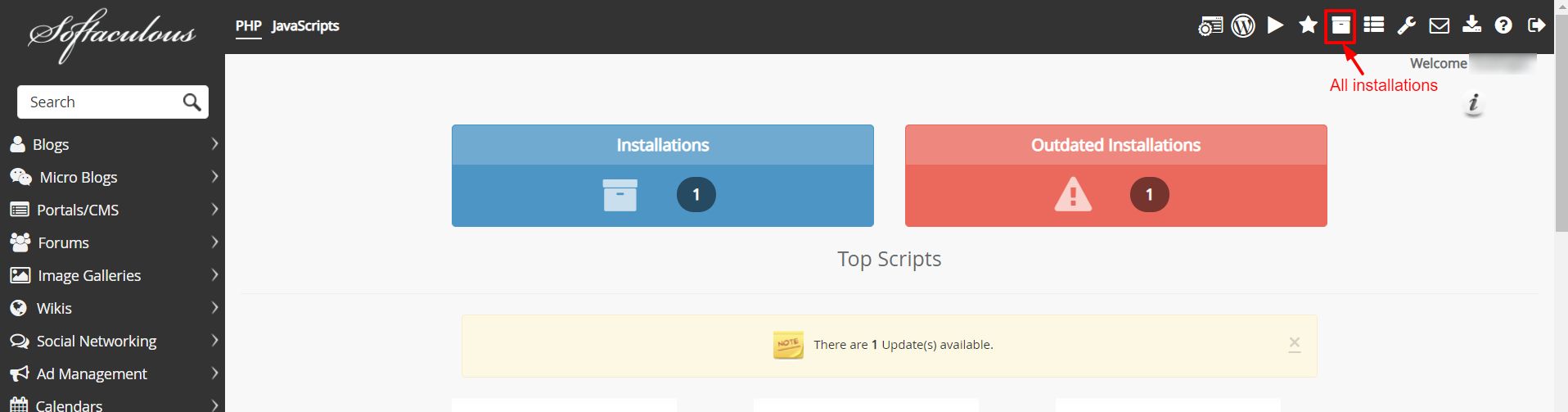
- Go to the upper right-hand side of the Softaculous dashboard and click the All installations icon (which resembles a small wooden box).
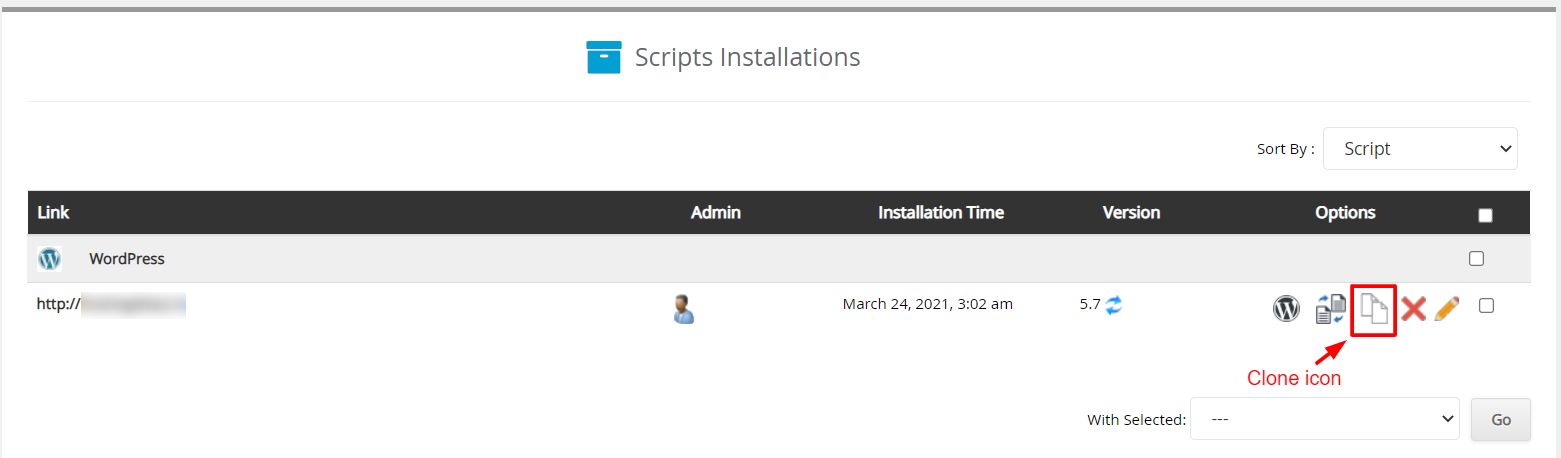
- Locate the desired website to copy in the list of active scripts.
- In the Options column, the Clone icon (resembling two overlapping pages) is located. Click on it.
Step 3: Your Clone Settings
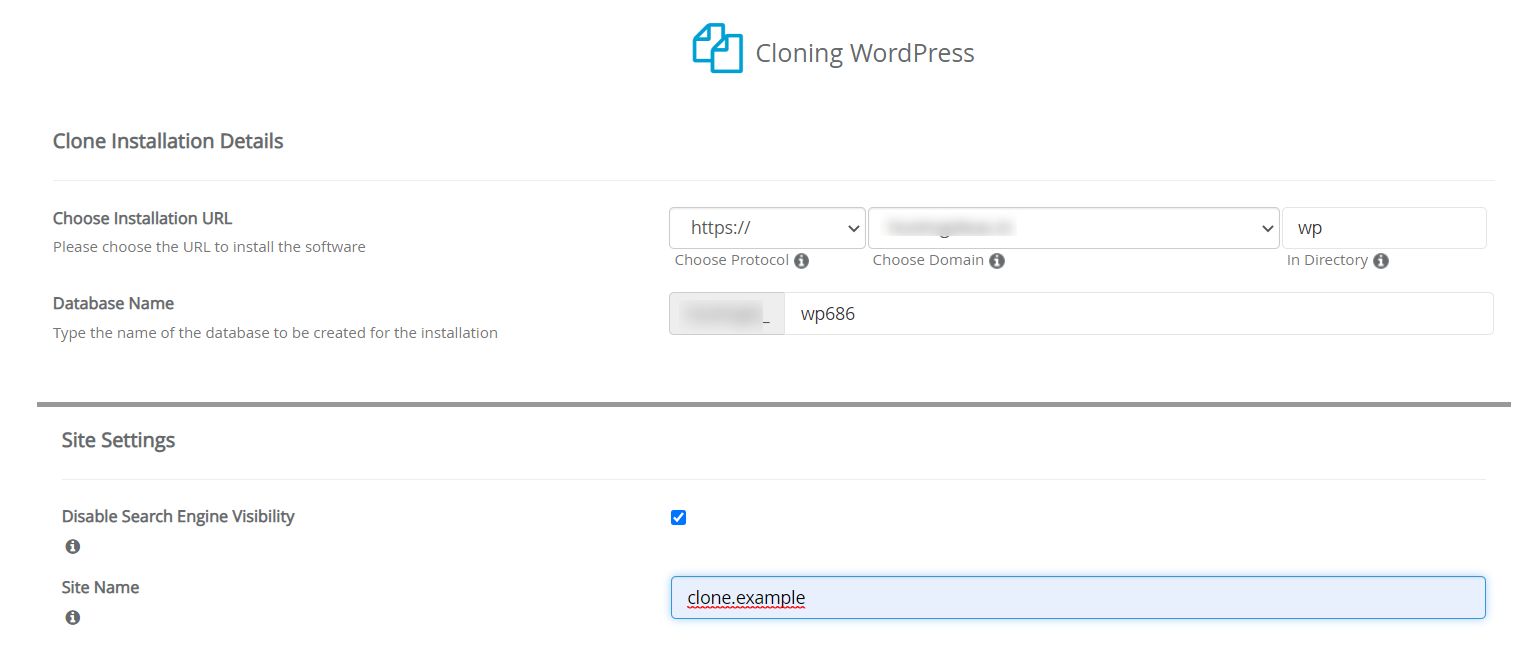
Now you will have a page where you will be asked where the copy should be placed.
- Choose https:// in case of an active SSL certificate.
- Select the area in which the clone will live. You can even go ahead and use a subdomain for this.
- You can get the clone in a sub folder (e.g., [website.com/test](https://website.com/test)), type in here, test. By leaving this blank, get it on a main domain or subdomain.
- Softaculous will propose a name; you can leave it as it is or give it a special name to keep it organized.
- It is highly recommended to check the box. This will not allow Google to index your clone, and this will help avoid the penalty of duplicate content.
- You can also change the name of the clone (e.g., “Development Site”) so that you can easily distinguish between the clone and the live version.
Step 4: Finalize the Copy
- Go to the bottom and click the Clone Installation button.
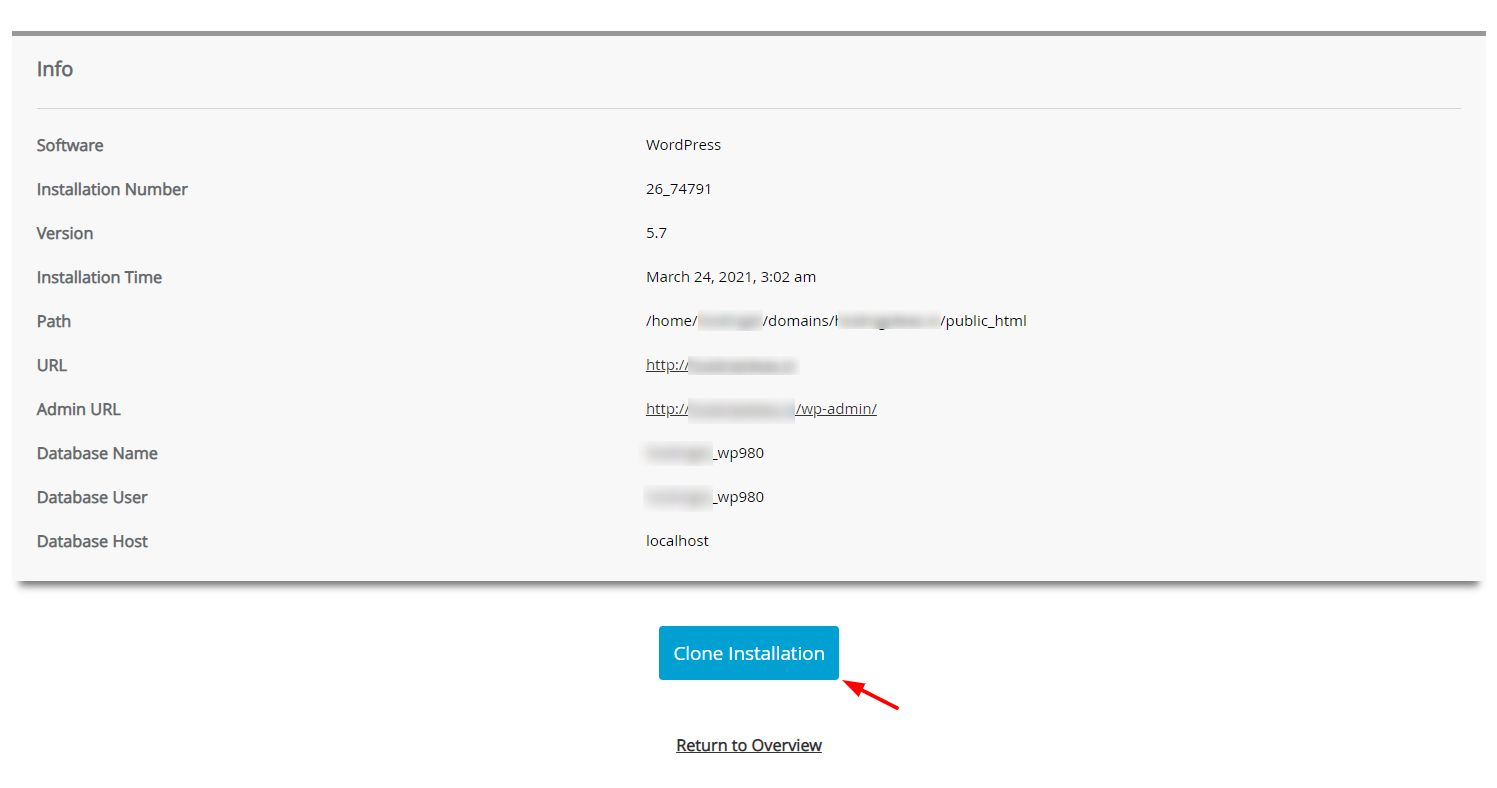
- It will display a progress bar as it copies your files and database.
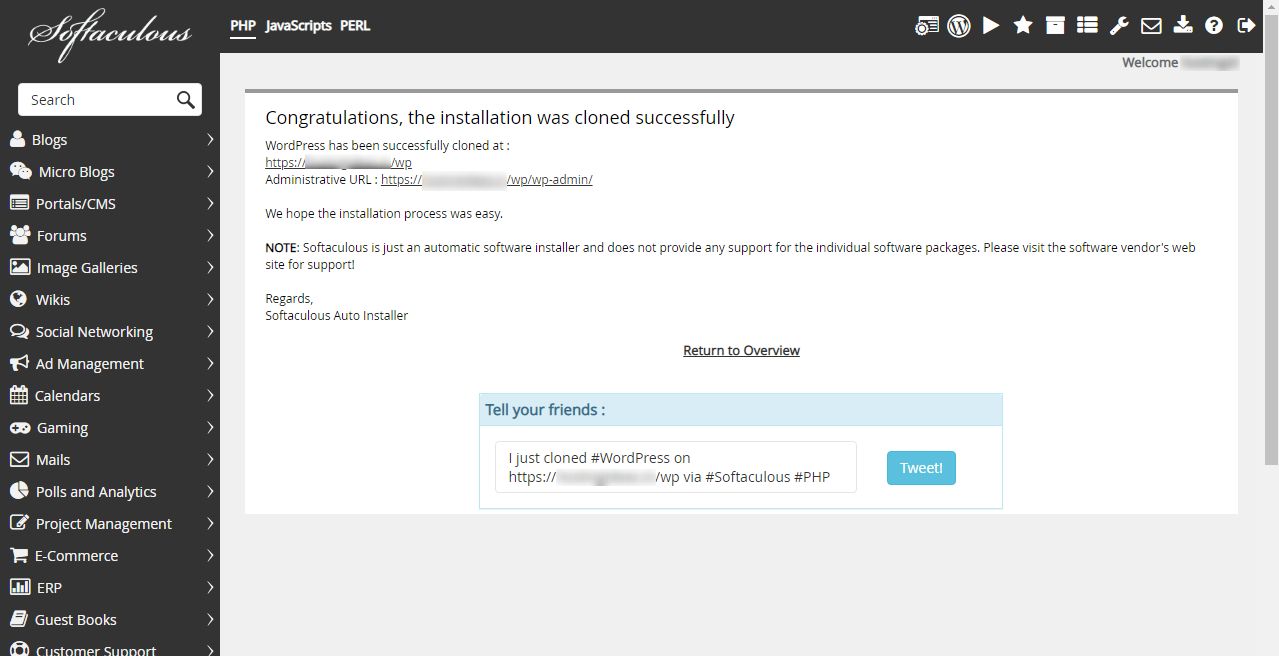
- A success message with links to your new cloned site and its admin dashboard will be sent to you.
Conclusion
Cloning of WordPress sites should be done as a precaution. DirectAdmin like tools are able to generate a sandbox environment within a few clicks. Cantech infrastructure enables quick cloning and staging because your server infrastructure can support numerous versions of your site at the same time. Our technical support team is on 24/7 to assist you in transferring changes that you made in your clone back to your live site.
FAQ’s
Does a clone use extra disk space?
Yes, because a clone is an exact copy, it will use roughly the same amount of disk space as your original site. Your hosting account will need at least 10GB of free space to create and maintain the clone with a 5GB website.
Will the clone stay updated if I change my live site?
No, a clone becomes an independent website. Any changes you make to the live site will not appear on the clone, and vice versa.
Is my cloned site private?
It isn’t password-protected by default but choosing a random directory name or using a hidden subdomain makes it very difficult for strangers to find. You should also ensure you checked the “Disable Search Engine Visibility” box during setup.
Can I delete the clone when I’m done?
Yes. You can go back to the All Installations menu in Softaculous and click the red “X” next to the clone to remove it. This will free up your disk space.
What happens to my plugins on the cloned site?
All plugins will be copied over exactly as they are. However, some premium plugins that are tied to a specific domain license might require you to enter the license key again or may only work on the authorized domain.
