How To Change WordPress URL using phpMyAdmin in DirectAdmin?
Introduction
You may need to update your website URL in your database for a number of reasons. For instance, if you have changed your domain or installation folder, you need to update the DirectAdmin panel and the database. You need to change the database so WordPress knows where its files are located.
Why Use phpMyAdmin?
When you change your domain name, you may not be able to access your WordPress dashboard. You can’t access it to change the settings, so the best way to change the URL is to use phpMyAdmin. This lets you edit the “Home” and “Site URL” values at the source.
Step 1: Find Out Your Database Name
First, you need to identify the database your website is using. This is important so that you do not edit the wrong one if you have more than one website.
- Open your DirectAdmin account.
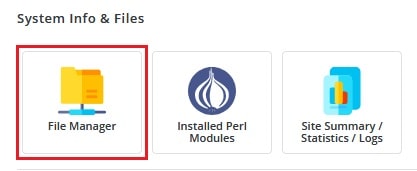
- Go to System Info & Files and open File Manager.
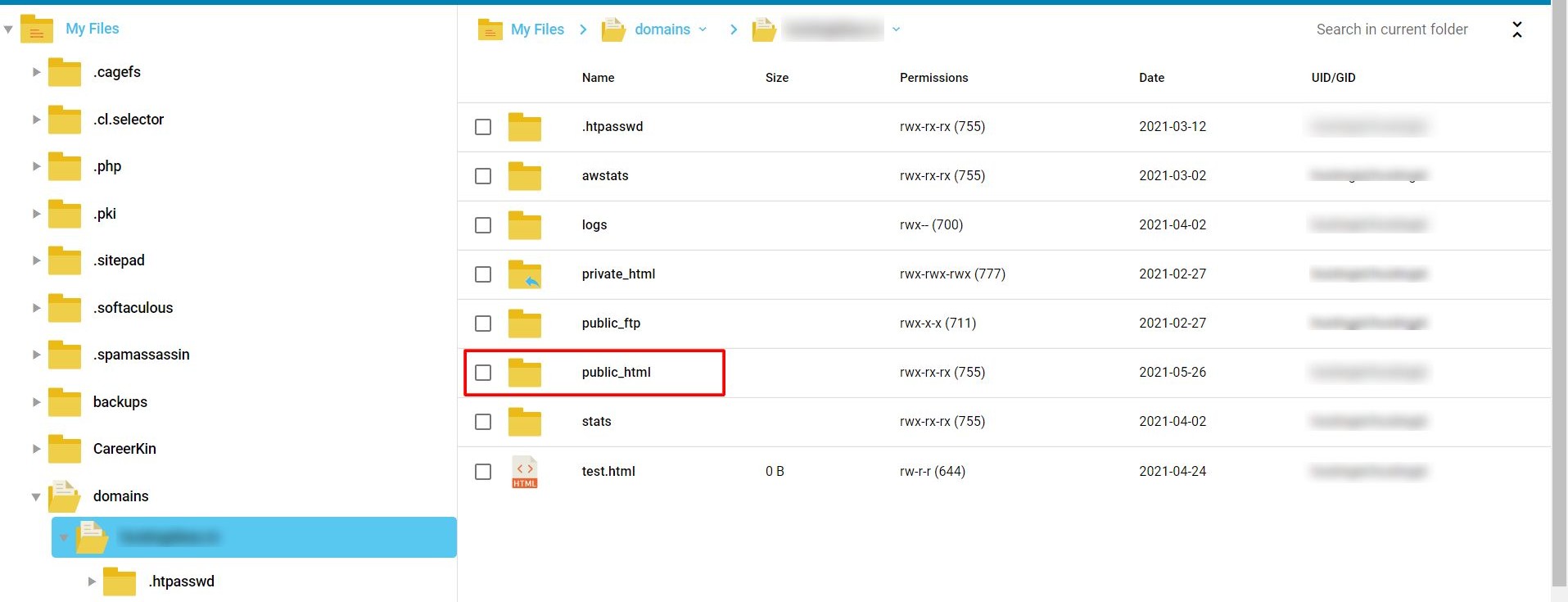
- Go to public_html (or the folder where the website is located).
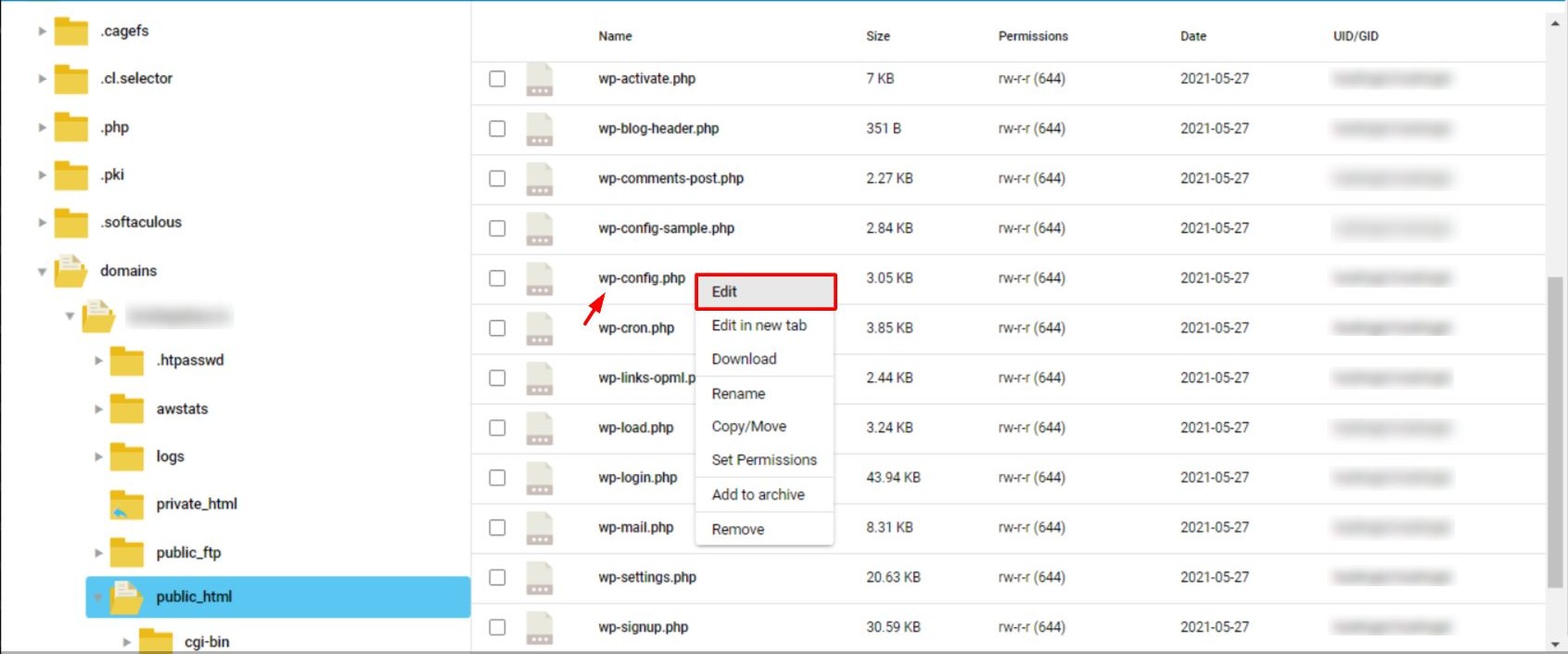
- Locate the file wp-config.php, right-click it, and click Edit.
- Find the line: define( ‘DB_NAME’, ‘your_database_name’ );

- Make a note of the name in the quotes. This will be used later.
Step 2: Access phpMyAdmin
With the database name, you can access the management tool to make the changes.
- Go back to the DirectAdmin home page.
- Scroll down to the Extra Features section and click on phpMyAdmin.

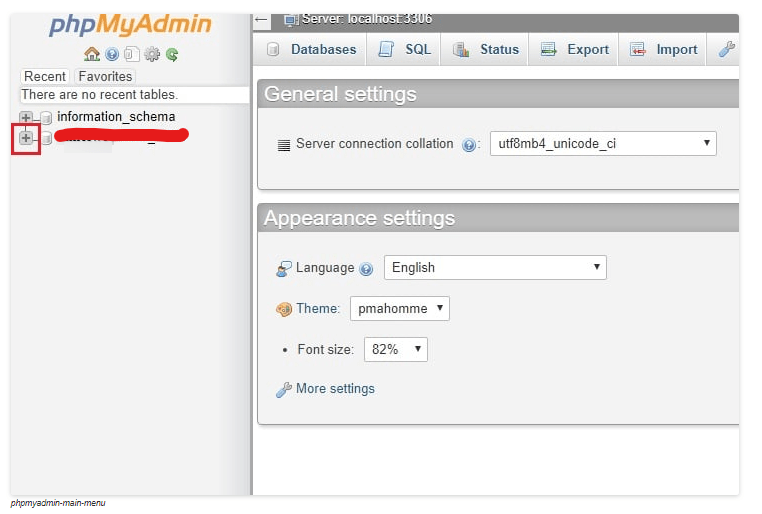
- A new tab will open. Click the + icon on the left sidebar, beside the database name you found in Step 1.
Step 3: Change the URL Tables
Your database contains a table with your website’s URL.
- Look for the table that ends in _options (probably wp_options). Click on it to view the data rows.
- Find these two rows in the option_name column:
siteurl
home
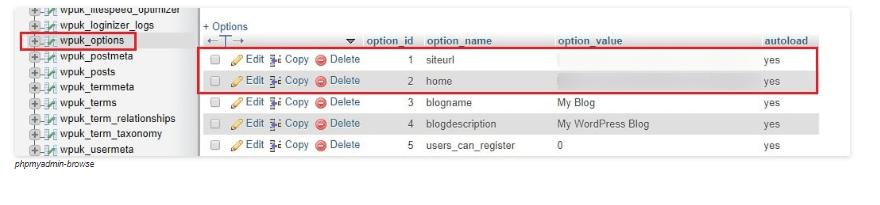
- Click the Edit button (pencil icon) next to siteurl.
- In the option_value field, enter the new URL. Be sure to include the http:// or https://.
- Click the Go button at the bottom to save.
- Repeat this exact process for the home entry.
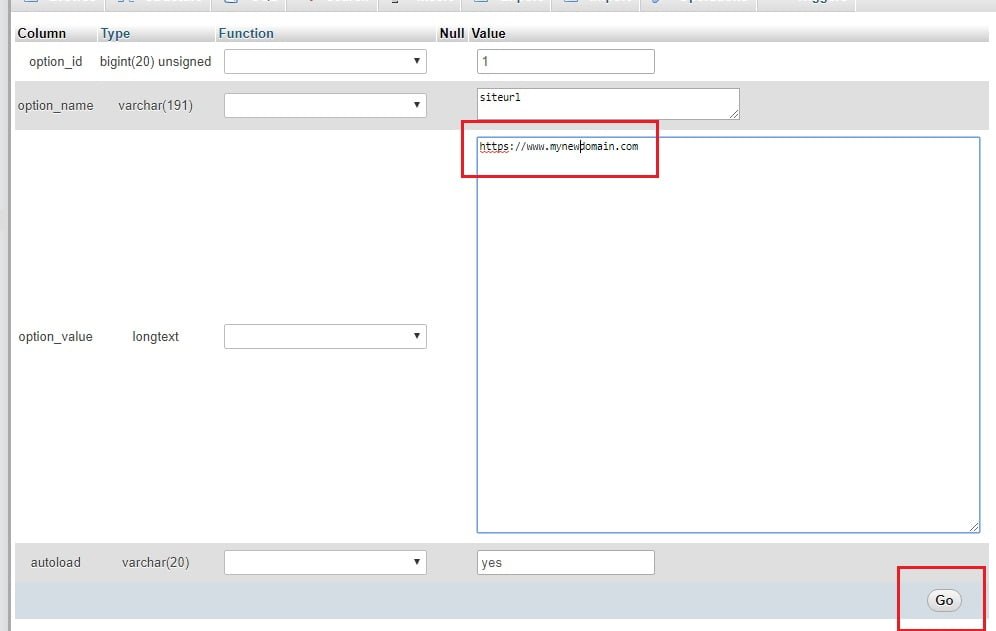
Note: The siteurl and home values must be identical. If one has a “www” and the other does not, your site may not load or may redirect in a loop.
Cantech Database Management
Cantech offers a highly stable DirectAdmin environment. We have configured our servers to provide fast database queries, so any changes you make in phpMyAdmin will be reflected immediately. If you are unsure about making changes to your database, our 24/7 technical support is here to help. We can safely make these changes or migrate your site to ensure all of your internal links are preserved.
Conclusion
Editing your WordPress URL is an effective solution to being locked out of your WordPress site. Using these tips in DirectAdmin, you can make sure your website is pointing to the right domain in just a few minutes. Afterwards, be sure to clear your browser cache and any caching plugins to see the changes live on your site.
FQA’s
What happens if I forget to change one of the two URLs?
Your site will probably break if siteurl and home are different. You may be able to view the homepage, but when you click on a link, it will not work, or your CSS styles will not load. Make sure they are the same.
Will this update the links in my blog posts?
No, this will only update the main site address and the home path. If your posts contain any links or images pointing to your old domain, you may need to use a “Search and Replace” plugin to update those links.
Can I use this to go from HTTP to HTTPS?
Yes, this is a popular method to force WordPress to use SSL. Just replace the http:// with https:// in both fields. Be sure you have an SSL certificate installed first.
Is it safe to edit the database directly?
Yes, as long as you only edit the option_value for these two rows. But it is a good idea to back up the entire database using DirectAdmin before you edit anything manually.
Why is my database not prefixed with ‘wp_’?
Many users will change the default wp_ prefix for security reasons. If you have tables like site123_options, that is fine. Just find the table that ends with _options.
