How to Access the Web Server Command Line Through cPanel?
Using cPanel to navigate different parts of your hosting account is designed to be straightforward, thanks to the graphical interface. However, some features of your hosting account are more expeditiously handled via the command line, and most of the time you will be needing access to the command line interface (CLI) of your hosting account via secure shell access (SSH). For more advanced users, the command line is especially valuable for executing and scheduling call command scripts, bulk file manipulations, or sophisticated server settings changes which can be much more difficult to do using point and click interfaces.
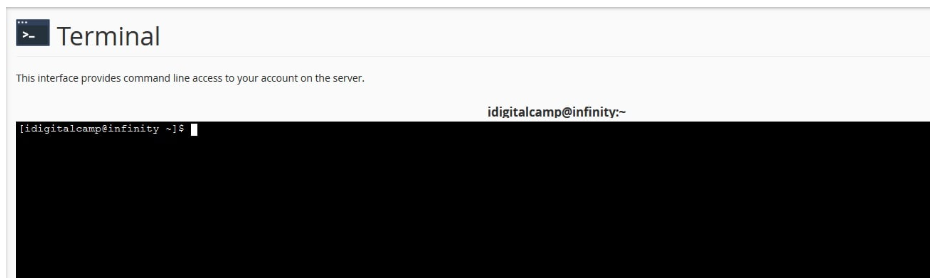
You will learn to access the command line via cPanel by using the cPanel Terminal interface, which is a fast, secure shell access to cPanel.
NOTE: There is a great risk to your account access via the command line. Certain command line instructions can destroy or alter file systems and their structures. If you have no experience with command prompts or some command line interface actions, you are advised to look for other ways to achieve the same results that you would do with the command line interface.
Cantech provides you with your server command line access. But if you are unfamiliar with how to use your computer’s terminal application or need to use command line access temporarily, you can use cPanel to access terminal windows.
How to Start the cPanel Terminal?
Open cPanel in your preferred web browser using the cPanel URL provided by your hosting provider. Enter your username and password and click the Login button and your cPanel Terminal should be visible. If it does not load, repeat the process.
In the cPanel home screen, scroll down and locate the Advanced section.
Click on Terminal.
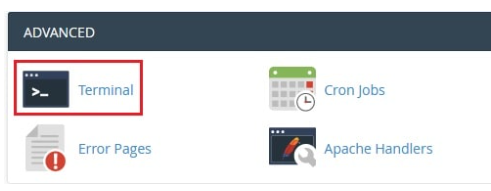
Your cPanel Terminal should now be fully functional.
Summary
Congratulations! You now know how to run commands on the command line of your web server using the Terminal function in cPanel. Make sure to use the tool wisely as it can be very useful for performing advanced administrative functions. However, remember that any command you run in the command line will be run immediately and often with no opportunity for you to reverse the change.
This means that you should be very careful with the commands you run, especially those that you are not very familiar with. For most administrative functions, you should be able to use the tools provided by cPanel in a safer manner (use the File Manager, Backup Wizard, etc. for routine tasks). Use your command line access to improve advanced web management tasks, but remember to do it safely and efficiently. Always reach out to documentation or your hosting provider if you are unsure about a command.
