Steps to Reset Your WHMCS Admin Password
Retrieving access to your WHMCS Admin Area is essential to run your billing and automation systems. If the password is forgotten, it is understandable to panic. However, there is a way to regain access if the “Forgot Password” link is not operational. This could be due to a disabled lost password setting or an email misconfiguration, but rest assured there is a simple fix.
Directly updating your server’s database is the safest option. This process takes minimal time, and is the same as with all self-hosted applications. With this method, you won’t have to worry about being locked out. The following is a simple and direct process to regain access to your WHMCS password via phpMyAdmin.
To reset your WHMCS admin password, if you have a cPanel server, follow the steps below:
- Sign into cPanel.
- Select phpMyAdmin and navigate into phpMyAdmin

3. Search for your WHMCS database using the left sidebar navigation of phpMyAdmin and click on it.
4. In the next step, you must look for the “tbladmins” table. After you find the table, go to the “Browse” Tab and search for the administrator whose password you want to change and click “Edit”.

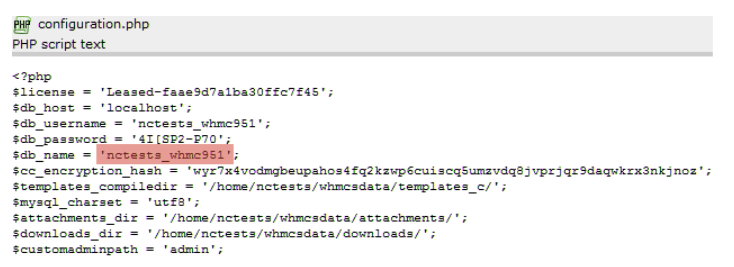
If you don’t recall the database name for your WHMCS installation, you can verify the configuration.php file located in the root folder.
5. On the next screen, navigate to the “Password” section, and from the drop menu, select “MD5” and enter your new password.
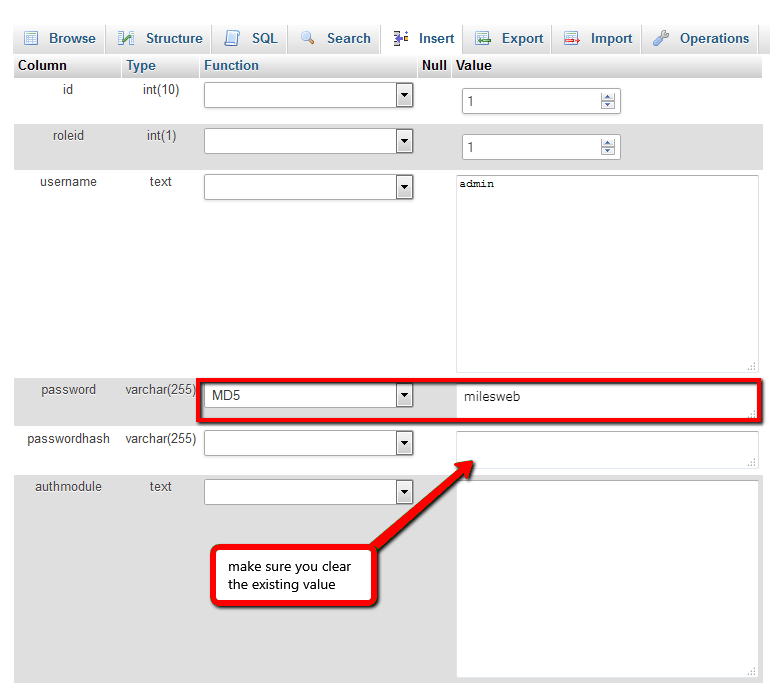
6. Click the Go Button, and afterwards, log into WHMCS using the new admin password.
Wrap Up
Regaining access to your WHMCS is quite easy. Updating the tbladmins table in phpMyAdmin allows you to circumvent any temporary email or security restrictions and set a new password. While you are logged in, check the General Settings > Security Tab to enable the admin password reset link and verify your email settings to avoid future lockouts. Now that you can access your account, you can go back to managing your hosting business effectively and securely.
