How to Install Moodle Application Manually via cPanel?
Moodle can be installed through the Softaculous application easily. However, without the 1-Click Installer, you can do the following procedures to install Moodle application manually using cPanel.
Install Moodle
Installation File Moodle.
Enter the official site of Moodle.
Click on the button of Check out our latest release:
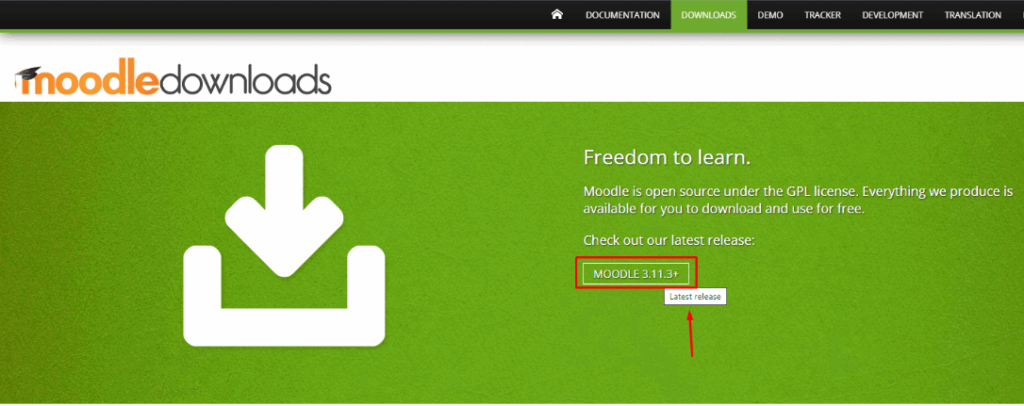
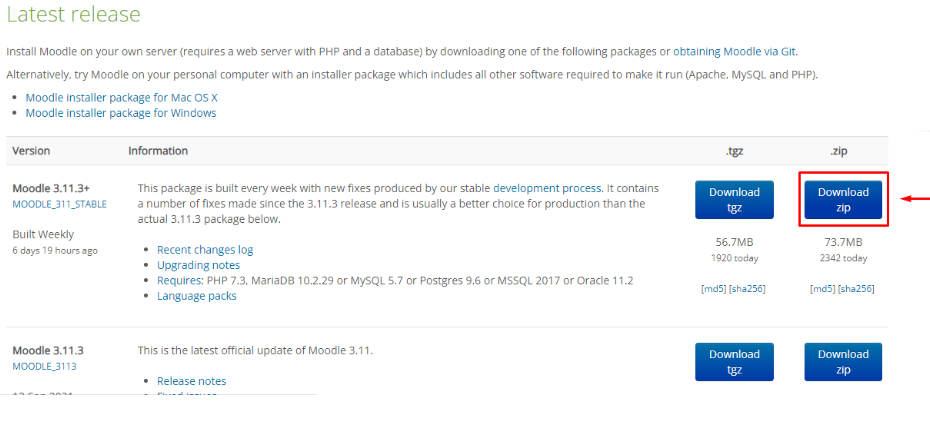
Install the newest version of Moodle application. You will see it on the list of first things.
Moodle software has been downloaded in zip file.
Create a Subdomain
Yes, there are ways in which you can install Moodle in a folder and open the software application with your web browser in with the address at.
http://yoursite.com/moodle
Nevertheless, we suggest that you build a subdomain with cPanel on which Moodle would be available and use the address. It will enable you to use the application in any machine.
Install Moodle Software in the Server
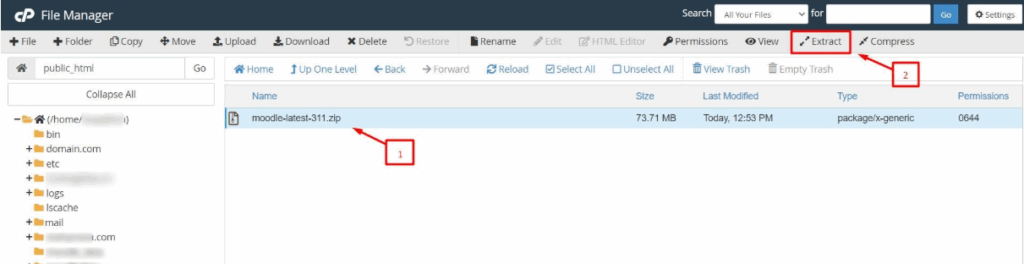
Going further you have to install Moodle on the hosting server either through FTP client or cPanel File Manager. With these applications, it is possible to either upload uncompressed or compressed Moodle files on a server.
- Nonetheless, we recommend that you post the zip file(compressed file) on cPanel File Manager.
Ensure that you post it on your public_html folder.
- Next, select the Extract button to dearchive the files.
There will be a window that will request a path to the Moodle folder.
- Select the Extract Files button
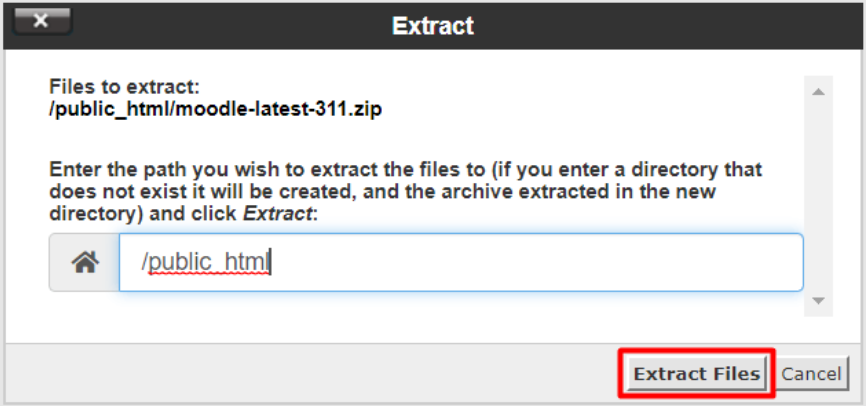
The list of directories will include a folder named Moodle in which all the files of the application will be placed.
At this point, authorize the files such that they cannot be written by any unauthorized user.
- Select Change Permissions by clicking on the Moodle folder, right-clicking.
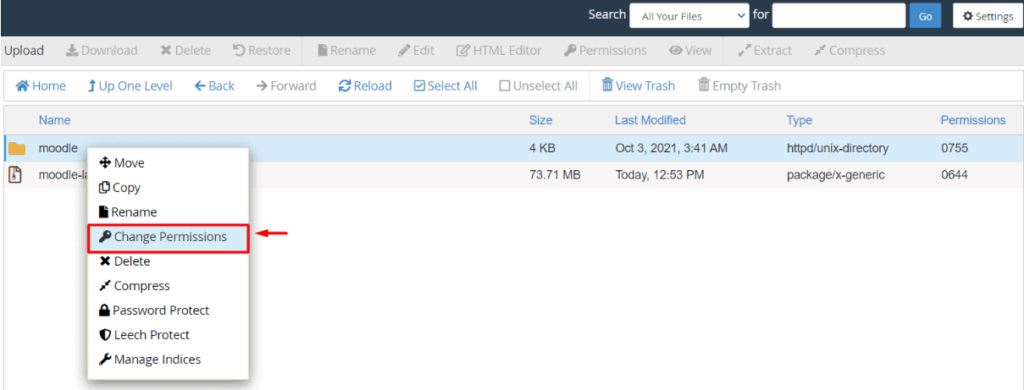
Make sure that the permissions are 755.
- Open Moodle folder and verify whether the usual files are assigned permission of 644.
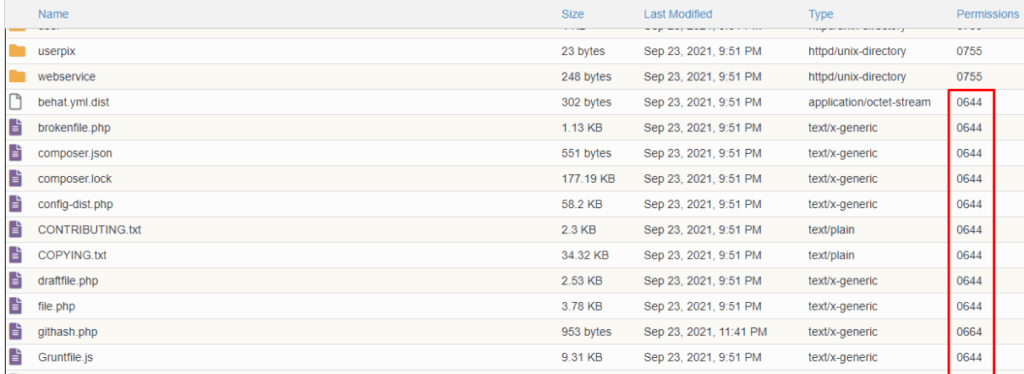
Create Database for Moodle
Log in to your cPanel account.
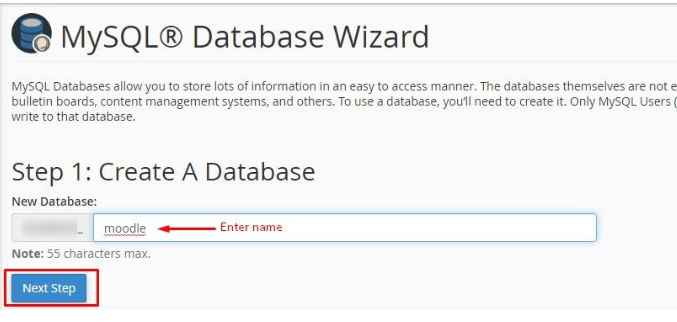
Go to the DATABases section and tap MySQL -Database Wizard.

Name Enter a name of the Moodle database and click Next Step.
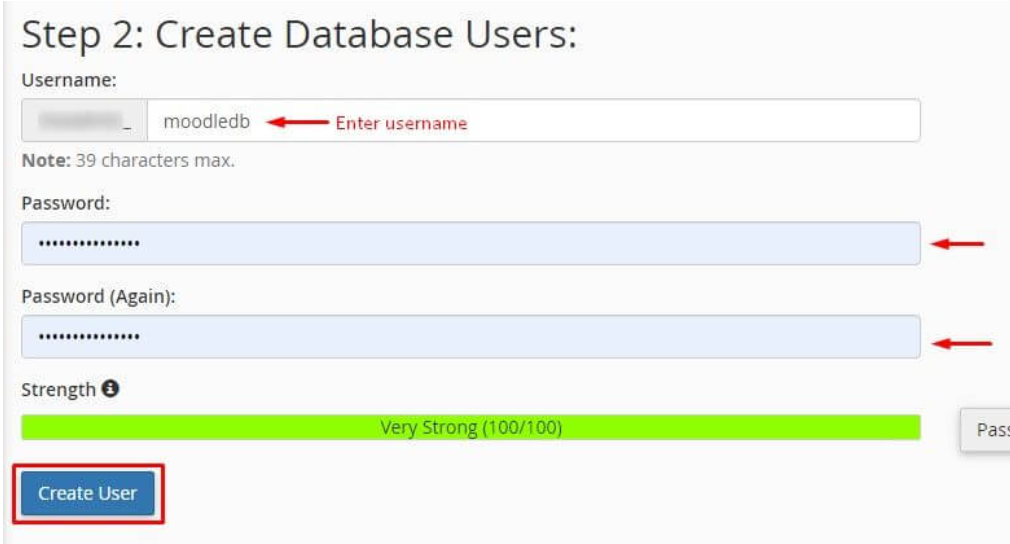
Type the username and password of new Moodle database and press Create User.
Check All Privileges and press the Next Step button.
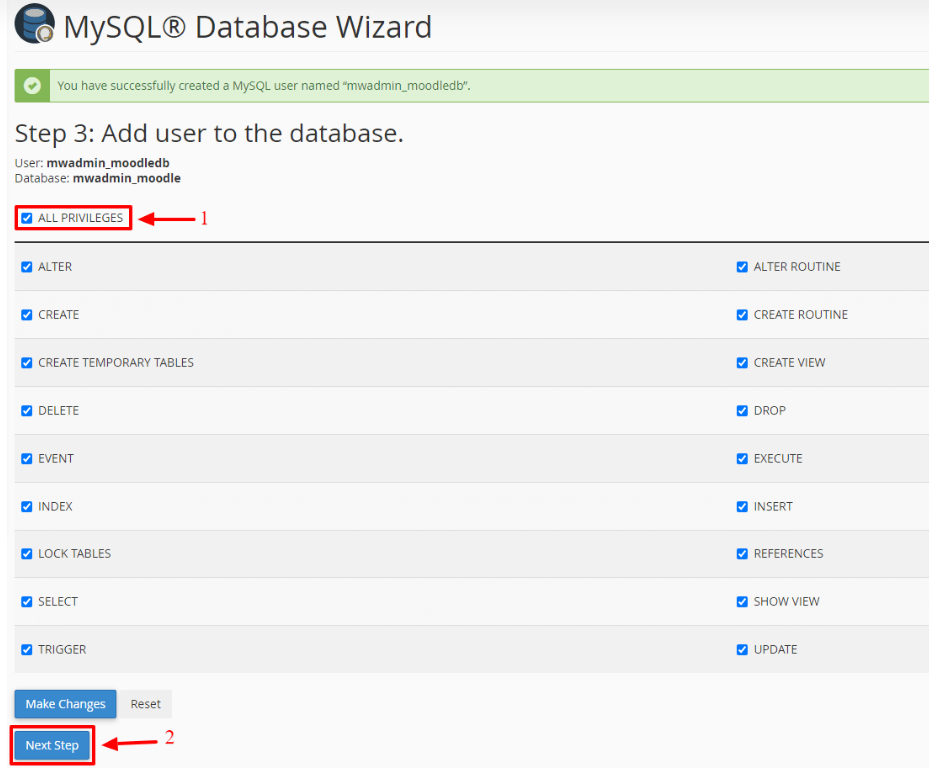
Click Return Home to get back to the main interface.
Create a Data Directory
Once a database has been created, moodle will need a directory at a safe place, preferably in your home directory.

Select +Folder in the File Manager tab.
The pop-up of the New Folder will occur.
Enter the name of the folder to keep the data of Moodle and click on Create New Folder.
Install Moodle
Access the Moodle Web site.
The URL should be like:
domainname/moodle/install.php
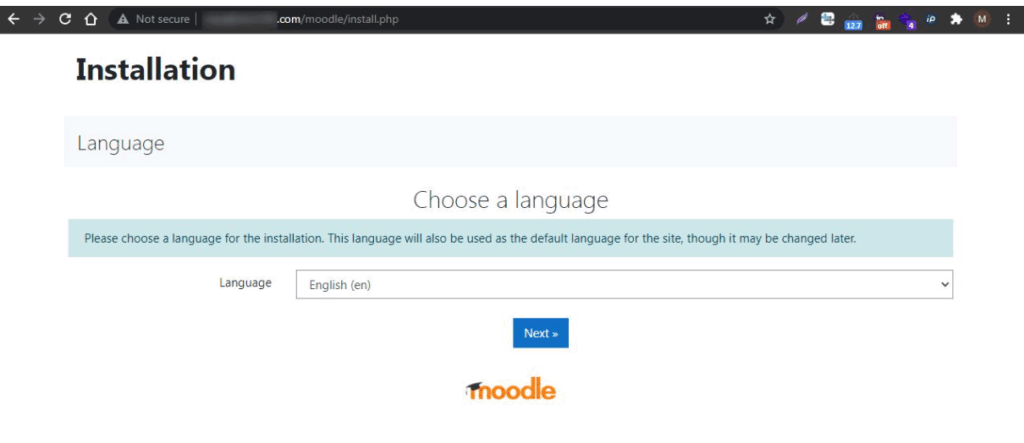
It will initiate the installation procedure which will include a number of pages.
Select the Language that you are going to install and go ahead clicking Next >>.
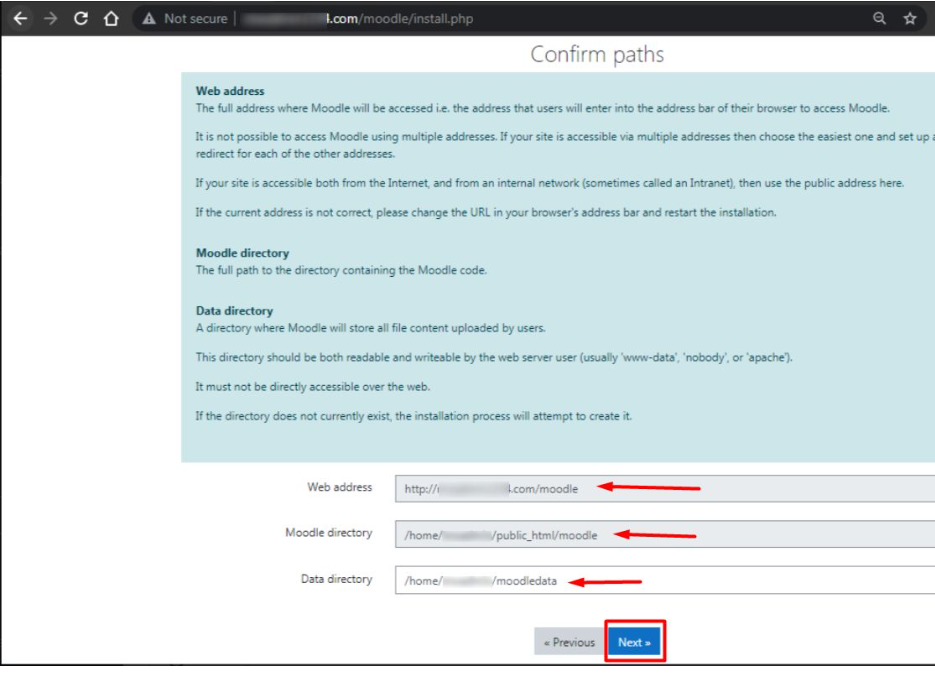
Provide the relevant information in the fields
- Web address: This is the address that you will key into the browser in order to get into Moodle.
- Moodle directory: The directory path to the Moodle directory that you have made.
- Data directory: This is the directory within the database which contains the file content in moodle.
Click Next >> after typing all the information.
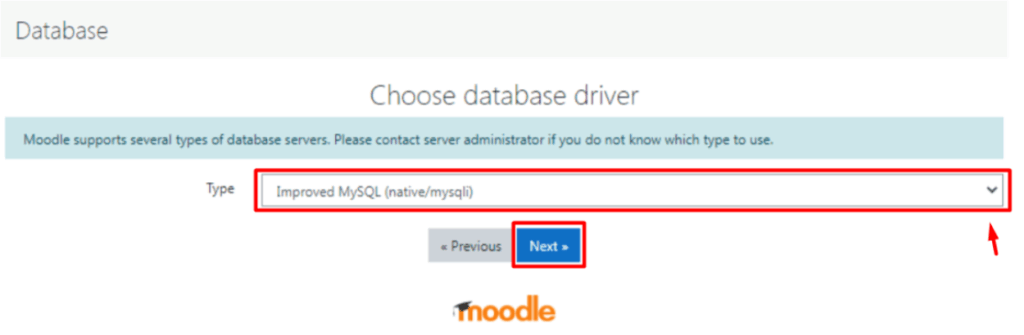
Choose the Type of the database driver in the drop-down list and click Next >>.
It will be necessary that you select it according to the database directory you have created.
You are almost done!
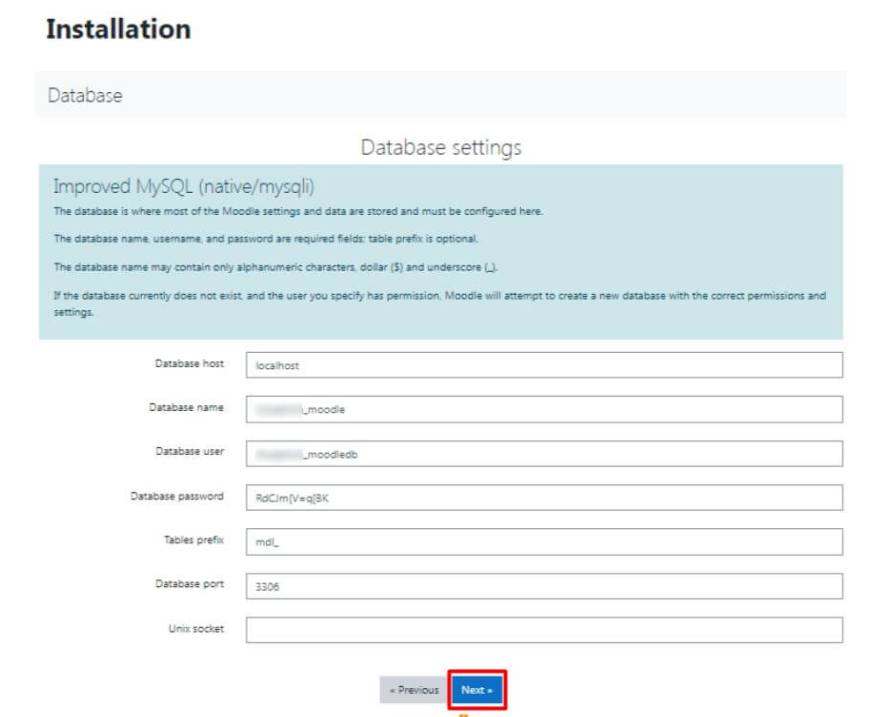
Finally, it is time to fill the correct information on the Database settings and press Next >>.
This is how Moodle is installed manually using cPanel.
