How to Install FFMPEG for WHM/cPanel Server?
We will demonstrate how you will be able to install the ffmpeg application on a cPanel server by using the WHM terminal.
Assuming that you want to give users the ability to stream audio -video information on your site, you might have to install FFMPEG. FFMPEG is also an application that allows cross-platform functionality thus it operates on any platform.
It also has a PHP extension which allows users to run their files with web pages using PHP language.
To Install FFMPEG
Log in to the root on the WHM panel.
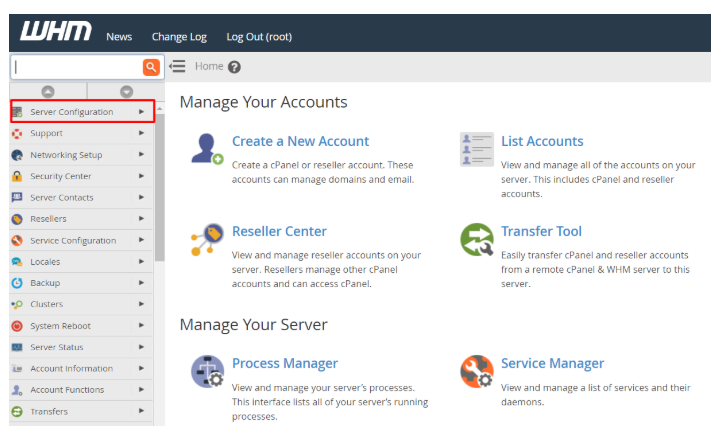
In the navigation menu, choose the Server Configuration option.
Click on Terminal.
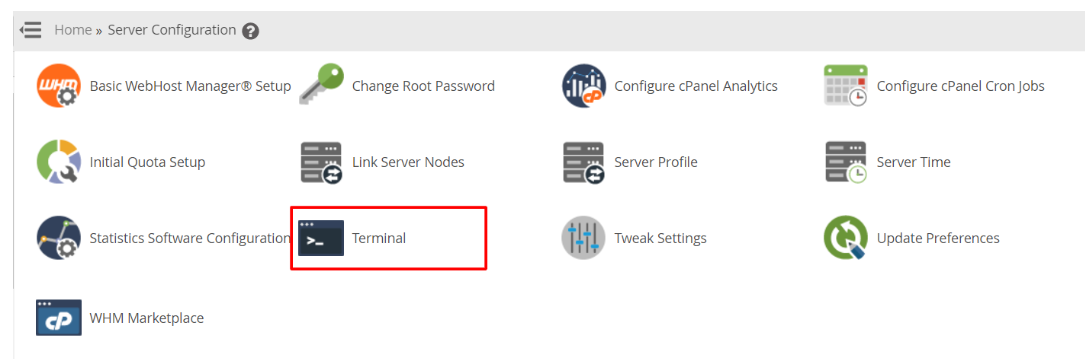
There will be the opening of the terminal interface.
The FFMPEG application has a sequence to follow in order to install it.
The following are the commands that you need to copy in the interface in the order that is given.
- Install EPEL repo:
Install The EPEL repository first. Enter the following command in the terminal.
yum install epel-release
In some rare cases, such command may fail and give the message of no package epel-release available. In case this happens, you have to download the RPM of the EPEL repository.
Enter or paste the following commands into the terminal:
wget https://dl.fedoraproject.org/pub/epel/epel-release-latest-7.noarch.rpm
rpm -ivh epel-release-latest-7.noarch.rpm.
2. Install NUX desktop repo:
Install the NUX desktop repository by downloading it and installing it after the installation of EPEL repository.
The command is:
rpm -Uvh li nux/dextop/el7/x86 64/nux-dextop-release-0-5.el7.nux.noarch.rpm.
3.Install FFMPEG
Your system is now ready to install and execute the FFMPEG application after it has installed the EPEL desktop repository along with the NUX desktop repository.
The installation command of ffmpeg application is:
yum install ffmpeg ffmpeg-devel -y
4.Check the installation of the FFMPEG
To check whether FFMPEG is active or not, you can check the version installed on your server.
Enter or type the command:
ffmpeg –version
This explains how you will have successfully downloaded and installed the ffmpeg application via the terminal in WHM on your cPanel server.
