How to set up Email Notifications via cPanel/WHM?
There are times when as a user of VPS your server experiences significant problems or modifications like Account Creation, Exceeding Memory Limits and so on. WHM also allows you to activate email notifications on cPanel accounts so that you can be made aware of these issues with your server.
To Set up Email Notifications
Log into WHM panel with your root account.
In the navigation menu, choose the choice of Server Configuration.
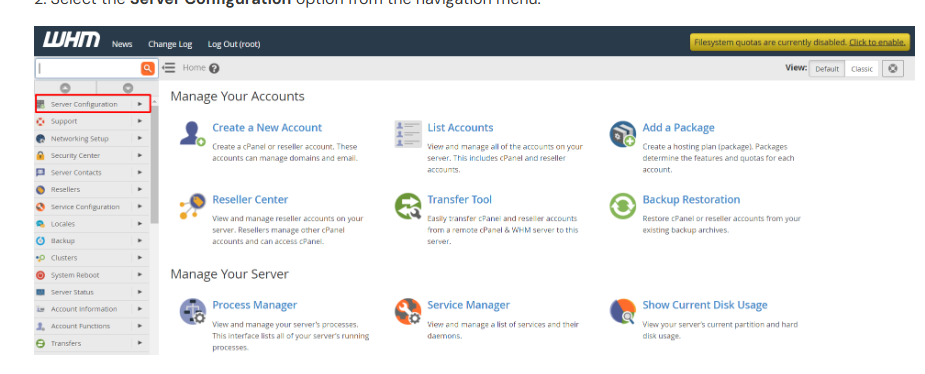
Click on Basic WebHost Manager Set-up.
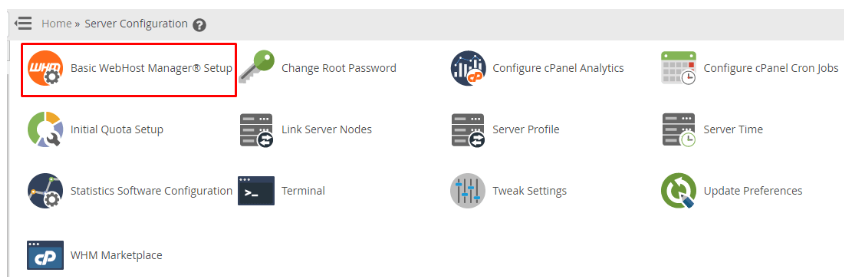
Select the tab of contact information.
You will need to find a search field named as enter one or more email addresses to contact in case there is any issue regarding this server. The server will send out notifications to the email sent here.
Enter the email address in the text box.
Note: Entering several emails The emails should be separated with commas.

After entering the email address, scroll to the bottom then click on Save Changes.
This email address will be saved in the server to send notifications.
At this point, you will have to set the notification settings basing on their significance.
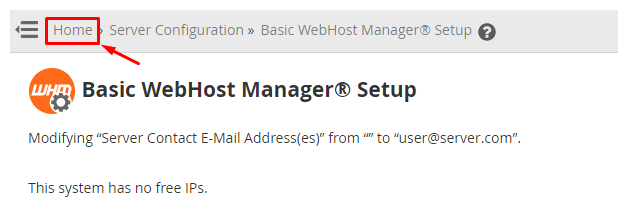
Go back to the WHM interface Home screen.
Choose the option of the navigation menu, Server Contacts.
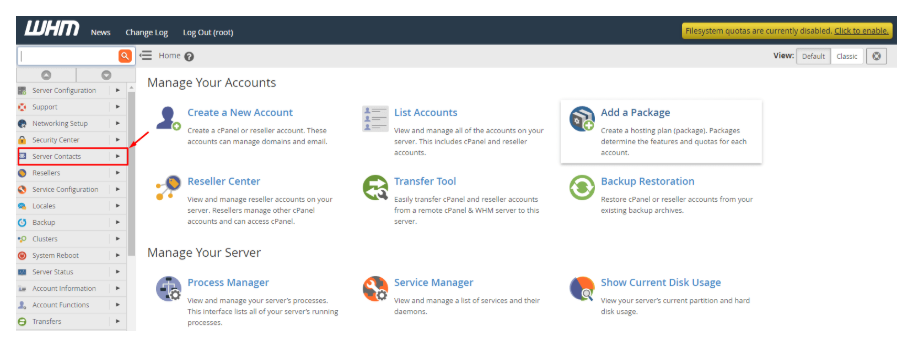
Click on Contact Manager.
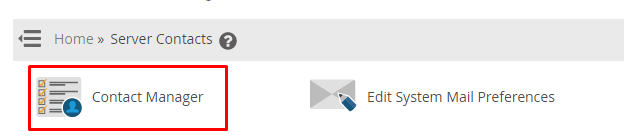
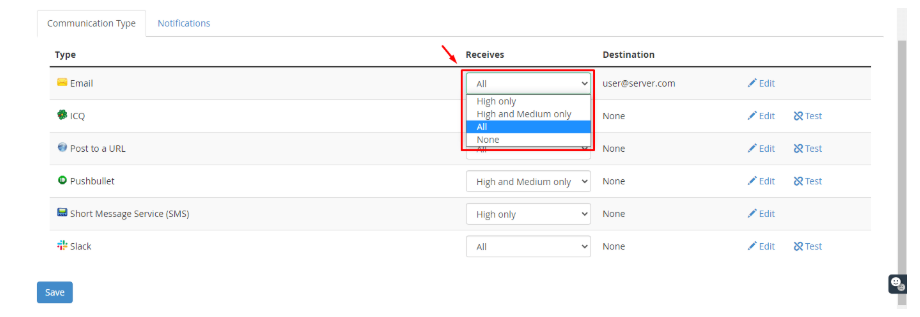
In this case, it will be possible to change the system settings to email notification on priority.
Choose the preferred priority of mail notifications on the drop-down list of the Receives column of Email.
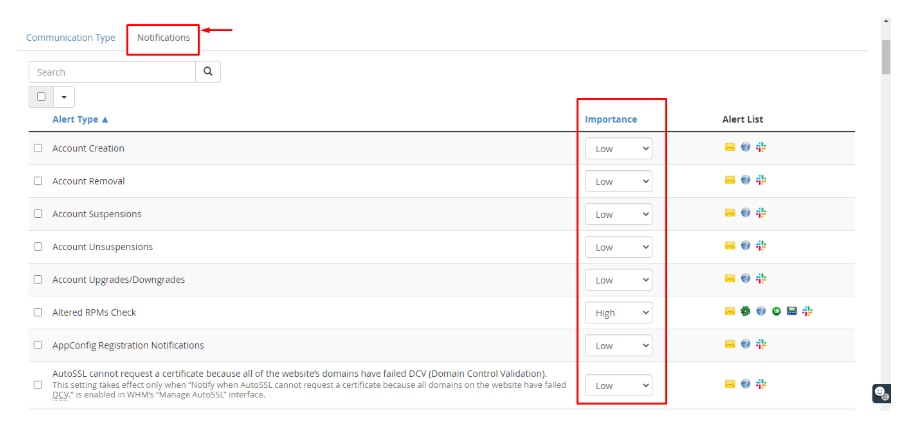
When you are on the tab called Notifications, you can determine the type of alert by clicking the drop-down list in the column Importance and select the type and also give it a priority.
The email notification of the selected types of Alert will be sent to the system.
Update necessary configurations and click the Save button.
With this, you have successfully completed setting up the mail notifications for your cPanel server.
