How to Manage Email Disk Usage in cPanel?
The following tutorial will describe the procedure of watching and controlling the use of email storage in cPanel so that people could watch all mailboxes and remove outdated or large messages as needed.
These are the procedures of controlling disk email usage:
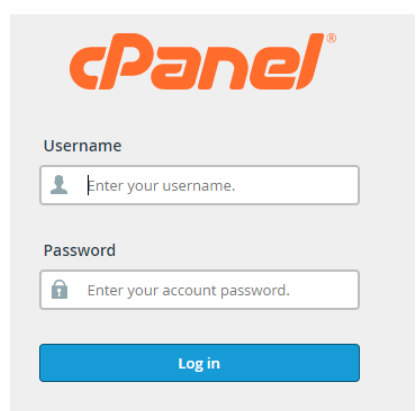
– Log in to your cPanel account.
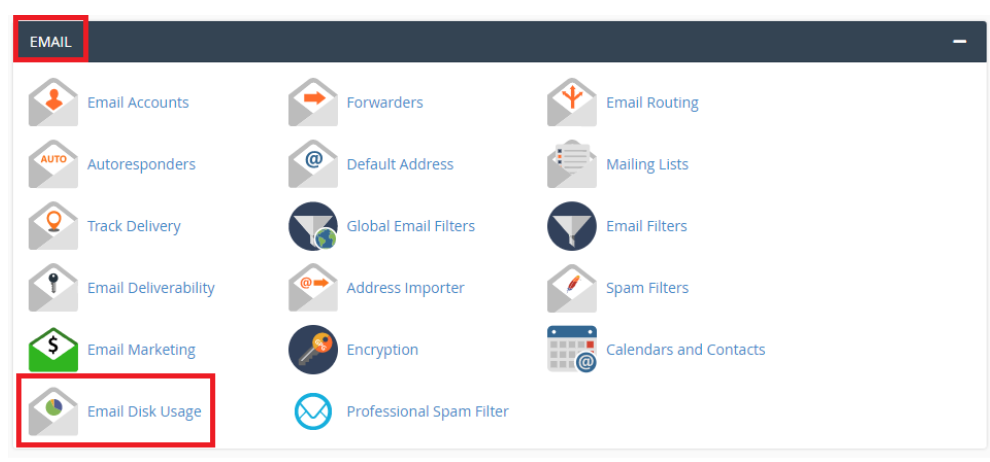
– Click on the email disk usage option as far down as the email section.
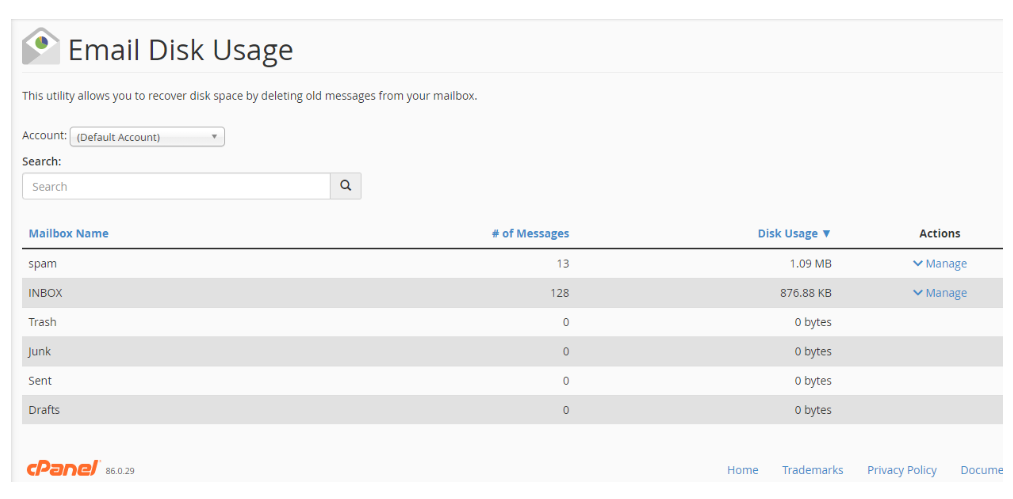
– Once you are in the Email Disk Usage page, you can choose the e-mail account you need to see by clicking on the Account dropdown list or by typing the e-mail account in to find it.
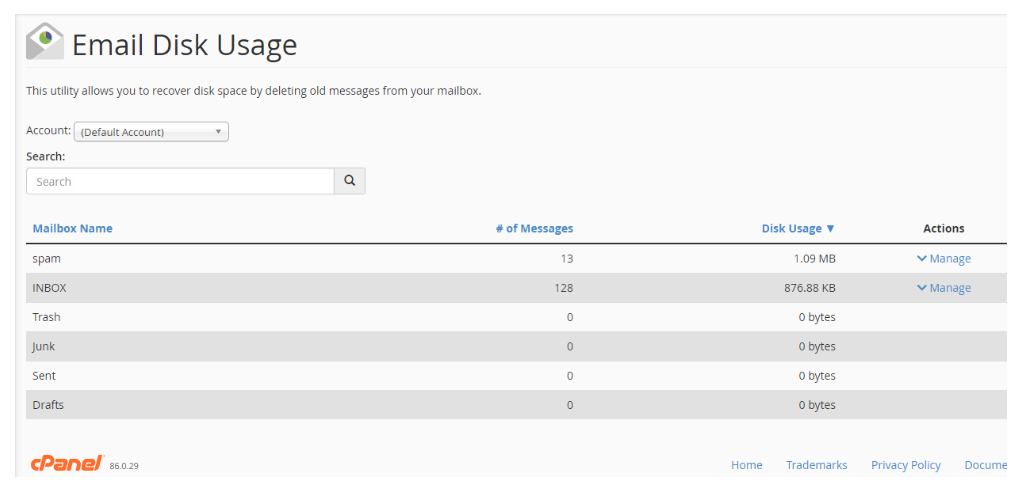
– On selecting the e-mail account, all mail folders associated with this account will be presented under the section of mailbox name as shown in the image above. The table will also indicate columns of the number of messages in each folder and the size of the folder.
– In case you want to clear some disk space, then in the column of actions, you can see the option of managing by clicking on manage.
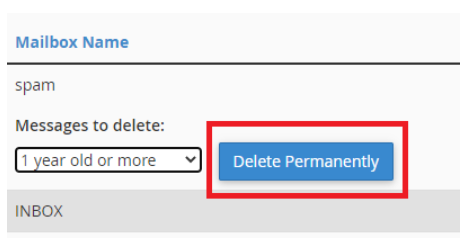
– In the option of messages to delete, it has a number of filters which you can use to define what emails you want to delete.
The filter options that are provided are:
- 1 or above years- Choose this choice to remove those messages that are more than one year old.
- 30MB and above – Choose the option to remove email messages that are over 30MB.
- Previously read- Select this option to get rid of read messages.
- All messages- Select this option to delete all the messages in the folder.
- Custom query – If you want to delete individual email messages based on date, subject line and others, then choose this option.
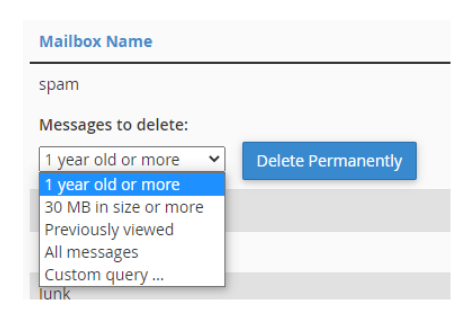
To permanently delete the messages, press the Delete Permanently button.